
If your store is running on a Shopify plan which includes the enabled Carrier-Calculated Shipping (CCS) feature (e.g., Shopify Grow billed annually, Shopify Advanced or higher) simply proceed with the further instructions below.
If, in turn, you are currently on the plan which does not include the enabled CCS (e.g., the Shopify Basic plan) or you’re on the Shopify Plus plan, please refer to the proper dedicated guide for the Shopify plan your store is currently using →
During the app installation the Octolize Pickup Points PRO rates will be automatically added for the currently existing Shipping zones in the Shopify settings at Settings → Shipping and delivery → Shipping zones:
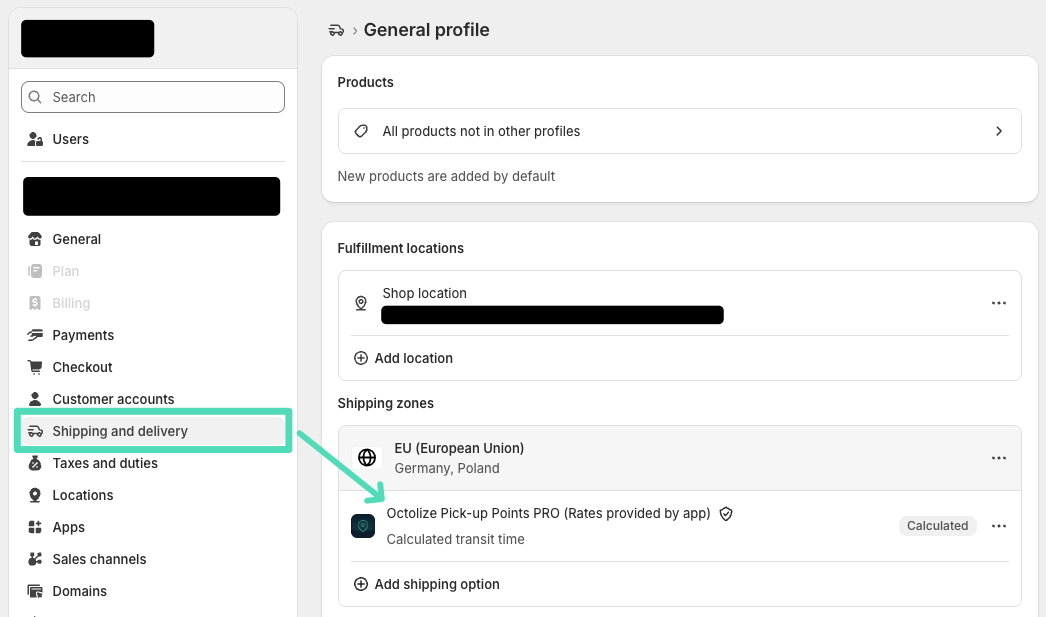
If for some reason this does not happen and the Octolize Distance Based Rates app’s rates have not been added there by default (i.e. if a given shipping zone was created after the app had already been installed), use the + Add shipping option button to do it manually.
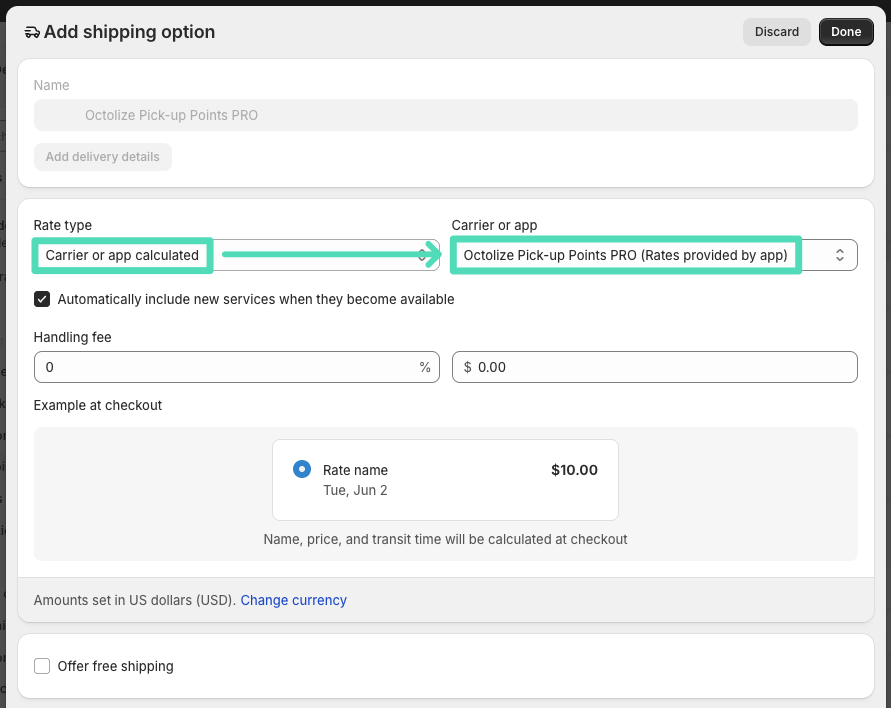
In the window that appears, select the following options in order:
- Rate type: Carrier or app calculated
- Carrier or app: Octolize Pickup Points PRO (Rates provided by app),
then confirm everything by clicking Done:
Once the app installation process is complete, you should be automatically redirected to the Carriers & Countries screen, but before we proceed with that, let’s take a moment first to take a closer look at…
Octolize Pickup Points PRO Global settings
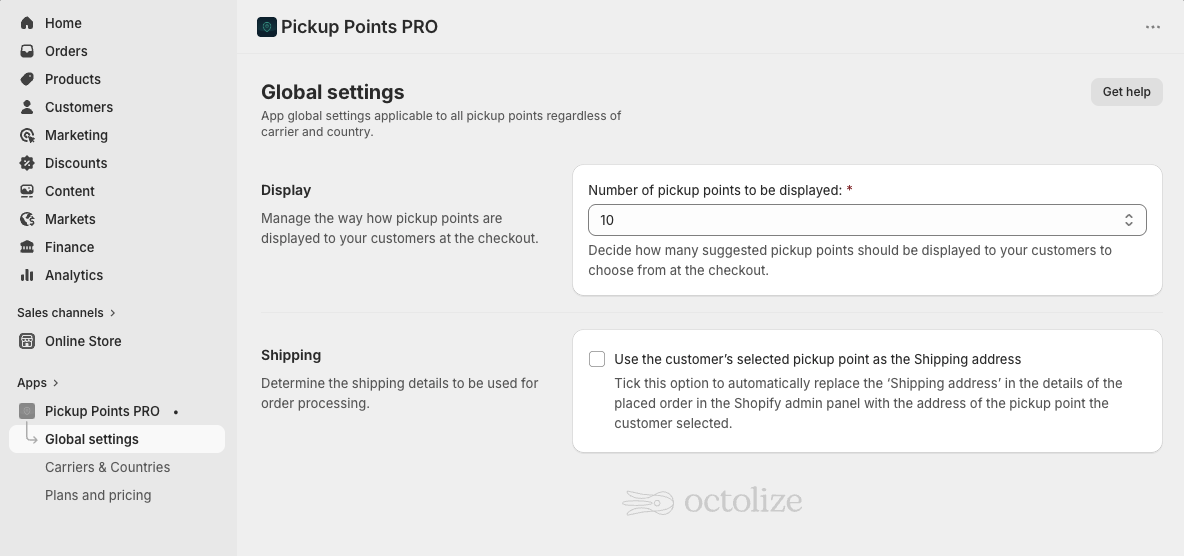
Display

Number of pickup points to be displayed – decide how many suggested pickup points should be displayed to your customers to choose from at the checkout.
Shipping

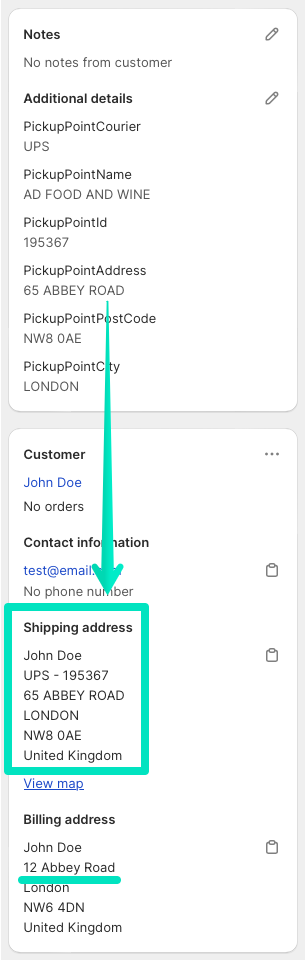
Use the customer’s selected pickup point as the Shipping address – tick this checkbox to have the ‘Shipping address’ automatically replaced in the order details with the address of the pickup point selected by the customer.
Carriers and Countries
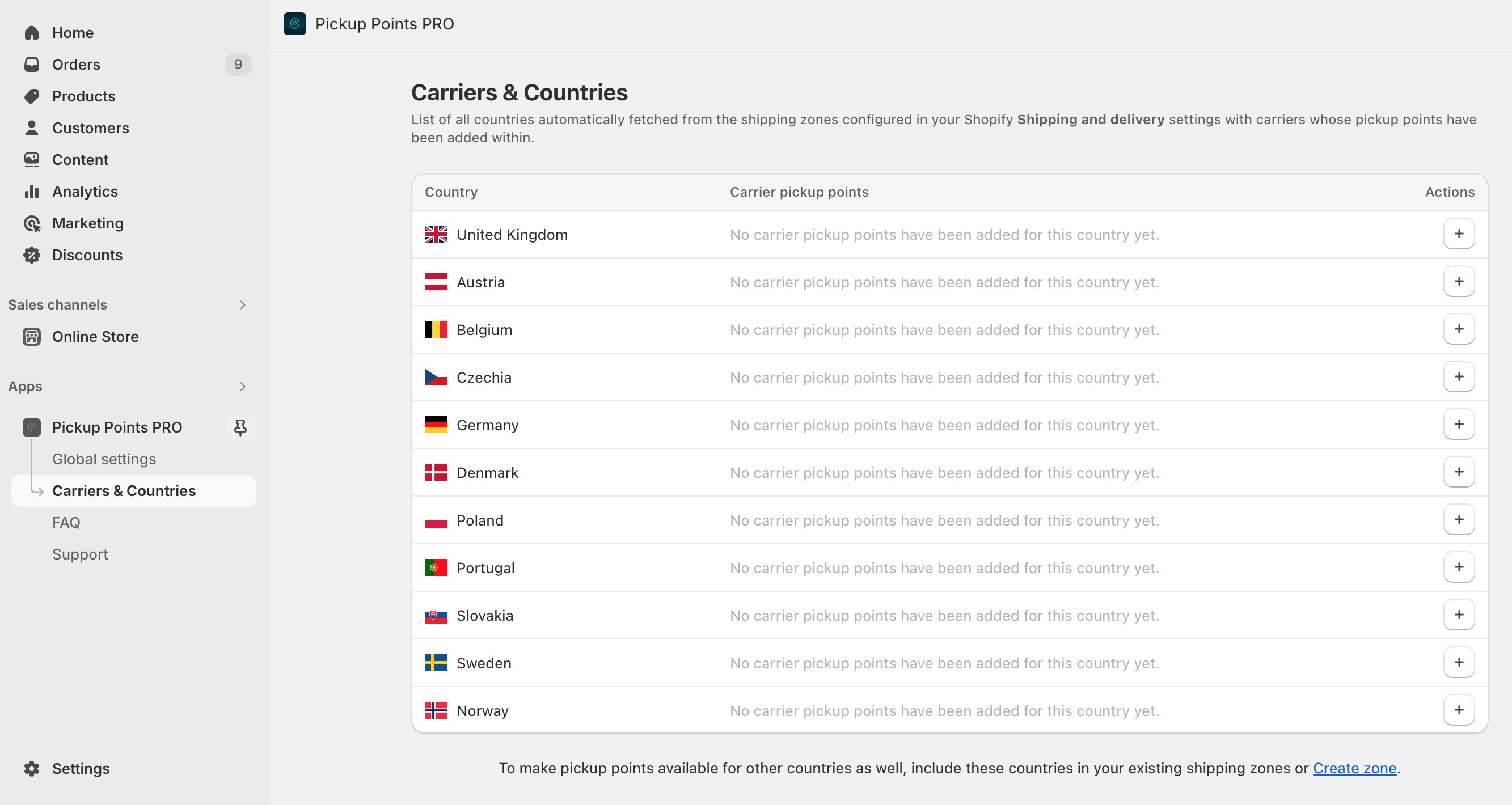
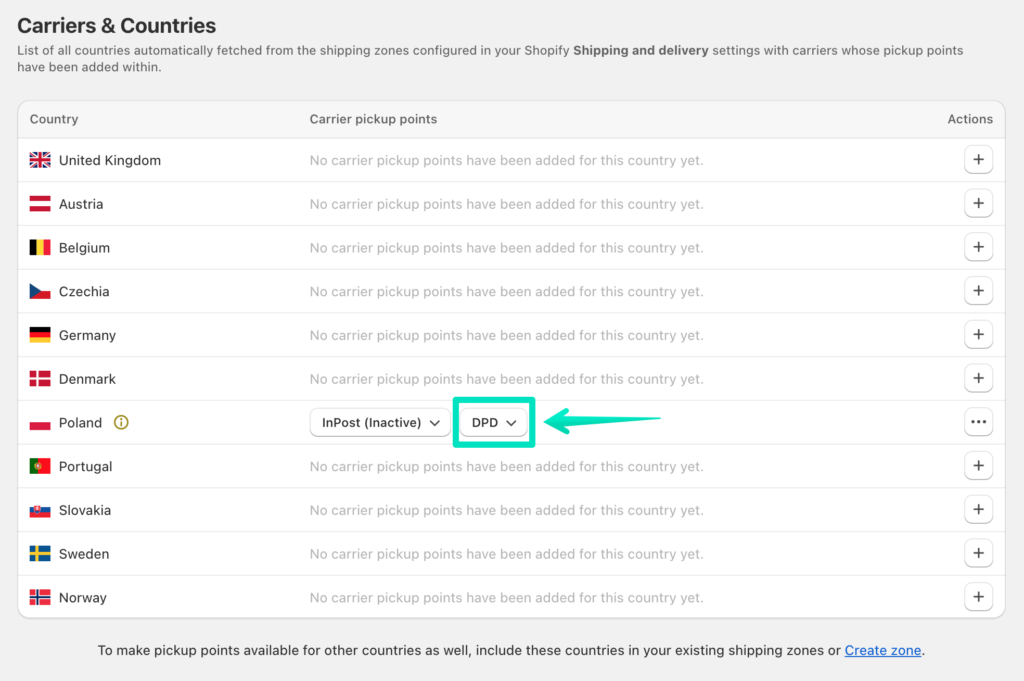
This page contains a table with all countries you are shipping to, automatically fetched from the shipping zones configured in your Shopify Shipping and delivery settings. It is also a place from where you will be able to manage what carrier pickup points should be available for shipping to each listed country.
If a country which you want to make pickup points also available for is not currently listed in the Carriers & Countries table, add it to an existing shipping zone in your Shopify Shipping and delivery settings or create a new zone including this country. Once it is added this way, it will also appear in the table.
Adding carrier pickup points for selected country
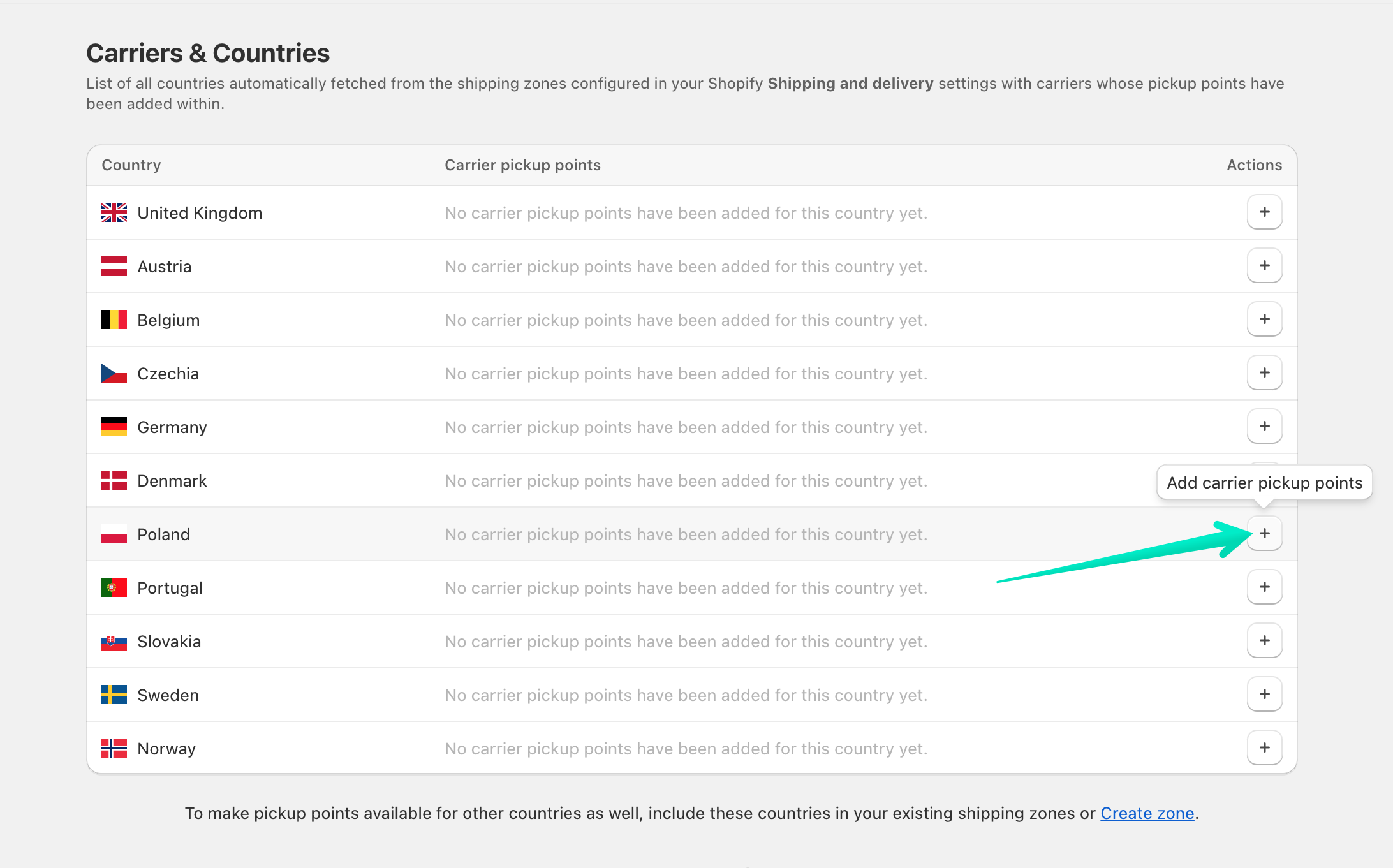
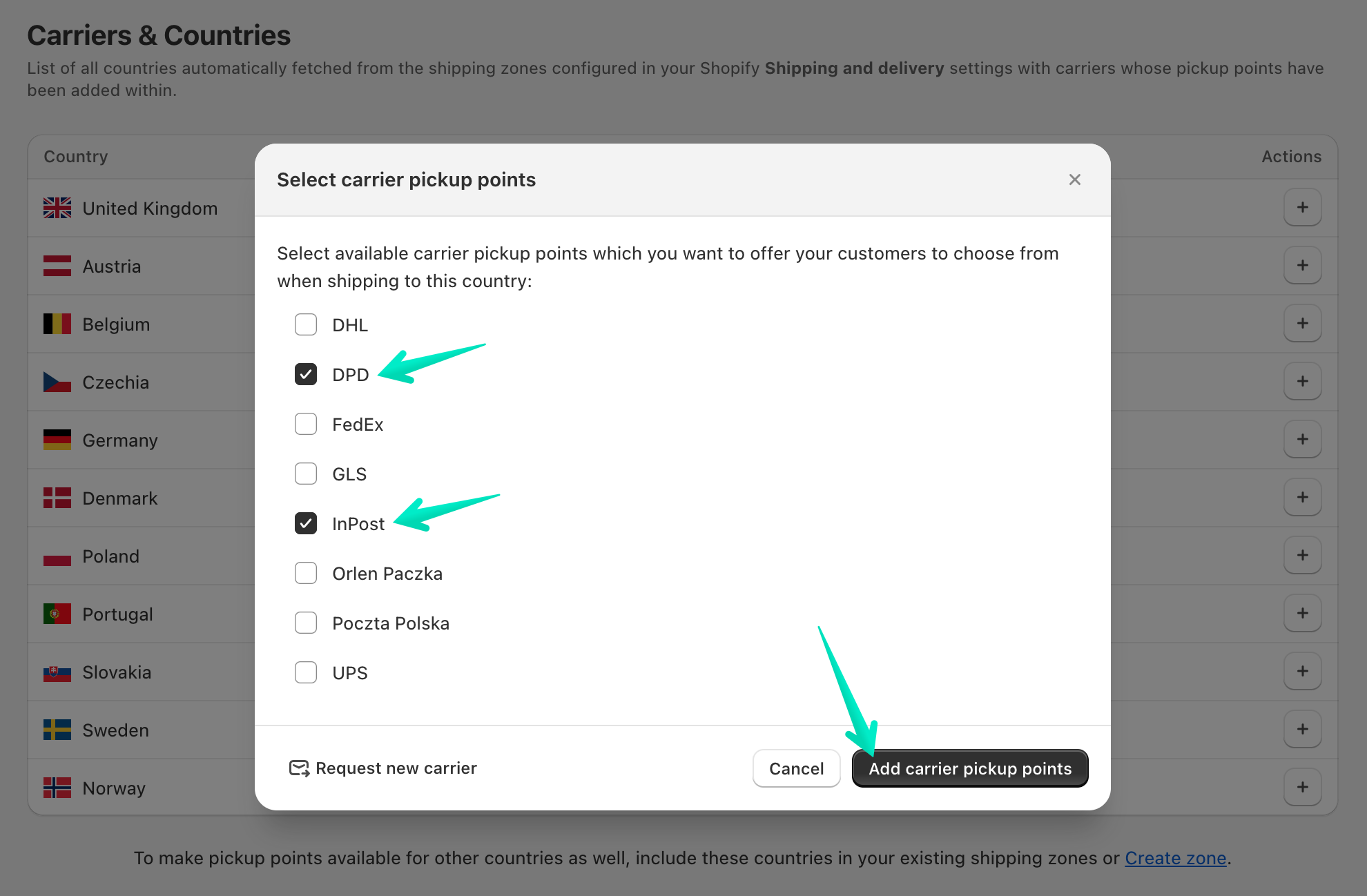
To add the specific carrier’s pickup points for shipping to the country where you want them to be available for, click the + plus button in the Actions column next to this respective country:
Carrier pickup points available in the app
The Octolize Pickup Points PRO app currently provides the pickup points of the following carriers:
- ACS
- AlzaBox (Česká pošta)
- Balíkovna (Česká pošta)
- BEX
- BOX NOW
- bpost
- bring
- Cargus
- Česká pošta
- Colissimo
- Correos
- Crosswin (Romania Express)
- dao
- Dexpress
- DHL
- DHL Express
- DPD
- DPD Relais France
- Econt
- Elta Courier
- Express One
- FAN
- FedEx
- FoxPost
- GAP Akis Express
- GLS
- Hermes
- Hrvatska Pošta
- InPost
- Lietuvos paštas
- Magyar Posta
- Matkahuolto
- Meest
- Mondial Relay (InPost)
- MRW
- NACEX
- Nova Post
- Omniva
- ORLEN Paczka
- Packeta
- Poczta Polska
- Pošta Slovenije
- Poste Italiane
- PostNord
- PPL
- Royal Mail
- Sameday
- Slovak Parcel Service
- Slovenská pošta
- Speedy
- UPS
- Venipak
- WEDO
- Zásilkovna
Please mind that the availability of specific carriers’ pickup points may vary depending on the country you are shipping to.
If the app is currently missing the specific carrier’s pickup points which you would like to use to ship your products to certain country, please let us know about it by clicking the Request new carrier button at the bottom, providing the name of the carrier you’d like to be added and sending the new carrier’s request.
The selected carriers’ pickup points will be added to the respective country:
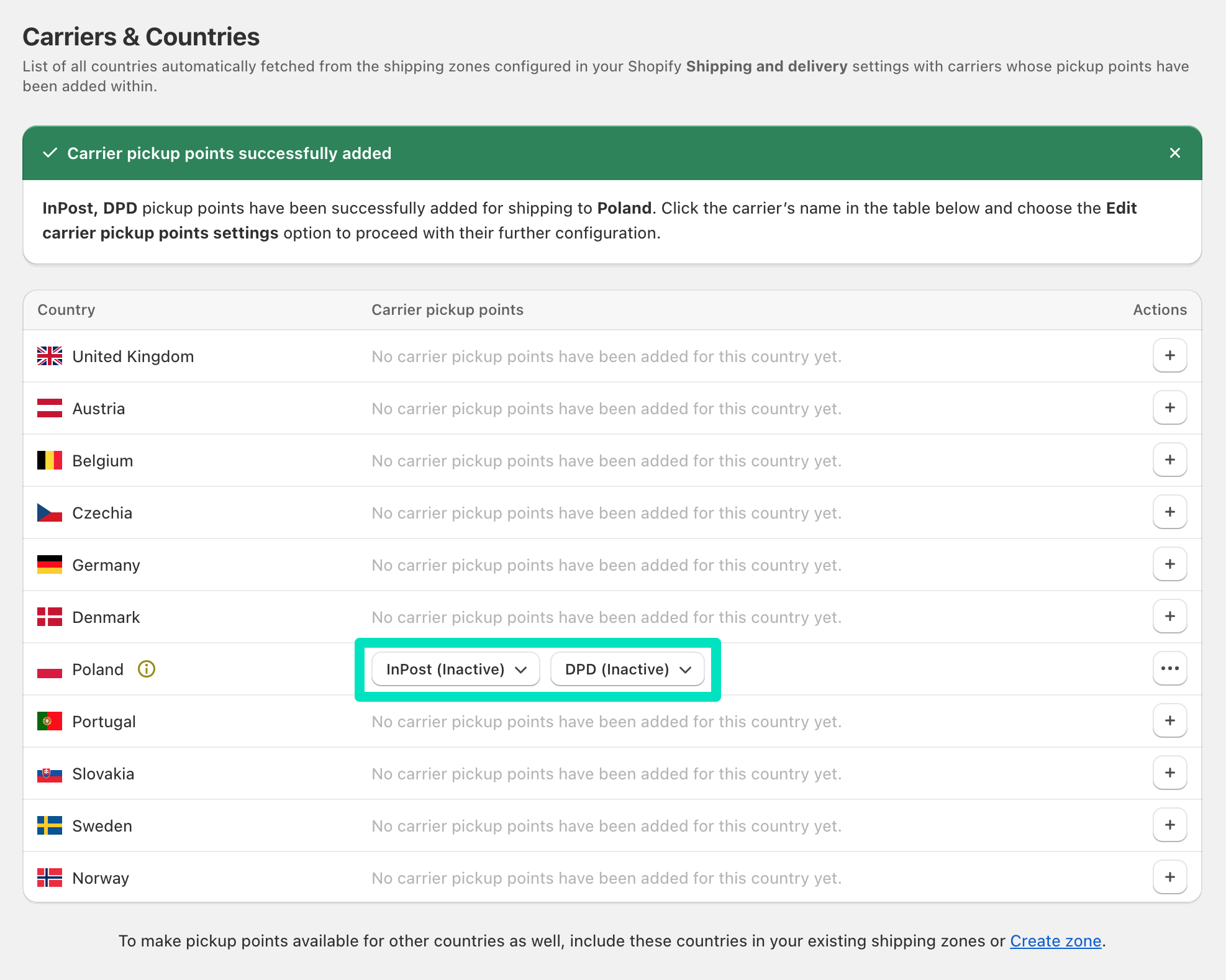
However, as you can see above, despite being added, they have (Inactive) status and they are not enabled yet. Click the carrier’s name to open the drop-down menu and choose the Edit carrier pickup points settings to proceed with its further configuration:
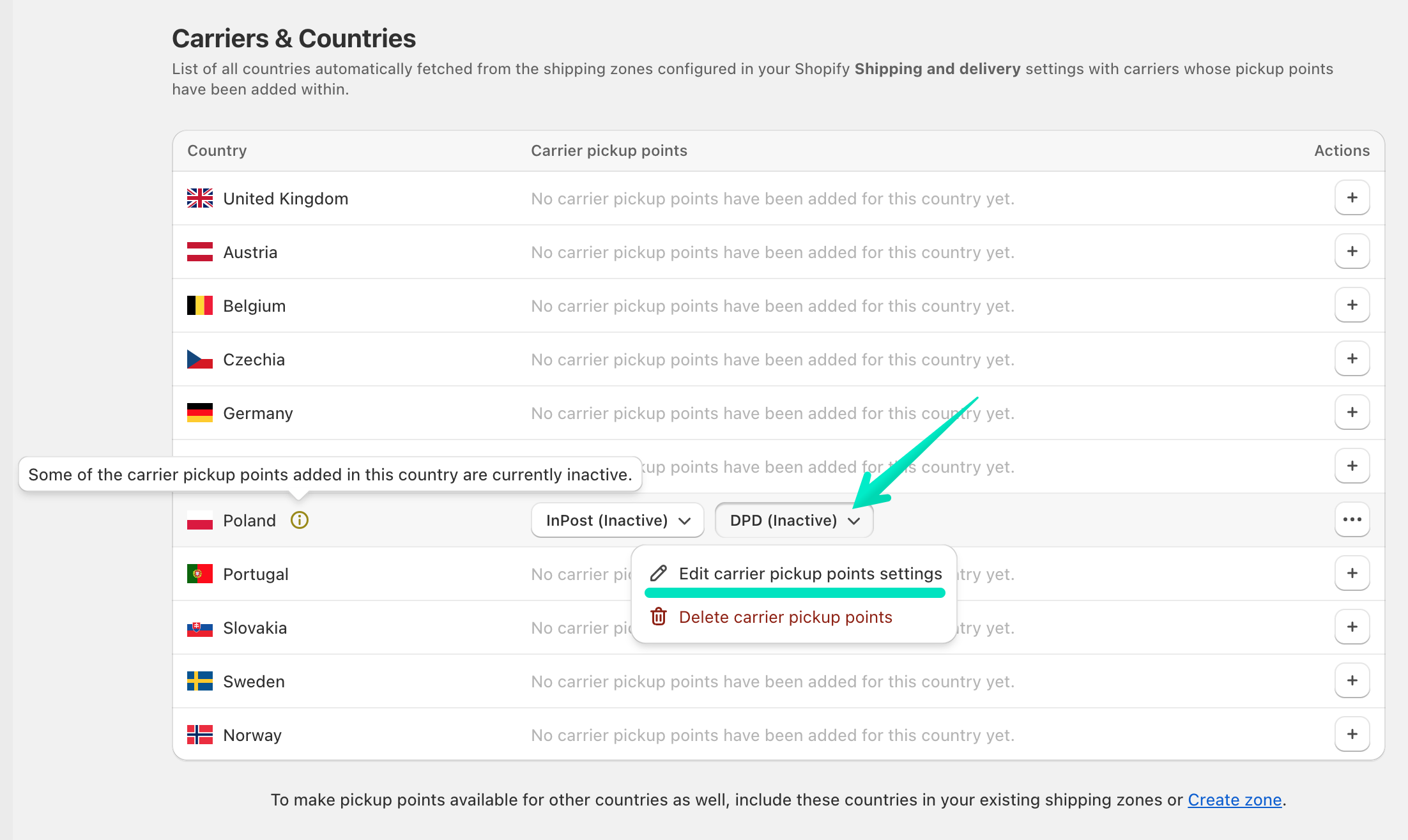
You will be redirected to…
Carrier pickup points configuration screen
…with the individual shipping settings for the pickup points of a specific carrier in that country:
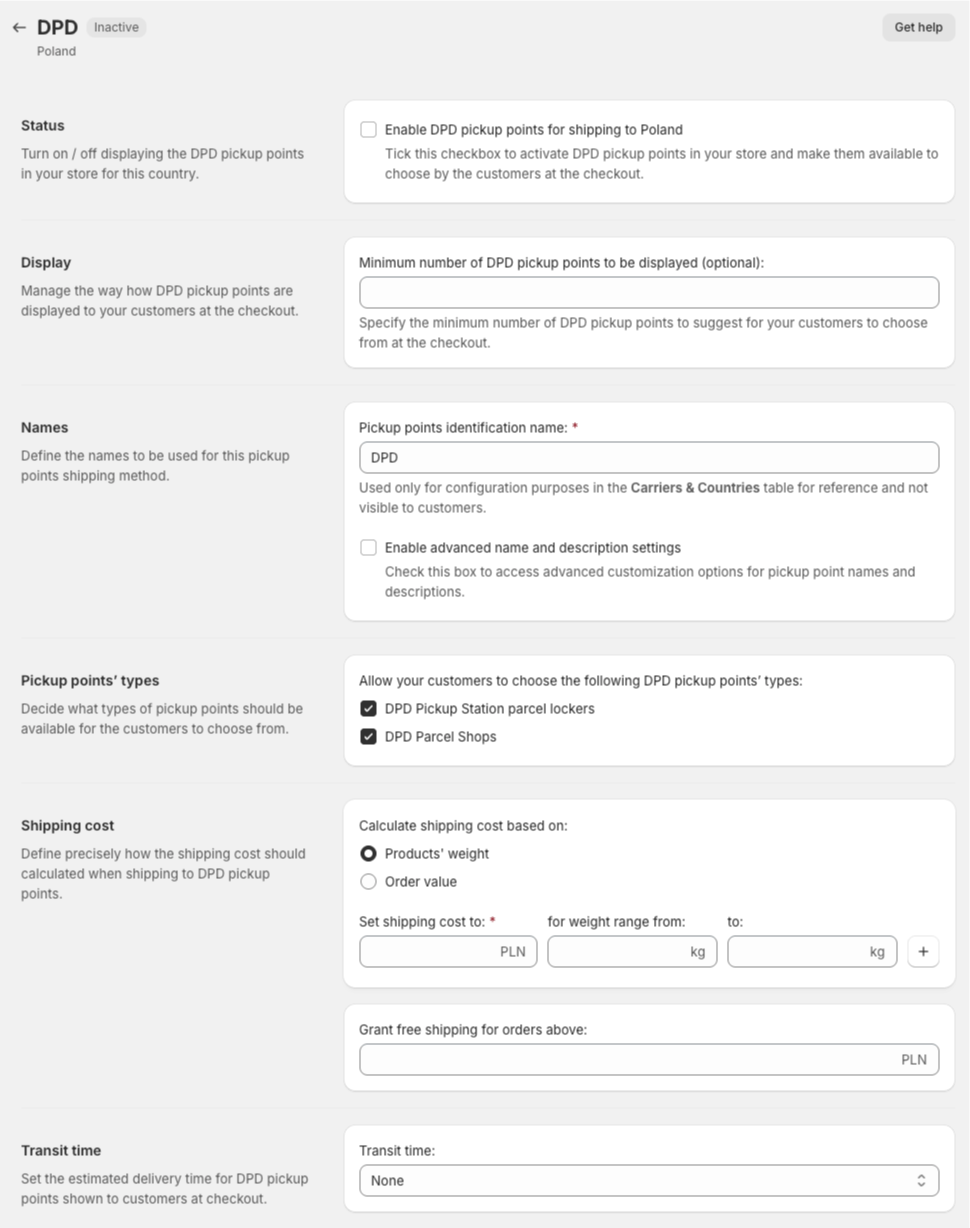
Status

Enable {carrier name} pickup points for shipping to {country} – tick this checkbox to activate the carrier’s pickup points in your store and make them available to choose by the customers at the checkout.
Display

In the section Minimum number of DPD pickup points to be displayed that is optional, specify the minimum number of {carrier name} pickup points to suggest for your customers to choose from at the checkout.
Names
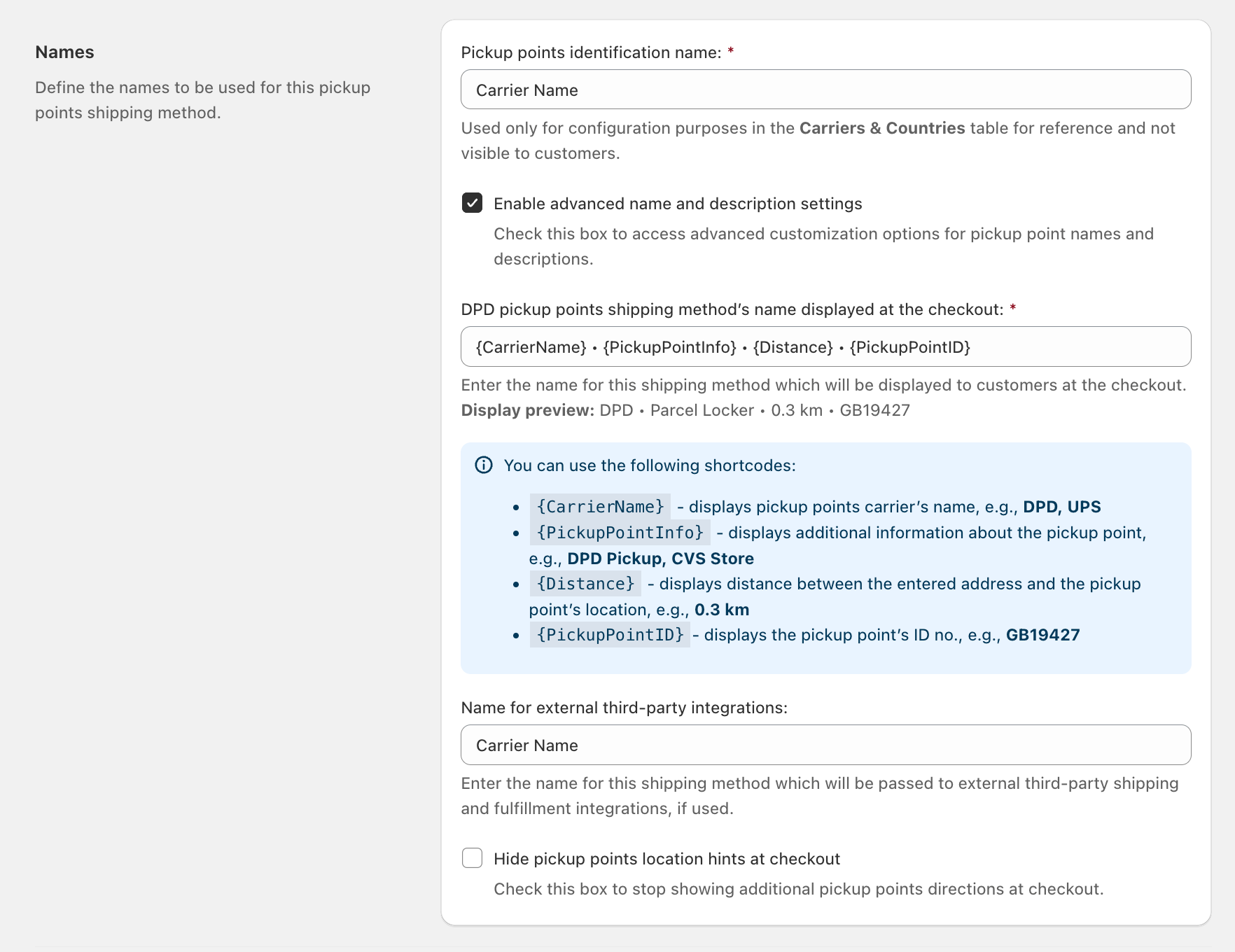
Pickup points identification name – enter an internal name (e.g., “DPD Pickup”) used only for your reference within the app’s Carriers & Countries table, and not visible to customers.
Enable advanced name and description settings – check this box to unlock additional customization options, allowing you to edit the specific names and descriptions that customers see during checkout.
{Carrier name} pickup points shipping method’s name displayed at the checkout: – use this field to customize the shipping method’s label customers see during checkout. You can use dynamic shortcodes to automatically pull and display the following data:
{CarrierName}– displays the name of the carrier (e.g., DPD, UPS, etc.),{PickupPointInfo}– shows additional details about the location (e.g., DPD Pickup, CVS Store),{Distance}– displays how far the point is from the customer’s entered address (e.g., 0.3 km),{PickupPointID}– displays the unique identification number of the pickup point (e.g., GB19427.
Name for external third-party integrations – enter the name for this shipping method that will be passed to external fulfillment or shipping software if you use third-party integrations.
Hide pickup points location hints at checkout – check this box if you want to stop displaying extra directional hints or location instructions to customers at checkout.
Pickup points’ types
Some carriers may also have additional options allowing to select the type of pickup point available for customers to choose from:

Shipping cost
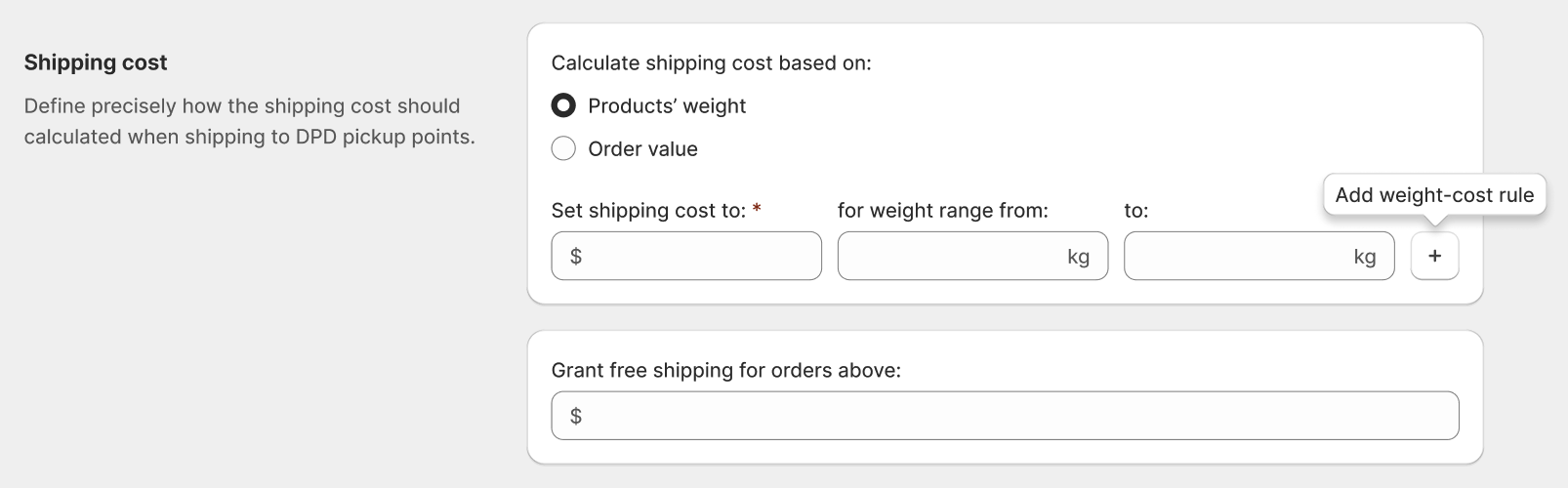
- Products’ weight – the shipping cost will be calculated based on the total weight of the products the customer orders,
- Order value – the shipping cost will be calculated based on the total price of the products the customer orders.
Set shipping cost to: – fill in these fields with the preferable value to define the shipping cost the customers should be charged with when they choose this shipping method to ship the ordered products.
for weight range / for order value from: / to: – define the weight or price range of the products in the cart the shipping cost defined above should be applied to.
Please mind that you can use the + plus button to add as many weight or price ranges as you need and configure the respective shipping cost for each of them:
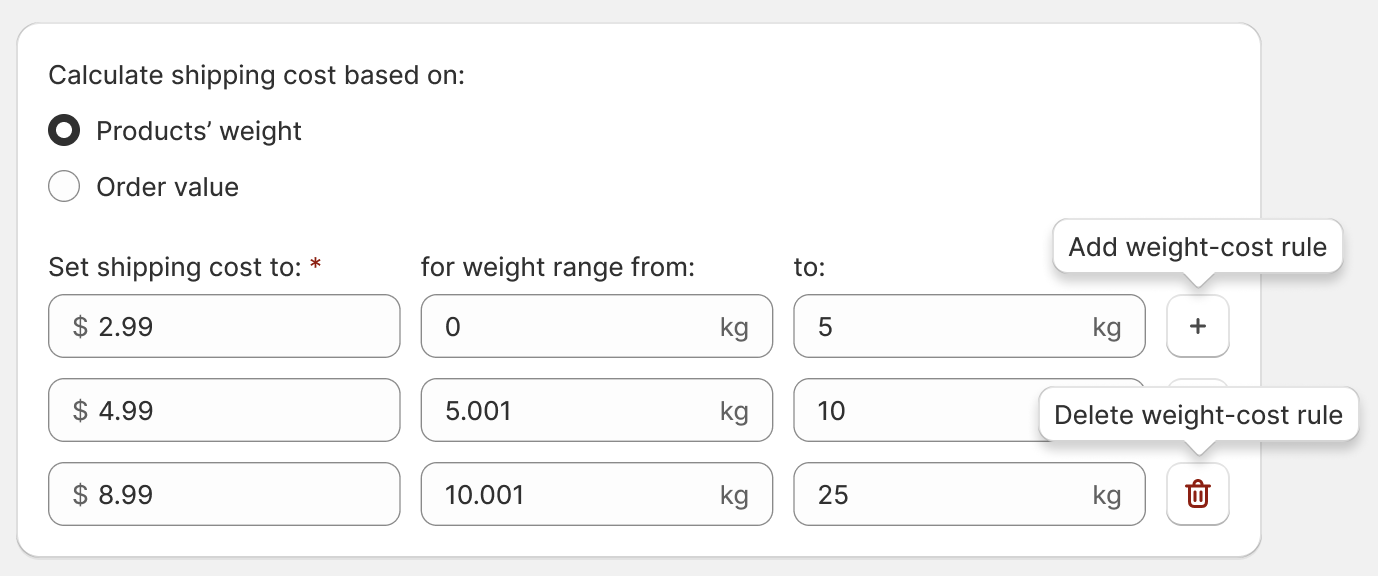
as well as delete the unnecessary weight or price rules with the Trash button.
Grant free shipping for orders above: – set the free shipping threshold and enter the order price value which, once reached, will result in granting your customers the free shipping.
Transit time

- None – estimated delivery times for pickup points won’t be displayed at checkout,
- 1 to 2 business days,
- 3 to 5 business days,
- 5 to 8 business days,
Custom – choose this option to enter your own custom delivery time range:
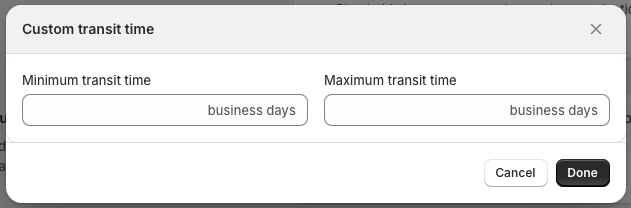
Complete the configuration according to your needs and confirm all the changes you’ve made here by hitting the Save button at the top of the screen.
Please make sure the Enable {carrier name} pickup points for shipping to {country} checkbox at the top of the screen has been ticked to make pickup points available to choose by your customers at the checkout.
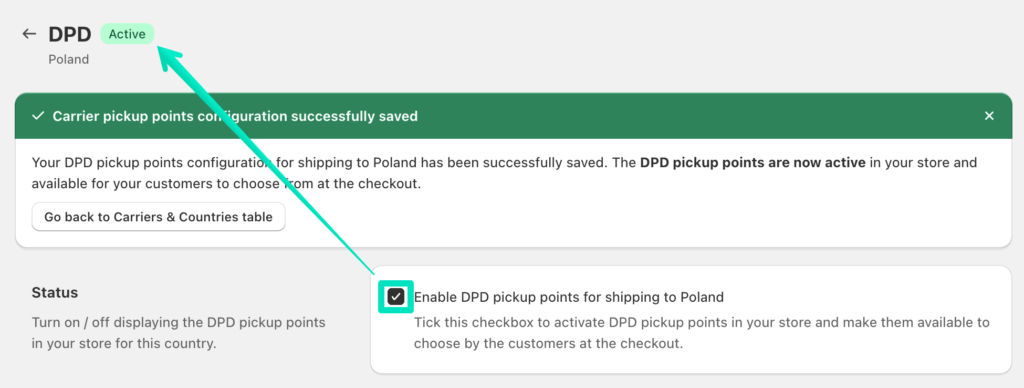
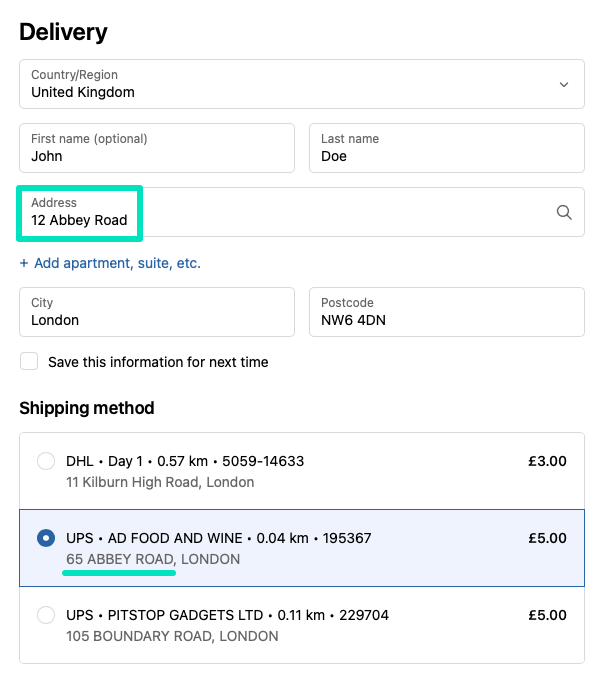
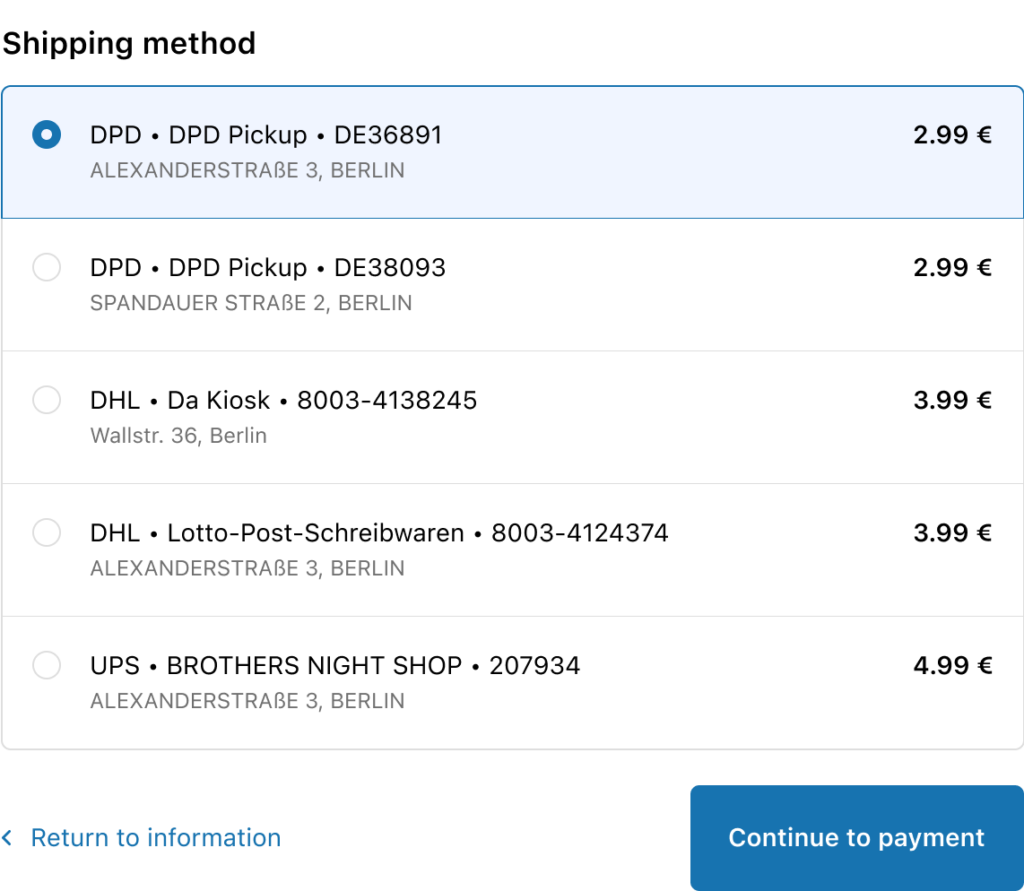
The pickup points should be available from now on to choose by your customers at the checkout and should be displayed the way similar to this below but with the carriers you have added and the prices you’ve configured:
If you added multiple carrier pickup points to a country, e.g., DPD and InPost, DHL and UPS, etc., please simply repeat for them all the configuration steps described above the same way.
Saving the information about the customer’s selected pickup point to the order details
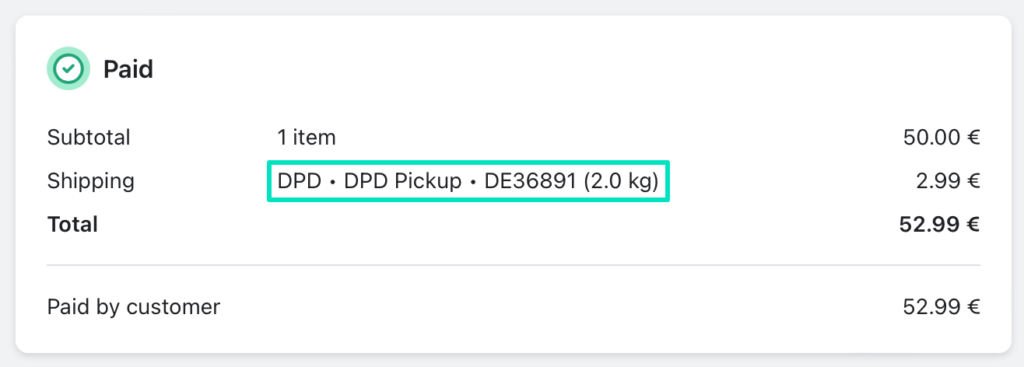
When the customer places an order and selects the pickup point as preferred shipping method, the information about their choice will be saved to the order details:
Passing the selected pickup point to the 3rd party integrations
The Octolize Pickup Points PRO app allows you not only to save the information about the pickup point the customer selected to the order details, but also to pass it further to the external shipping integrations, such as BaseLinker, etc.
If you use such 3rd party integrations in your store, the information about the selected pickup point along with its ID and other details can be passed from the order details to the target integration.