
Debug Mode
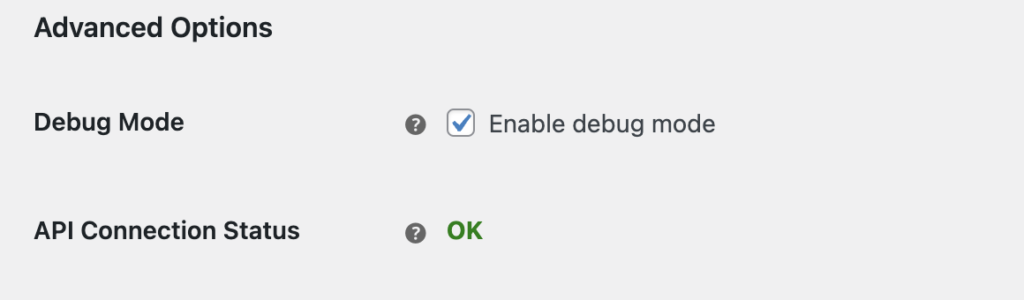
Enabling the Debug Mode in general settings of Canada Post Live Rates plugin will let you identify and analyze the problems with Canada Post services price calculation. The additional tech information, incl. the data sent to Canada Post API, all the requests, responses and the error messages coming back from the Canada Post API will be displayed in the cart and on the checkout page:
All the notices and data coming from enabled Debug Mode will be visible only for the Site Administrators and Shop Managers. Your customers, no matter if they are guests or logged in, won’t see any unnecessary info on the shop’s front.
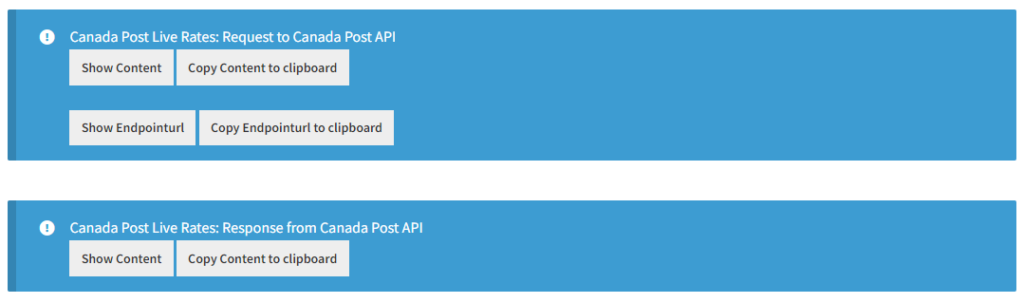
Checking a REST API quote
- Open WooCommerce → Settings → Shipping → Canada Post Live Rates.
- Enable Debug Mode and save the settings.
- While signed in as an Administrator or Shop Manager, open the cart or checkout with a physical product and a valid delivery address.
- Review the request, response, and any error messages.
REST diagnostics use Request to Canada Post REST API and Response from Canada Post REST API entries. Request data is listed under mailingScenario, including quoteType, parcelCharacteristics, originPostalCode, and destination. Commercial requests can also include customerNumber and contractId. Response data is listed under quotes.
Legacy diagnostics use the older request format, so examples may look different. Include the selected API Type when contacting support, and remove credentials, tokens, and personal data from shared diagnostics. Disable Debug Mode when you finish.