Currency
If your FedEx account is registered, for instance in US, then you have to use USD as the base currency. The currency of the store needs to be consistent with the currency of the FedEx account – you can also utilize the Rate Currency feature. Please, bear in mind that LTL feature is available from US to US, Mexico, and Canada.
Method Settings
Method Title
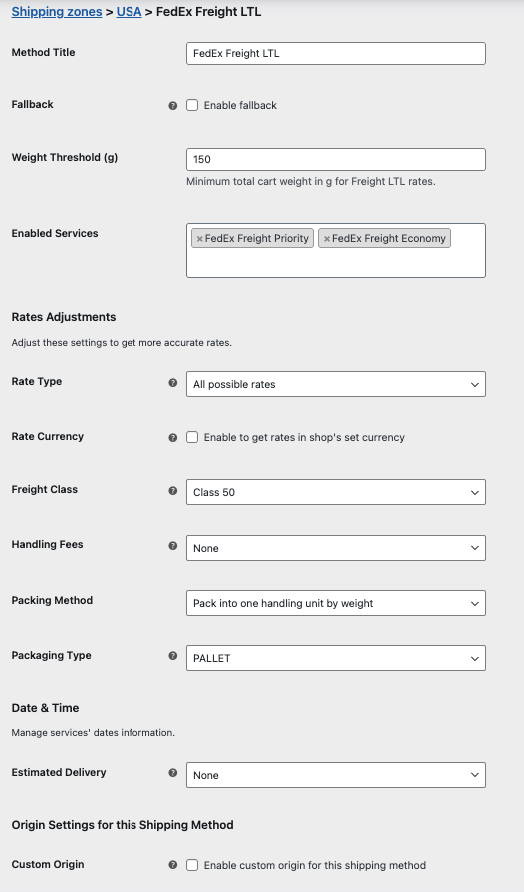
– set method title that will be displayed in the checkout page when fallback will be enabled.
Fallback
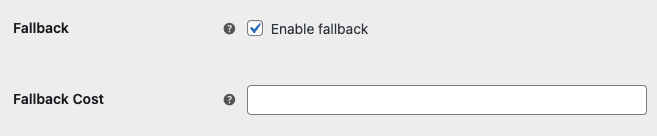
– tick this checkbox to enable the flat rate fallback cost if the FedEx API response won’t return any services available. The FedEx services may be unavailable for several reasons e.g. missing or incorrect order data (weight, sender’s / recipient’s addresses) but also the FedEx API connection issues. After the checkbox is ticked the following Fallback Cost field will appear:
Weight Threshold
– insert the minimum weight threshold from which Freight services will be available
Enabled Services
– choose Freight services to display. There are two of them available at this moment: FedEx Freight Priority, FedEx Freight Economy.
Rates Adjustments
Rate Type
– define which rates type should be used choosing from All possible rates (default), List rates or Account rates.
In order to obtain the Account rates on your FedEx account please contact FedEx support to activate them first.
If you already have the Account rates assigned and activated on your FedEx user account but want to display the standard ones (List rates) to your customers, please choose the Rate Type: All possible rates option.
Rate Currency
– Select this option if you sell in other currency then it is set on your FedEx account. FedEx account’s currency is used by default.
Freight Class
– Choose the freight class used for rating shipment the line items.
Handling Fees
– This option allows you to add a commission or rebate to rates collected from FedEx. The setting is global, which means that commissions will apply to all bids on the order page. To add a rebate just enter negative value.
Possible ways to calculate fees:
- Fixed,
- Percentage.
Packing Method
Possible options to choose from:
- Pack into one handling unit by weight – this is the default method for calculating bids. Allows you to choose the FedEx standard packages including pallet, pallet_half, skid, carton.
- Pack items separately – each product is a separate box in one shipping. Allows you to choose FedEx standard packages. Allows you to choose the FedEx standard packages including pallet, pallet_half, skid, carton.
- 3D bin packing – allows you to choose FedEx packages: Standard Pallet, Half Pallet, Skid, Large Carton or create your own custom box. For more details read: 3D bin packing – How the fitting algorithm works(PRO)
- Volume packing – allows you to choose FedEx packages: Standard Pallet, Half Pallet, Skid, Large Carton or create your own custom box. For more details read: Volume packing – How the fitting algorithm works(
PRO)
Packaging Type
- Choose the type of packaging which will be used when items are packed into one handling unit or separately.
Date & Time
Estimated Delivery
– A feature allowing to display to your customers the estimated delivery time for the ordered products. You can choose from three options here:
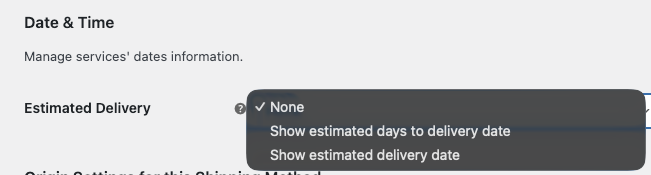
- None – the estimated delivery time won’t be displayed at all.
- Show estimated days to delivery date – display the amount of days of how long it should take to deliver the ordered products.
- Show estimated delivery date – display the exact date the ordered products will be delivered.
Origin Settings for this Shipping Method
Custom Origin
– The FedEx plugin uses the shop’s origin entered in the WooCommerce settings WooCommerce → Settings → General → Store Address by default. However, you can define a different shipper’s address for each Shipping Method – resulting in multiple custom origins.
For example, if you have one warehouses for each shipping region, you can assign the Custom Origin using the fields below:
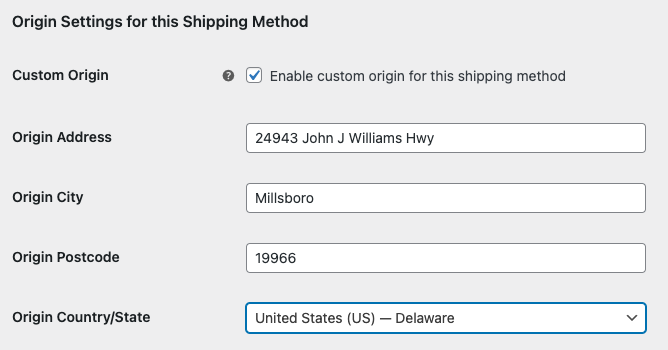
Please remember that you can also assign the Custom Origin on the FedEx configuration screen. When using this feature the following priority order is used:
- Custom Origin for this Shipping Method.
- Custom Origin in the FedEx configuration screen.
- Default WooCommerce Store Address.
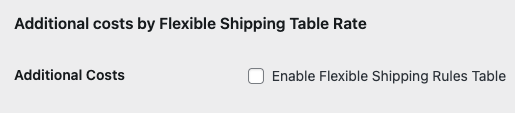
Additional costs by Flexible Shipping Table Rate
Find more details in FedEx – Additional costs by Flexible Shipping Table Rate.
AI assistant
In version 5.3.0, we have introduced an AI assistant. In this way, you can chat with our assistant about your configuration issues and even contact our support team.