
Canada Post – How to get the REST API Key and API Secret?
Canada Post Live Rates supports the new Canada Post Developer Portal connection through API Type → REST API. To connect, you need the API Key and API Secret issued for your application. These correspond to OAuth client_id and client_secret. The plugin obtains access tokens automatically.
Legacy API Key Username and API Key Password belong to a separate connection type. Your Canada Post website password and Octolize subscription key are also separate credentials.
Prepare your Canada Post account
Open the Canada Post Developer Portal and sign in. New users should register a business profile and accept the portal terms. If your account has several customer numbers, select the organization for this store. See the official setup guide.
Create an application
- Open Apps in the portal navigation after signing in.
- Select Create new app.
- Choose Production for live store rates. The app type cannot be changed later.
- Enter a name, for example WooCommerce – My Store, and optionally a description.
- Select Create.
- Save the API Key and API Secret. The secret is shown only once.
These steps follow the Canada Post app creation guide.
The plugin uses the production REST endpoint and provides no REST environment switch. Use Production credentials for live rates.
Add the Rating API product
In the app’s API products section, select Add API product, choose Rating, select Get access, and confirm. See the portal guide and Rating overview.
Rating provides shipment prices. Canada Post Live Rates uses it to calculate shipping costs in WooCommerce.
Enter the credentials in WooCommerce
- Go to WooCommerce → Settings → Shipping → Canada Post Live Rates.
- Under API Settings, select REST API in API Type.
- Copy the application’s API Key into API Key and the matching secret into API Secret.
- For discounted rates, enter Customer Number. If you have a commercial contract, enter its Contract ID as well. Solutions for Small Business members and business users without a commercial contract should leave Contract ID empty.
- Select Save changes and check API Connection Status.
- Open each Canada Post method in your shipping zones and review Rates Adjustments → Quote Type. Select Commercial for account rates or Counter for regular retail rates.
- Check the cart with a physical product and a valid delivery address.
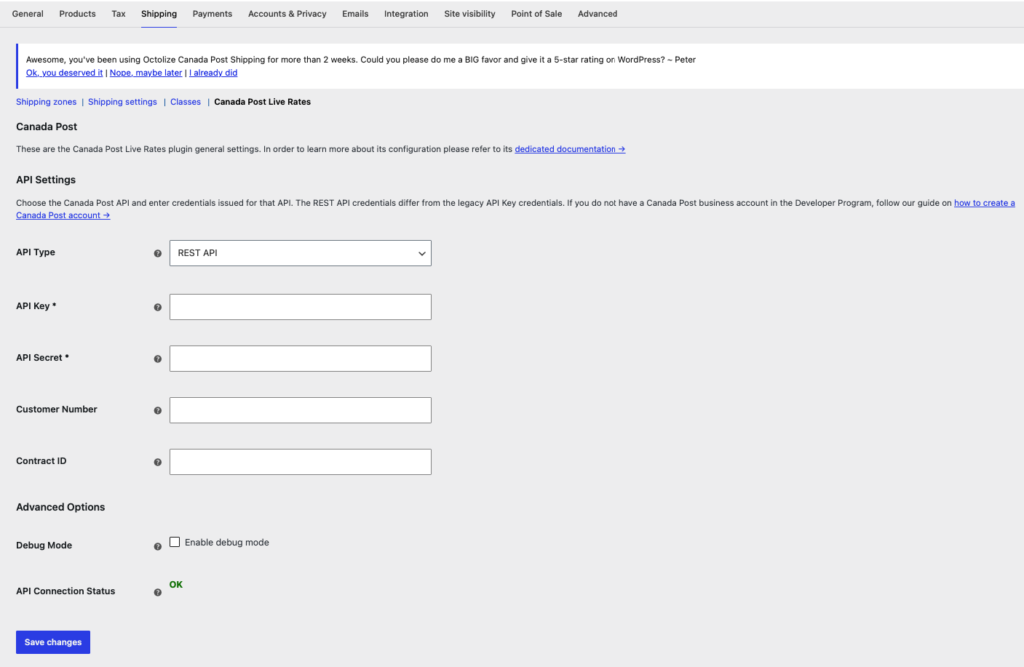
A successful connection check confirms access using a sample Counter quote. Verify an actual cart to check your account rates and shipping method settings.
See General Settings for details or REST API troubleshooting if the connection fails.
If you did not save the secret
Use the menu under Credentials to reset it, then update API Secret in WooCommerce. See Canada Post’s credential instructions.