
- Home
- WooCommerce
- What plugin are you looking for?
- Shopify
- Find my product
- About us
- Blog
- Docs
- Contact us
- What can we help you with?

A WooCommerce shipping calculator is a tool that calculates how much a customer pays for delivery, based on rules such as weight, order total, or destination. WooCommerce can’t do this on its own beyond flat rates and simple formulas, so most stores add a table rate plugin such as Flexible Shipping. It is free and has 100,000+ active installations (WordPress.org, November 2026).
In this guide, I’ll show you how to work out what shipping really costs you, choose the right calculation model, and build a WooCommerce shipping cost calculator step by step. The worked examples can be copied straight into your store.
| What you need to know | Detail |
|---|---|
| Start with your real cost | Shipping charge = carrier rate + surcharges + packaging + handling (+ insurance) – the share you choose to absorb. |
| WooCommerce alone can’t do tiers | Native methods can’t set different prices for different weight or order-value ranges. Flexible Shipping (free) adds both. |
| Carriers bill the higher weight | Billable weight is the greater of actual and dimensional weight. UPS and FedEx divide volume by 139 (in³/lb) or 5,000 (cm³/kg). |
| Accuracy affects sales | 40% of US shoppers who abandon a purchase (excluding “just browsing”) cite extra costs such as shipping. 71% have abandoned a cart over unanticipated shipping fees. |
A WooCommerce shipping calculator is the logic that works out the shipping cost for a cart, using weight, order total, destination, or other rules. Don’t confuse it with the calculator widget that shows the result to customers on the cart or product page. That widget is only the display.
| What you want | Solution | Guide |
|---|---|---|
| Calculate the cost by rules (weight, price, quantity…) | Table rate plugin, e.g. Flexible Shipping | This guide |
| Let customers check shipping on the cart page | Built-in WooCommerce setting | WooCommerce Shipping Options |
| Show an estimate on the product page | Free Shipping Cost on Product Page Calculator | Shipping cost on product page |
| Get real-time carrier prices | Live rates plugins | Top free WooCommerce shipping plugins |
For pricing strategy, free shipping, and promotions, see our tips for managing shipping costs.
WooCommerce calculates shipping in three steps: it matches the customer’s address to a shipping zone, shows the shipping methods configured in that zone, and then each method works out its own cost from a fixed price, a formula, or a shipping class. Native methods don’t use product weight or dimensions, so they can’t price by weight or order-value ranges.
WooCommerce runs the same sequence on every cart: address, zone, method, cost, tax.
| Step | What WooCommerce does | Where you control it |
|---|---|---|
| 1. Address | Takes the customer’s shipping address (or billing address, depending on your setting) to find the destination | Shipping options → Shipping destination |
| 2. Zone matching | Checks your zones from top to bottom and applies the first one that matches. A customer belongs to only one zone, and unmatched addresses fall into “Locations not covered by your other zones”. | Shipping zones |
| 3. Methods | Shows every shipping method added to that zone, and the customer picks one | Zone → Add shipping method |
| 4. Cost | Each method calculates its own cost (see the next table) | Method settings |
| 5. Tax | Adds tax according to the method’s tax status | Shipping tax |
| 6. Display | Shows the total in the cart and checkout. Shipping rates are cached, so changes may not appear immediately. | Shipping options → Debug mode |
Flat Rate uses a fixed amount or a formula, Free Shipping applies a condition, and Local Pickup charges nothing unless you add a cost.
| Method | How the cost is calculated | Example |
|---|---|---|
| Flat rate | A fixed amount, or a formula using [qty] (number of items), [cost] (total cost of items), and [fee percent="" min_fee="" max_fee=""] (percentage of the order) |
10 + (2 * [qty]) = $10 plus $2 per item |
| Flat rate with shipping classes | Adds a cost per shipping class. Per class charges each class individually, Per order charges only the most expensive class. | Heavy class $10 + Small class $1: per class = $11, per order = $10 |
| Free shipping | $0 when a condition is met: a minimum order amount, a coupon, or both | Free over $100 |
| Local pickup | The customer collects the order; you can add an optional fixed cost | $0 |
Native methods can only scale with item count, order value, or shipping class. They can’t apply different prices to different ranges. You need a table rate plugin for anything beyond that:
This is exactly what a table rate plugin does. Read What Is Table Rate Shipping?, or jump to the step-by-step setup with Flexible Shipping below.
Because unexpected shipping costs are the most common reason shoppers abandon a purchase. A calculator that is too generic costs you in both directions. Customers in cheap-to-ship areas feel overcharged and leave, while heavy and distant orders eat your margin.
| Statistic | Source |
|---|---|
| 70.22% average cart abandonment rate (average of 50 studies) | Baymard Institute, 2026 |
| 40% of US shoppers who abandon (excluding “just browsing”) cite extra costs: shipping, tax, fees. This is the top reason. | Baymard Institute, 2026 |
| 71% abandoned items in their cart because of unanticipated shipping fees | Ryder 2026 E-commerce Consumer Study (1,160 US shoppers, March 2026) |
The main factors are package weight, package size, the value of the shipped products, distance, shipment volume and carrier contract, and delivery time. Weight is usually the most important one, which is why weight-based shipping is the most common starting point for WooCommerce stores.
In many cases, the weight of the parcel is the most important factor. Each carrier has its own terms for weight and size limits, and the courier’s price list is usually built around weight. That’s why weight-based shipping is so popular in WooCommerce. The total weight of all products in the cart determines the shipping charge, and you can build it with the free version of Flexible Shipping. To learn more, see our weight-based shipping tutorial, or Example 1 below.
Weight alone isn’t enough for light products with large dimensions or irregular shapes. Many carriers therefore use dimensional weight, also known as DIM or volumetric weight. It reflects how much space a package occupies in relation to its actual weight:
(Length × Width × Height) ÷ DIM factor = Dimensional weight
The carrier compares it with the actual weight and bills the higher figure. For UPS and FedEx domestic shipments, the DIM factor is 139 (in³/lb), or 5,000 for cm³/kg, but carriers update it, so check your carrier’s current value (ShipStation’s overview). For example, a 16 × 12 × 10 in box is 1,920 in³, which divided by 139 is about 13.8 lb. If the box weighs 6 lb, you are billed for about 13.8 lb.
The value of the products can add insurance and other costs to the shipping charge. The declared value is the amount you tell the carrier your shipment is worth. UPS and FedEx both include $100 of liability per package at no extra charge, and a higher declared value costs extra (UPS, FedEx). For international orders, valuable items may also trigger duties or other charges. In Flexible Shipping, a fixed insurance fee works in the free version, and a percentage of the order total needs PRO. If you want to learn more, check our article about shipping insurance in WooCommerce.
This factor seems the most obvious: the more distance a package has to travel, the higher the shipping cost should be. In WooCommerce, you can set up separate shipping methods for each shipping zone and adjust your prices by distance. Learn more in WooCommerce Shipping Zones Explained. For rates calculated from the actual distance, see the distance based shipping calculator.
For larger stores, shipping rates can be negotiated individually. Carriers such as UPS offer negotiated rates that depend on your shipment volume, and other carriers work similarly. Your negotiated rate is the input to your formula, so update your shipping rules whenever your contract changes.
Depending on the origin and destination, carriers offer standard, express, and time-specific services, each with its own pricing. Shorter transit times cost more, and speed matters to shoppers: 39% of US online shoppers now expect delivery within one to two days, a four-year high (Ryder 2026). That makes it worth showing different shipping options by delivery time, and sometimes hiding a method at certain times. For example, show fast weekend delivery only shortly before the weekend, and same-day delivery only before noon. Flexible Shipping PRO supports time-of-day and day-of-week conditions.
Once you know which factors apply to your store, the next step is to write them into a formula.
Before you create a full-featured shipping calculator in WooCommerce, there are three important topics you should cover.
It’s more than the carrier’s price. Your real cost is the carrier rate plus surcharges, packaging, handling, and insurance:
Shipping charge = carrier rate + surcharges + packaging + handling (+ insurance) – the share you choose to absorb
Surcharges can be large. In 2026, FedEx Additional Handling runs $27-$47 per package and UPS $27-$59, depending on the trigger, according to Shippo.
Choose the model whose input best predicts your real cost.
| Model | How the cost is calculated | Best for | Watch out for | Plan | Guide |
|---|---|---|---|---|---|
| Flat rate | One fixed price per order | Uniform, small products | Over- or undercharging heavy orders | Native | Shipping methods |
| Price-based | Cost depends on the order total | Simple stores with a free shipping goal | Order value doesn’t reflect real cost | Free | Shipping cost by price Free shipping over an amount |
| Weight-based | Cost depends on cart weight | Variable or heavy products | Every product needs a weight | Free | Weight-based shipping tutorial |
| Quantity / per item | Cost per item or per quantity range | Uniform items | Ignores weight differences | PRO | Shipping cost per item Quantity based free shipping Shipping per product |
| Class / category | Cost depends on product type | Mixed catalogs | Classes must be assigned to every product | PRO | Shipping classes Shipping by product category Free shipping for specific products |
| Dimensional weight | Cost depends on package volume | Bulky, light products | Needs dimensions on every product | PRO | Rates based on boxes |
| Distance / zone | Cost depends on destination | National and international sales | Zone order matters | Native zones / add-on | Shipping zones Distance based shipping calculator |
| Live rates | Real quote from the carrier’s API | Stores shipping with one carrier | Needs weights, dimensions, and API credentials | Free and paid plugins | Top free WooCommerce shipping plugins |
Not sure which approach fits your store? See our guide to automating shipping cost calculations in WooCommerce, which compares flat rate, table rate, live rates, and multi-carrier software.
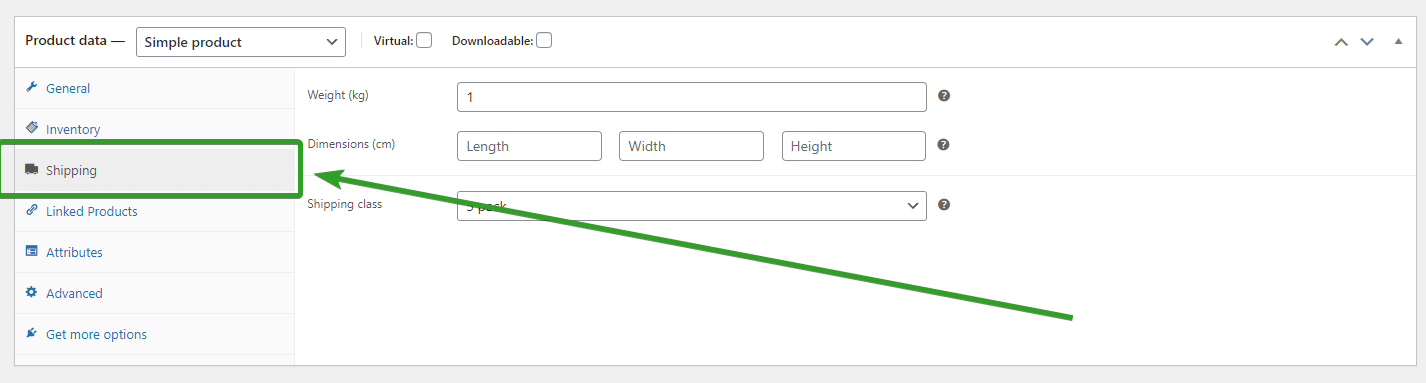
No calculator works without product data. Make sure every product has its weight (and dimensions, if you use them) filled in under Product data → Shipping. Check that the weight unit matches what you use in your formula.
Install Flexible Shipping, add a Flexible Shipping method to a shipping zone, fill in the method settings, and build your formula in the cost calculation rules table. It takes about 5-10 minutes. Just follow these steps:
In your WordPress dashboard, go to Plugins → Add New Plugin. Type Flexible Shipping in the search box. On WordPress.org the plugin is listed as “Weight Based Shipping Table Rate for WooCommerce – Flexible Shipping”, published by Octolize. Click Install Now, then Activate.
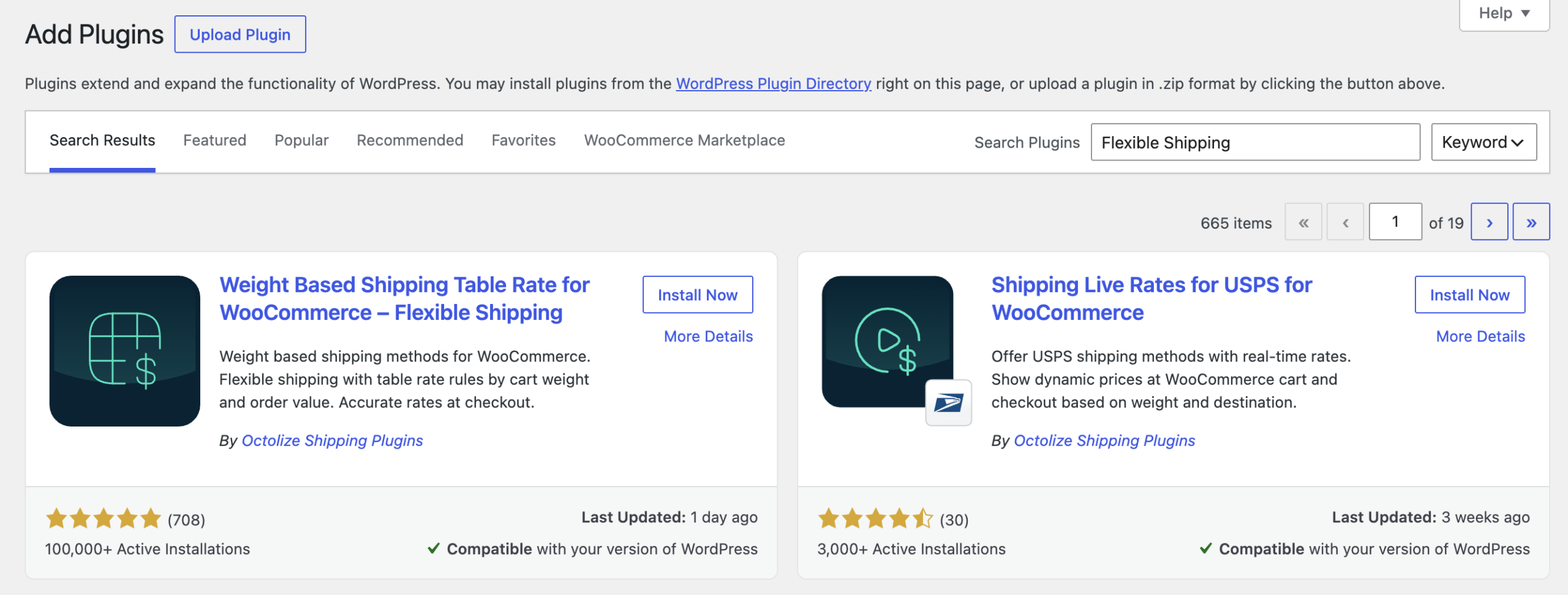
If you prefer, download the plugin from WordPress.org and upload it under Plugins → Add New Plugin → Upload Plugin. After activation, the plugin also offers a built-in step-by-step tutorial.
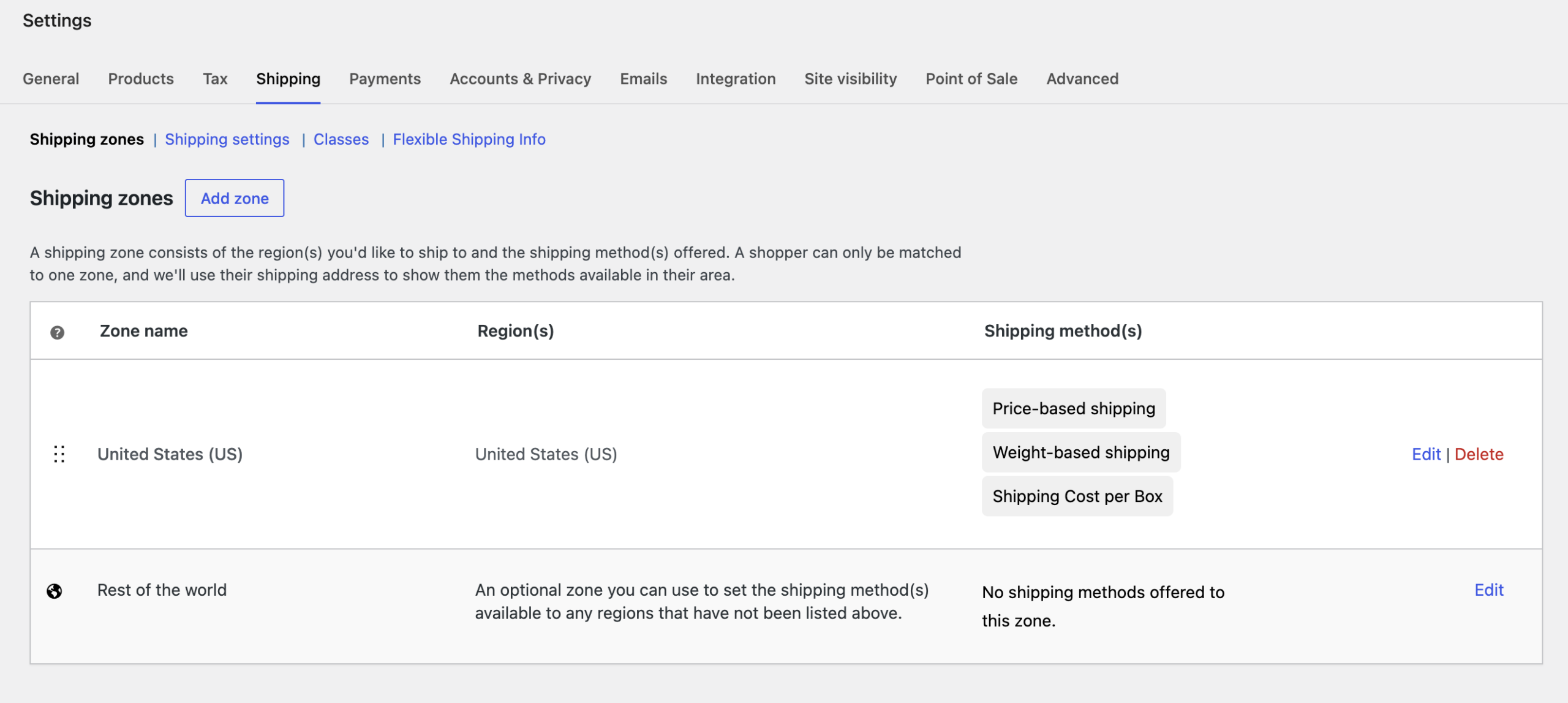
First, go to WooCommerce → Settings → Shipping. Then, click the name of the shipping zone where you want the calculator, for example “United States”.
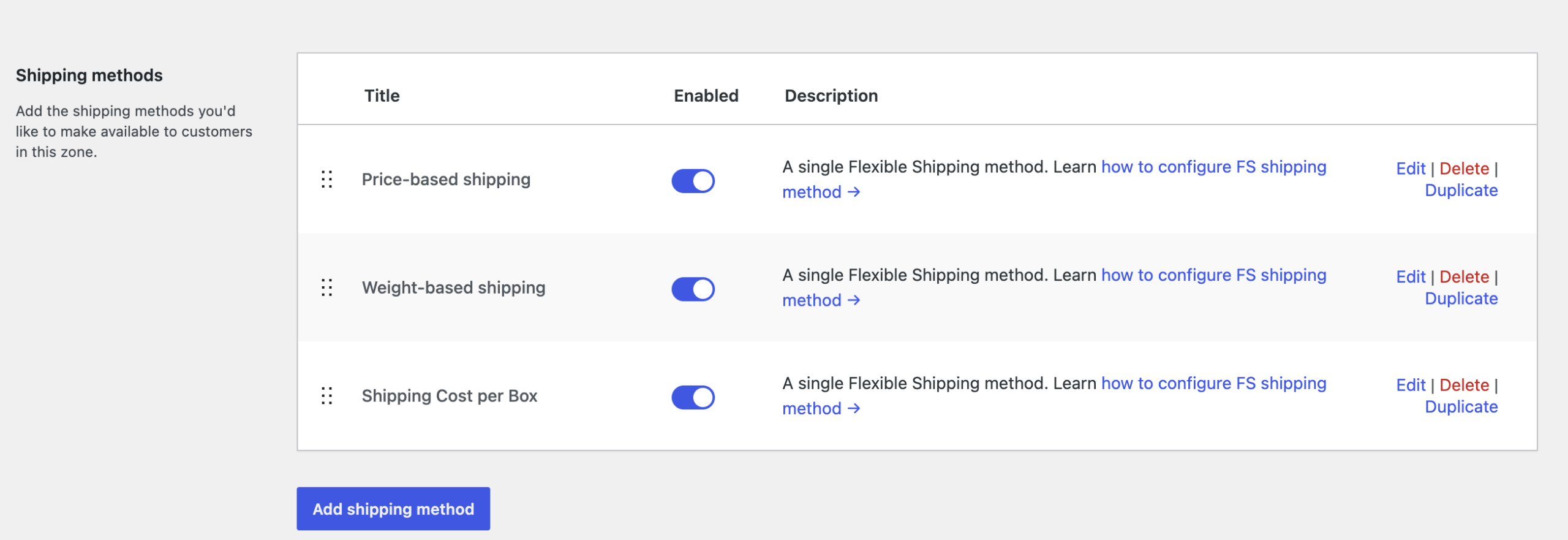
At the bottom of the Shipping methods table, click Add shipping method.
In the popup, select Flexible Shipping from the dropdown and click Continue.
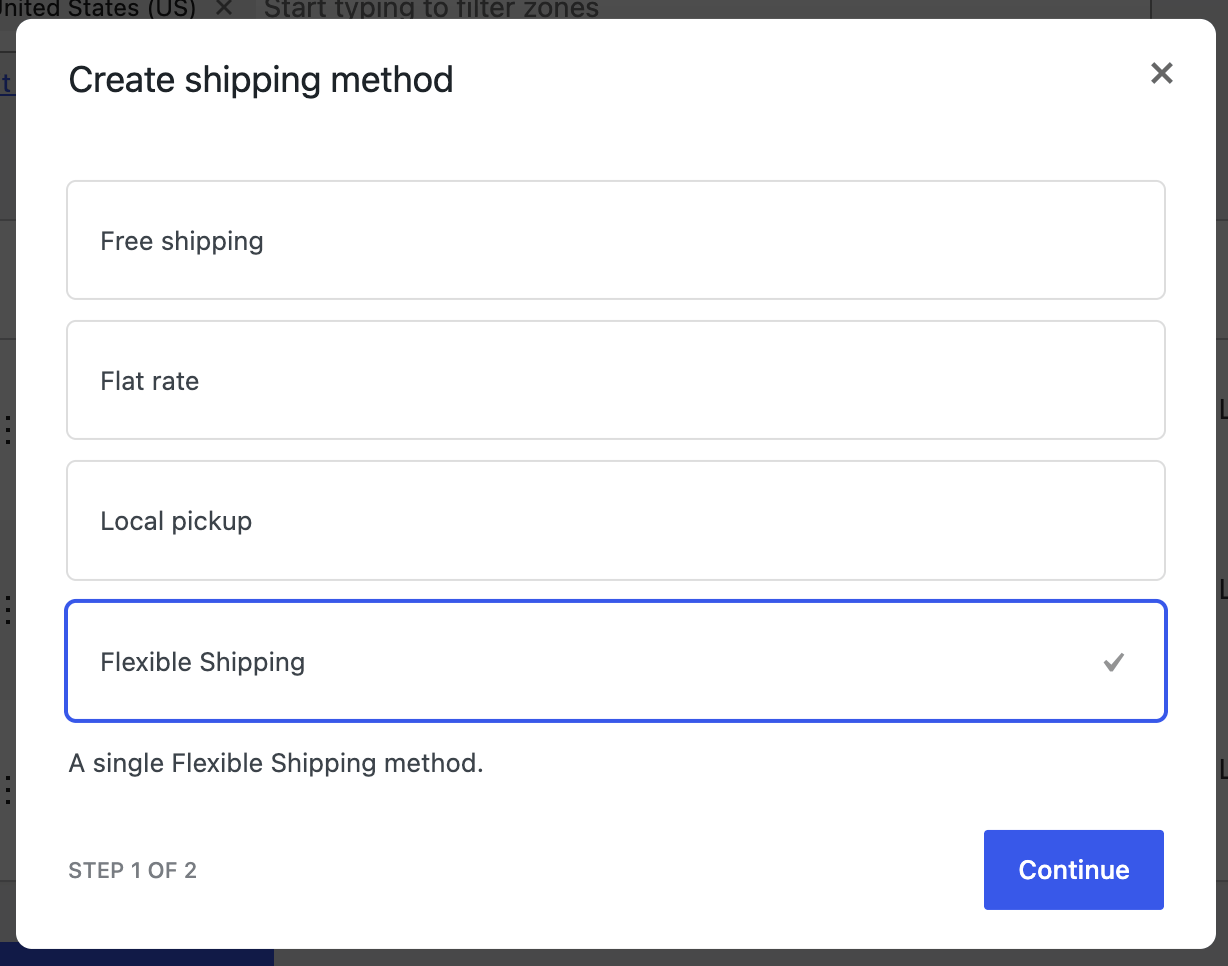
The method now appears in the list. Click its name, or the Edit link below it, to open its settings.
The settings page has several sections. Here is what to enter as the example:
| Setting | What it does | Example |
|---|---|---|
| Method Title | The name customers see in the cart and checkout | Standard shipping |
| Method Description (optional) | Text shown under the title | Delivery in 3–5 business days |
| Tax Status | Whether shipping is taxed (rates come from WooCommerce → Settings → Tax) and whether the costs you enter already include tax. See WooCommerce shipping tax. | Depends on your country |
| Free Shipping | The cart total at which the method becomes free. Once it’s reached, it overrides the rules in the table. | 100 |
| Cart Calculation | Cart value counts all products. Package value leaves out virtual products. | Package value, if you also sell virtual products |
| Visibility / Default (Advanced Options, optional) | Show the method only to logged-in users, or preselect it at checkout | Leave unchecked |
The Shipping cost calculation rules table is at the bottom of the method’s settings page. Each row is one rule: one condition and one cost.
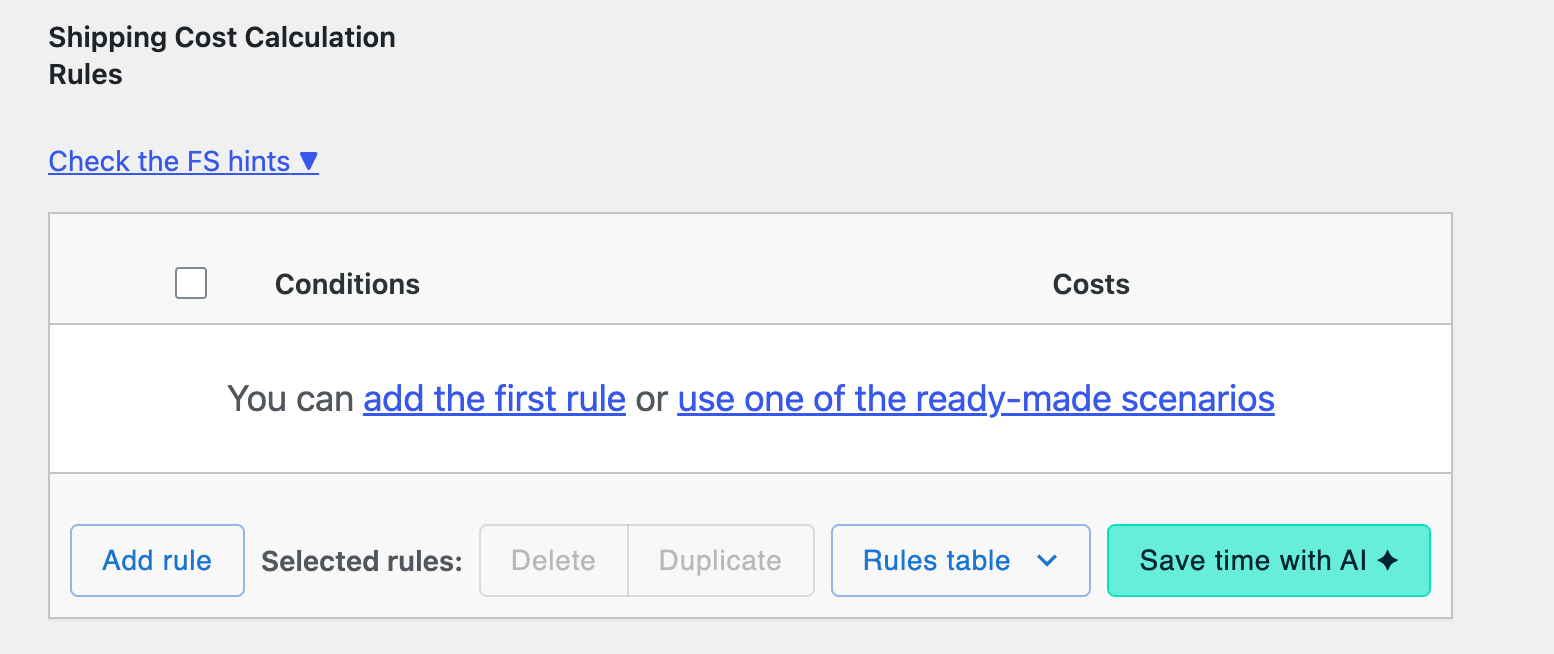
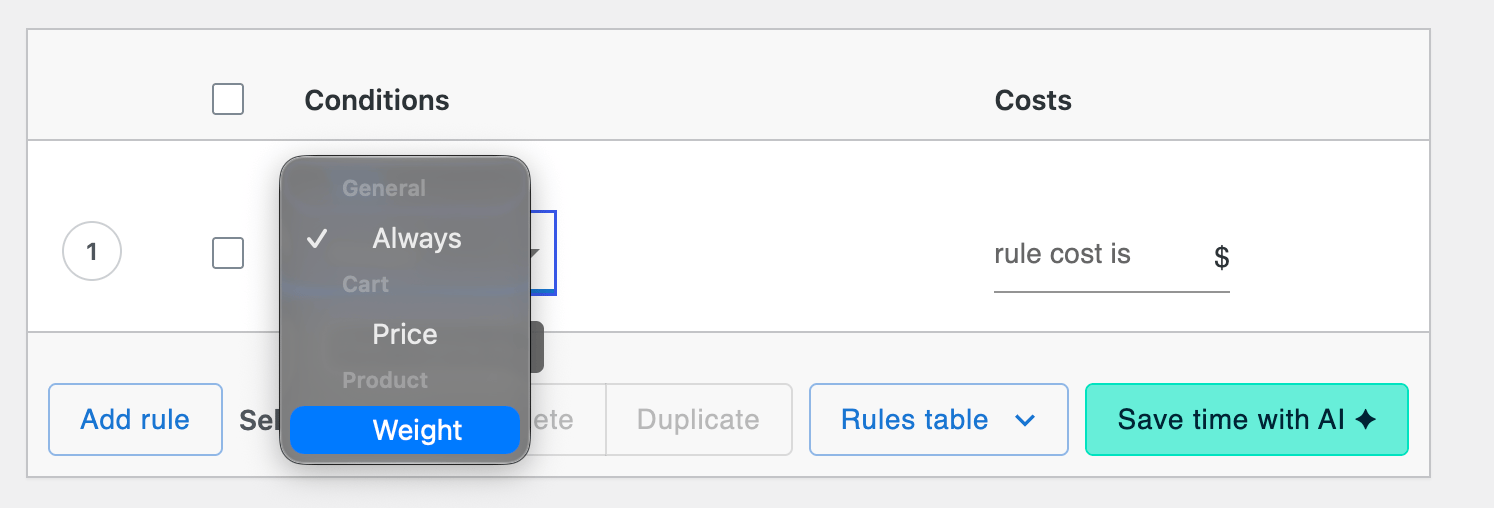
First, click Add rule. Then, add a new condition: in the When field, choose Weight (or Price, for order-value tiers).
Now, set the range for the first rule. In is from and to, enter the range. For the first example, that’s 0 and 1. In rule cost is, enter the cost for that range, for example 5.
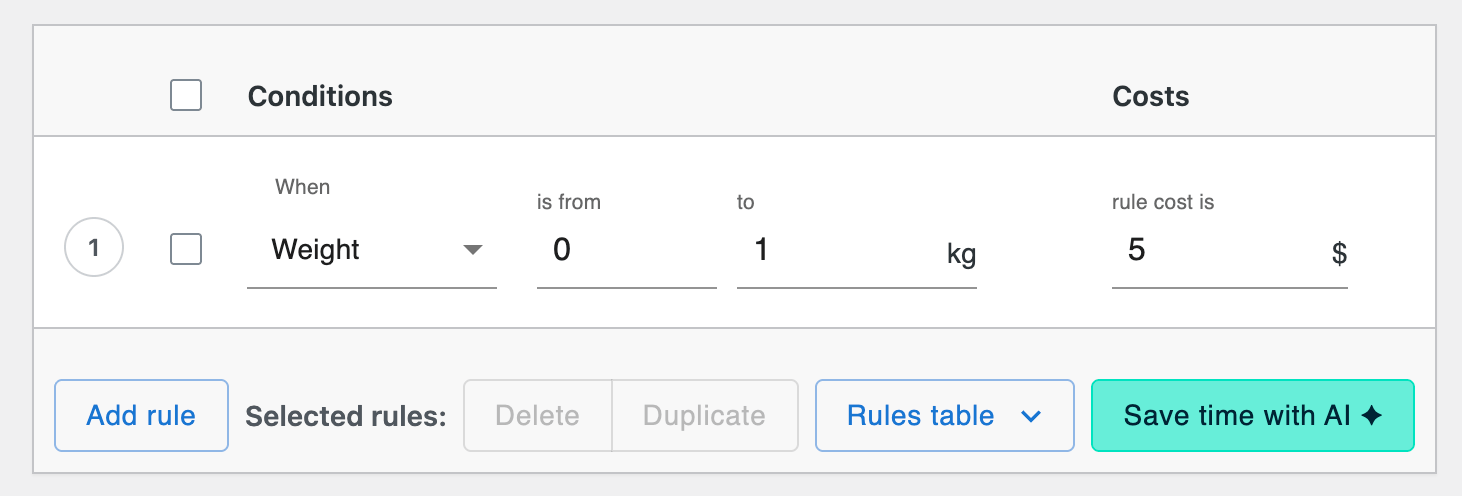
Repeat for every range in your formula. Leave to empty on the last rule, so it covers any heavier cart.
When you have everything covered, click Save changes.
Four things trip people up here:
If the cost still looks wrong, see common WooCommerce shipping cost calculation issues.
To test your WooCommerce shipping calculator, you have to enable Debug Mode in your Flexible Shipping method. Scroll down to the FS Debug Mode section, enable it, and save.
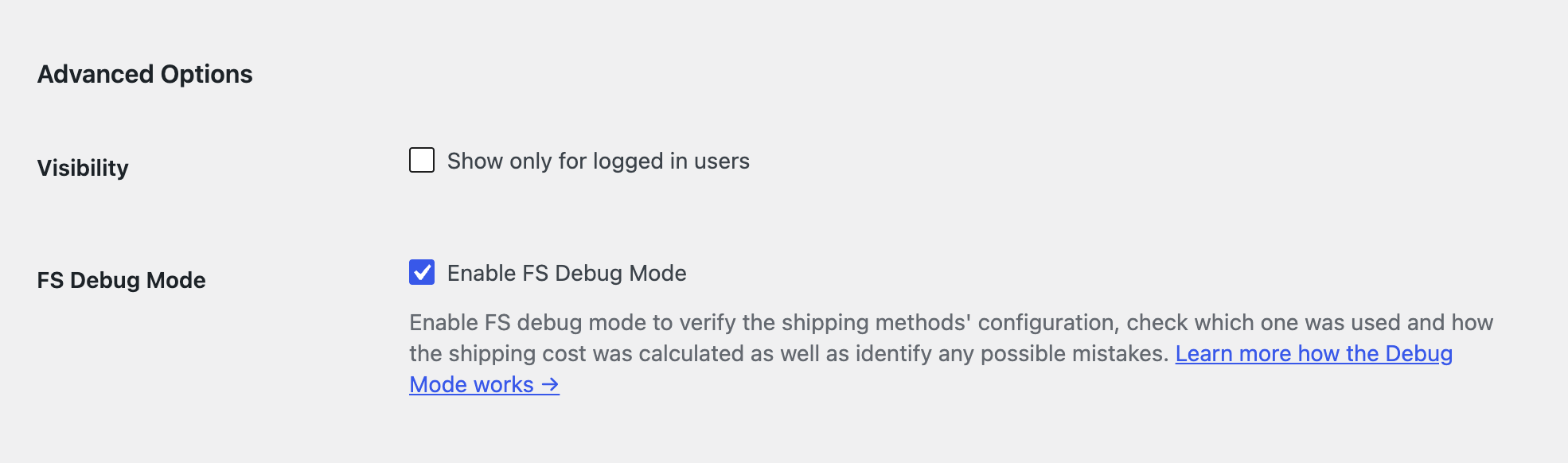
Having FS Debug Mode enabled, go to your store and add products to your cart that match your sample carts. Then, open the cart and enter an address that belongs to the zone. Read the debug notice. It shows which rules were checked and why the method was or wasn’t displayed.
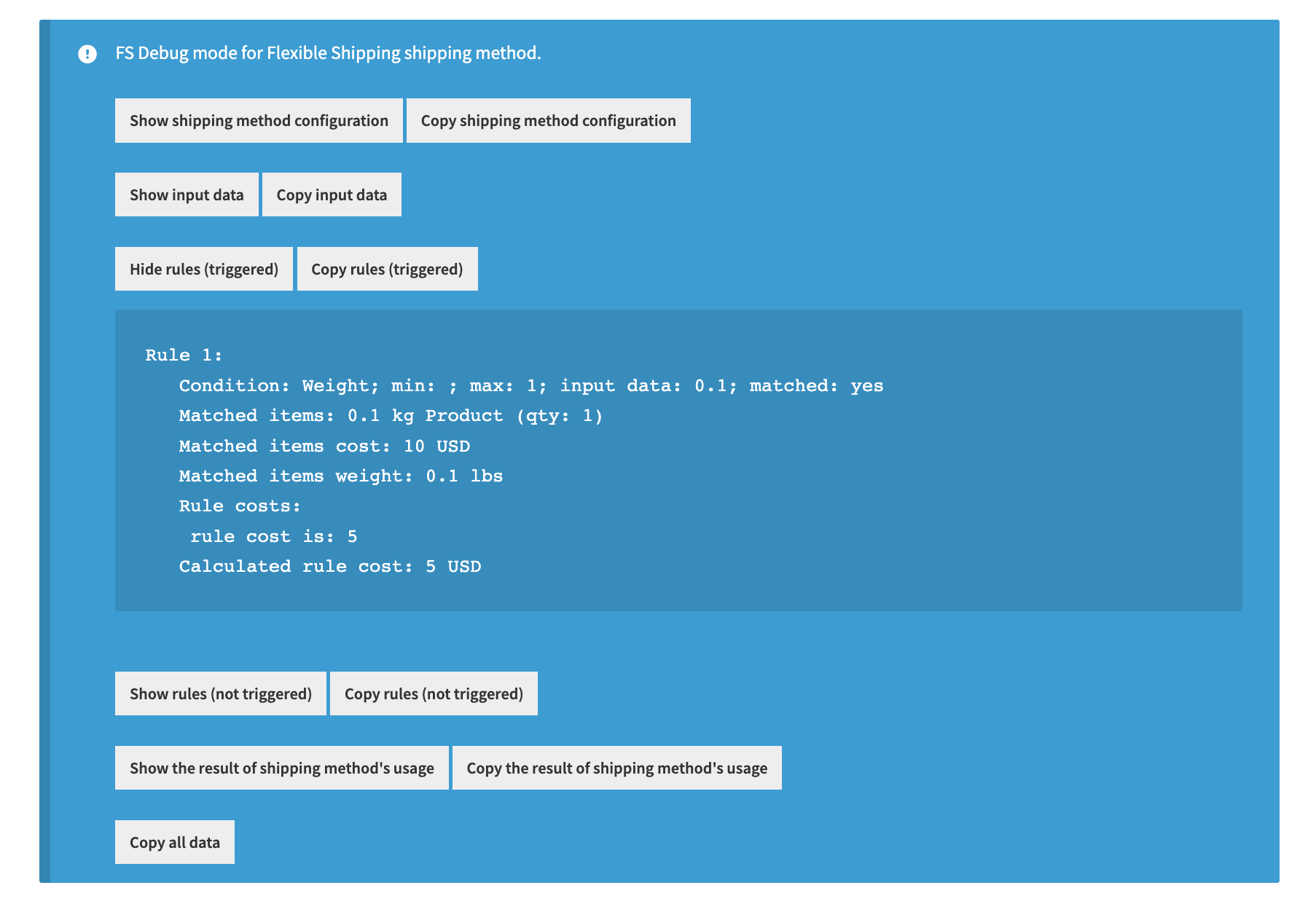
Compare the result with the cost you expected. If it’s off, fix the rule and test again. When you’re done, remember to turn Debug Mode off.
Want to explore Flexible Shipping further? Check out our dedicated video:

The best Table Rate Shipping for WooCommerce. Period. Create shipping rules based on weight, order totals, or item count.
Go to WordPress.orgorDownload for free“Happy to recommend it. Easy to configure and no conflicts so far.”
— originalpwah, WordPress.org review, August 2026
Here are three examples, from the simplest to the most advanced. The first two work in the free version.
Goal: $10 for carts under 1 lb, $11 from 1 lb to under 4 lb, $12 from 4 lb to under 7 lb, $13 for 7 lb and above.
| Rule | When | is from | to | Rule cost |
|---|---|---|---|---|
| 1 | Weight | 0 | 0,999 | $10.00 |
| 2 | Weight | 1 | 3,999 | $11.00 |
| 3 | Weight | 4 | 6,999 | $12.00 |
| 4 | Weight | 7 | (empty) | $13.00 |
The correct configuration for this scenario should look like this:
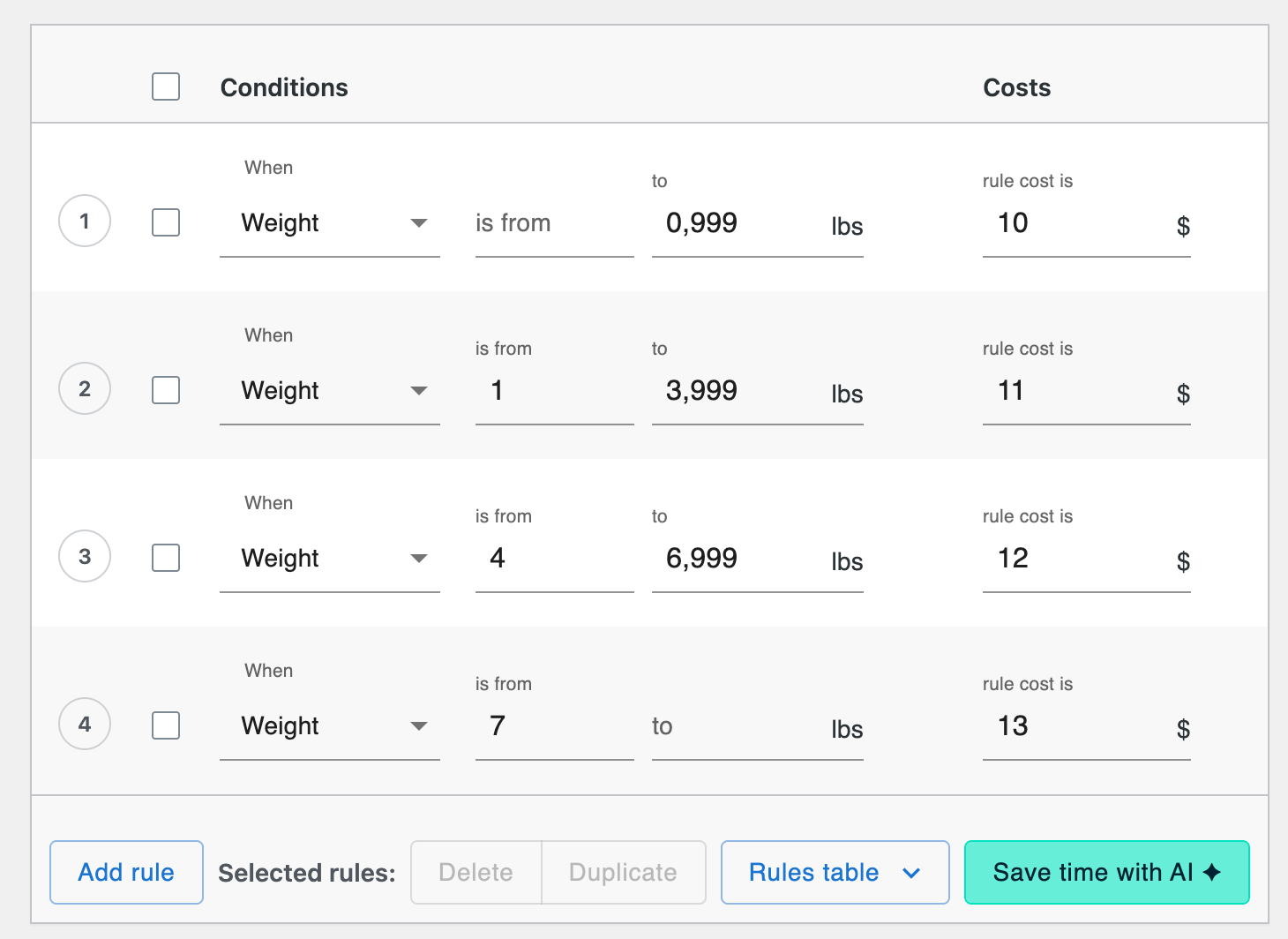
Each rule ends just below the point where the next one begins (0.999 → 1, 3.999 → 4, 6.999 → 7), so there are no gaps and no overlaps. The first rule has no “is from” value and the last rule has no “to” value, so together the four rules cover every possible cart weight.
Goal: $20 for orders under $100, $15 for orders from $100 to $199.99, $10 for orders from $200 to $299.99, and free shipping from $300.
| Rule | When | is from | to | Rule cost |
|---|---|---|---|---|
| 1 | Price | (empty) | 99.99 | $20.00 |
| 2 | Price | 100 | 199.99 | $15.00 |
| 3 | Price | 200 | 299.99 | $10.00 |
| 4 | Price | 300 | (empty) | $0.00 |
The correct configuration for this scenario should look like this:
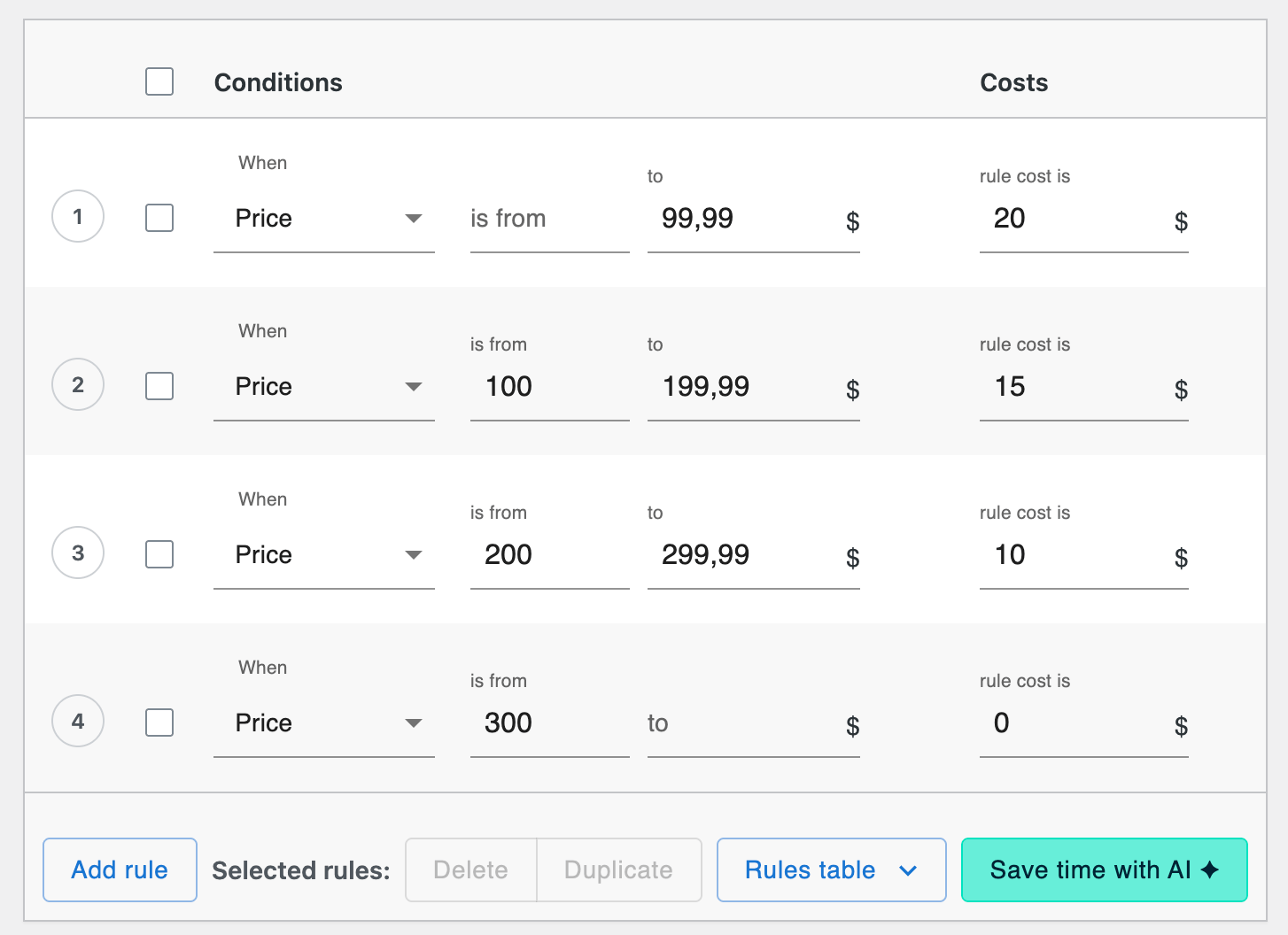
Each rule ends one cent below the start of the next (99.99 → 100, 199.99 → 200, 299.99 → 300), so no order total falls between two rules. The first rule has no “is from” value and the last has no “to” value, so together they cover every possible order total. The last rule has a cost of 0, which makes shipping free from $300. As the cart grows, the shipping cost drops, which gives customers a reason to add one more item.
Goal: Use the weight-based rules from Example 1 and add $5 for every item in the cart.
Keep the four weight rules from Example 1 and add a fifth rule. Set When to Item, enter 5 in additional cost is, and 1 Item in per. Leave rule cost is empty.
| Rule | When | is from | to | Rule cost | Additional cost (PRO) |
|---|---|---|---|---|---|
| 1 | Weight | (empty) | 0.999 | $10.00 | – |
| 2 | Weight | 1 | 3.999 | $11.00 | – |
| 3 | Weight | 4 | 6.999 | $12.00 | – |
| 4 | Weight | 7 | (empty) | $13.00 | – |
| 5 | Item | (empty) | (empty) | (empty) | $5 per 1 Item |
The correct configuration for this scenario should look like this:
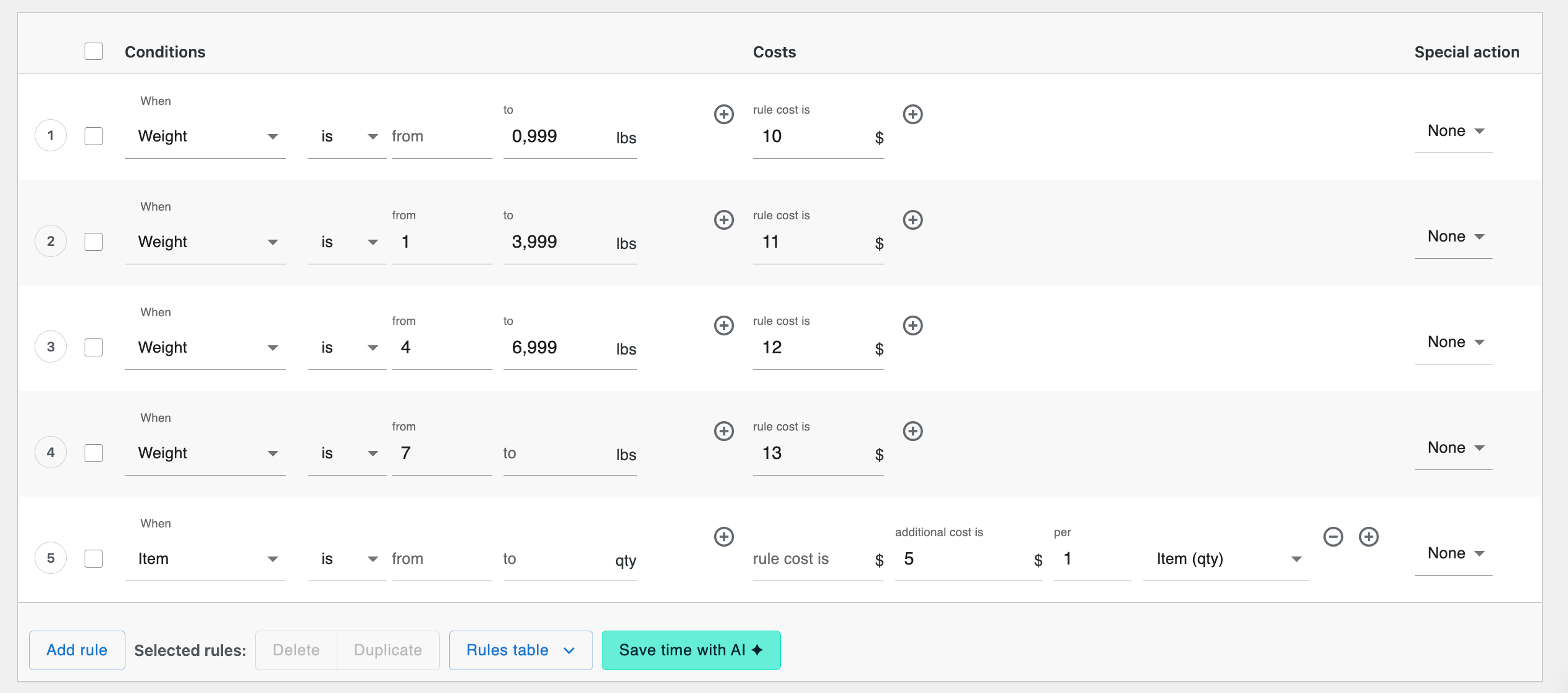
When your customer places an order, the shipping cost is the weight-based rate plus $5 for each item, for example:
You can learn more about extra cost for every item in the video below:

Start by adding up what delivery really costs you: the carrier rate, surcharges, packaging, handling, and insurance. Then choose the factor that best predicts that cost, usually weight, and turn it into a table of rules. Test the table with sample carts before going live, including carts right at each range limit. Getting this right matters, because 71% of US online shoppers have abandoned a cart over unanticipated shipping fees (Ryder 2026).
Native WooCommerce methods don’t use product weight, so you need a table rate plugin such as Flexible Shipping (free). Enter a weight for every product, add a Flexible Shipping method to your shipping zone, and create rules with When: Weight, a range, and a cost for each range. End each range just below the start of the next one (for example, 0.999 and then 1), so no weight falls between two rules. Then test the rules with carts of different weights.
Yes. Flexible Shipping is free and calculates shipping costs by cart weight and cart total, with unlimited methods and rules per zone. It also includes a free shipping threshold, an “amount left to free shipping” notice, and a Debug Mode for testing. It has 100,000+ active installations and a 4.9/5 rating from 707 reviews on WordPress.org.
Only if you need more than weight and cart total. The free version covers weight tiers, order-value tiers, and a free shipping threshold, while PRO adds item quantity, shipping classes, product categories, dimensional weight, percentage or per-item costs on top of ranges, maximum caps, and hiding methods. PRO also includes an AI Assistant that builds rules from a plain-language description. You can start with the free version and upgrade any time.
WooCommerce can show shipping costs, but the calculation is up to you. Work out what delivery really costs, choose a model that predicts it, and write it down as a formula. With Flexible Shipping you can then build and test that calculator for free. The scenario guides above show you what to set up next as your store grows.
I hope you find this article useful. Let me know in the comments section below!

Content Writer at Octolize
Bartosz Gajewski is a content and marketing specialist with a solid background in SEO, WordPress content strategy, and technical documentation for digital products. With years of hands-on experience in both in-house and freelance roles, he supports tech companies – especially in the SaaS and e-commerce space – by creating content that informs, engages, and drives results.
His approach blends storytelling with data-driven SEO, and he’s been involved in projects ranging from rebranding and product marketing to growth experiments and copywriting for complex software tools. On the blog, he shares actionable insights from his work across marketing teams, product documentation, and online store optimization.





Learn how Octolize helped Kurzgesagt, the online shop behind one of YouTube’s most popular science channels, set up conditional courier rules using the Shopify Shipping Rates Rules & Zones app.

Learn how Octolize solutions helped WooCommerce store based in the United Kingdom set up shipping scenarios.
Learn how Octolize helped Shopify store based in the USA set up distance based rates with a usage of Octolize Distance Based Rates.
 Pickup Points
