
- Home
- WooCommerce
- What plugin are you looking for?
- Shopify
- What Do I Need?
- About us
- Blog
- Docs
- Contact us
- What can we help you with?

Charging for shipping based on the actual physical distance to your customer is the most effective way for merchants to manage last-mile logistics. In this article, we explain how to easily deploy Shopify Distance-Based Shipping Rates to bypass the platform’s native flat-rate limitations. Master your local delivery setup and start pricing your delivery routes fairly for both you and your buyers.
| What you need to know | Detail |
|---|---|
| Shopify’s limitation | Native shipping zones can’t calculate rates based on actual distance to the customer |
| The solution | Octolize Distance Based Rates app uses Google Maps API to calculate real driving or straight-line distance at checkout |
| Shipping cost | Flat rate per distance range (e.g. $5 for 0–20 mi) or rate per distance unit (e.g. $2/mi) |
| Multiple locations supported | Each Shopify Location gets its own independent distance-based rate configuration |
| Plan requirement | Carrier-Calculated Shipping (CCS) needed: included on Shopify Advanced, Plus, and Grow (annual / monthly billing with an additional fee of $20/month) |
No. Shopify’s built-in shipping has no mechanism for calculating delivery cost based on the actual distance between your store and the customer’s address. Shopify shipping zones define who you ship to (countries or regions), but they have no concept of a driving route, kilometres, or miles.
The closest Shopify can get natively is a flat rate per zone. But that’s an approximation, not a calculation. A customer 2 miles from your warehouse pays the same as one 40 miles away if they’re both in the same shipping zone. For most large-carrier shipments that’s acceptable. For businesses running their own delivery, it means either undercharging distant customers or overcharging nearby ones.
Distance-based rates require an app that connects to a mapping service, calculates the actual distance at checkout, and returns a dynamically-priced shipping option. That’s exactly what the Octolize Distance Based Rates app does.
Distance-based shipping is most valuable for stores that run their own delivery rather than hand shipments to standard carriers. If you ship via FedEx, UPS, or Royal Mail, their rates are already distance-adjusted, so you don’t need to calculate it yourself. But if your team does the delivering, you’re covering real fuel, time, and labour costs that scale directly with distance. For businesses that don’t want to hire and manage their own drivers, on-demand local delivery platforms like Metrobi apply similar distance-based logic when matching orders to available drivers — for example, bakeries and florists can use a courier service for Boston to tap into a network of local drivers rather than pricing and staffing their own delivery routes.
The five business types that benefit most:
| Business type | Why distance pricing works |
|---|---|
| Local delivery stores (groceries, florists, bakeries) | Charges reflect actual driving cost per trip |
| Furniture & large-item retailers | Heavy items + long routes = costs that vary dramatically |
| Same-day / on-demand delivery | Speed premiums depend on how far drivers need to travel |
| Meal kits and perishables | Short delivery windows require geographic precision |
| Local service businesses (plumbers, caterers, cleaning) | Service cost naturally scales with travel distance |
According to Capgemini Research, last-mile delivery costs account for more than 41% of total logistics expenses. It makes distance-accurate pricing one of the highest-impact levers available to local delivery businesses.
💡 Octolize data point: Among Shopify merchants using the Octolize Distance Based Rates app, the most common use case is local delivery for food, beverage, and grocery businesses – representing over 35% of all active configurations. The second most common is furniture and large-item delivery, where driving-route accuracy is critical to avoid margin erosion on long-distance drops.
The Octolize Distance Based Rates app adds real-time, Google Maps-powered distance calculation to your Shopify checkout and support for multiple store locations.
When a customer enters their delivery address at checkout, the app:
The customer sees the correctly-priced shipping option.

What does the app offer?
| Feature | Detail |
|---|---|
| Flat rate per distance range | e.g. $5 for 0–20 mi, $10 for 20–50 mi, $20 for 50–100 mi |
| Rate per distance unit | e.g. $2/mi, with optional base delivery cost added |
| Base delivery cost | Fixed starting fee always added to rate-per-distance calculation |
| Driving route calculation | Uses actual road network via Google Maps (Driving, Cycling, or Walking) |
| Straight line calculation | Direct point-to-point distance (“as the crow flies”) |
| {{distance}} shortcode | Shows the calculated distance value in the checkout method description |
| Multiple locations | Each Shopify Location gets its own independent distance-rate configuration |
| Enable/disable per location | Temporarily turn off a location’s rates without deleting the configuration |
“This app is a must have to add to your Shopify web site to add on accurate locall delivery rates, My problem was we needed t charge fixed rates basd on distance feom our shop, 20 mins later after installing and I had it working, Our site look professional with this add on !!!! And support is great and follow up”
— Store owner from USA, via Shopify App Store review
You need Carrier-Calculated Shipping (CCS) enabled on your Shopify store. The Octolize Distance Based Rates app displays its rates at checkout via Shopify’s CCS API – the same mechanism used by all third-party rate apps.
| Shopify Plan | CCS availability |
|---|---|
| Shopify Plus | Included and enabled by default |
| Shopify Advanced | Included and enabled by default |
| Shopify Grow (annual billing) | Included |
| Shopify Grow (monthly billing) | Available for an additional monthly fee ($20/month) |
| Shopify Basic | Not available |
The full setup has four stages: install the app, configure General settings (Google Maps API key), define distance-based rates per location, and verify the checkout output. Expect around 20–30 minutes for a single-location setup.
Prefer to watch first? Here’s a video walkthrough of the setup process:
Search for “Octolize Distance Based Rates” in the Shopify App Store, click Install, and follow the standard authorization flow. During installation, the app automatically adds its rates to any existing Shopify shipping zones under Carrier and app rates.
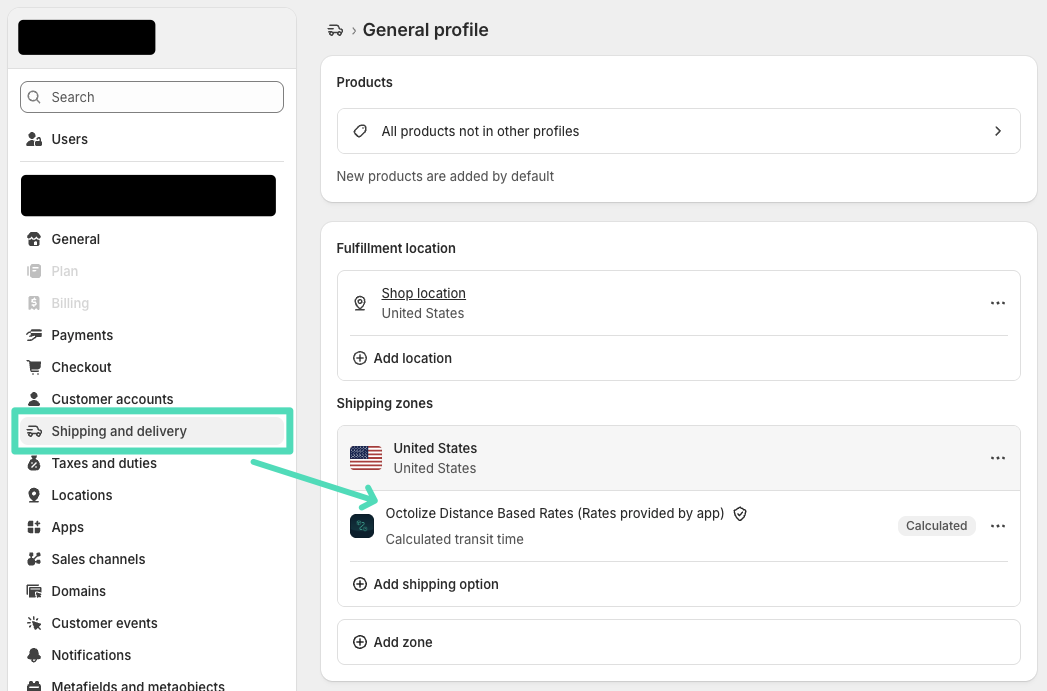
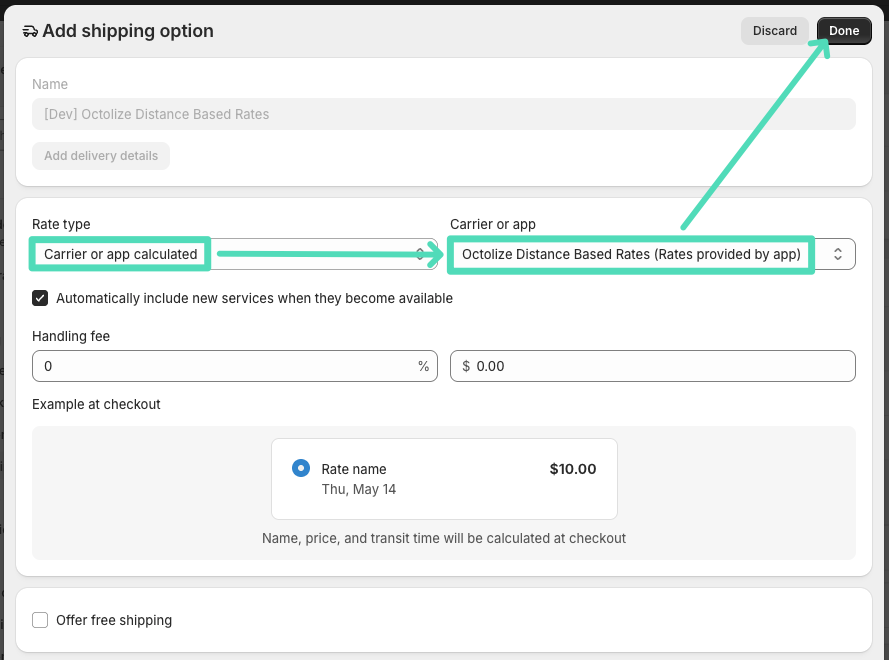
If you add new shipping zones after installation, add the app manually: go to Settings → Shipping and delivery → [zone] → Add shipping option → Use carrier or app to calculate rates → Octolize Distance Based Rates → Done.
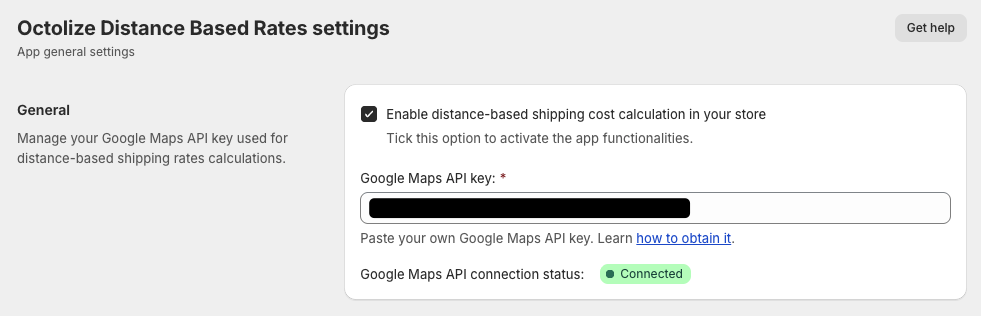
After installation, you’ll land on the General settings screen. Tick “Enable distance-based shipping cost calculation” and paste your Google Maps API key.
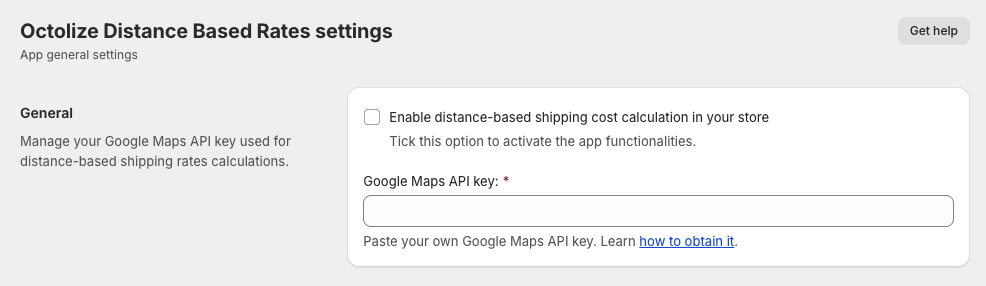
The API connection status will update to Connected once the key is validated and changes are saved. If it doesn’t connect, double-check that Distance Matrix API and Geocoding API are both enabled in your Google Cloud project.
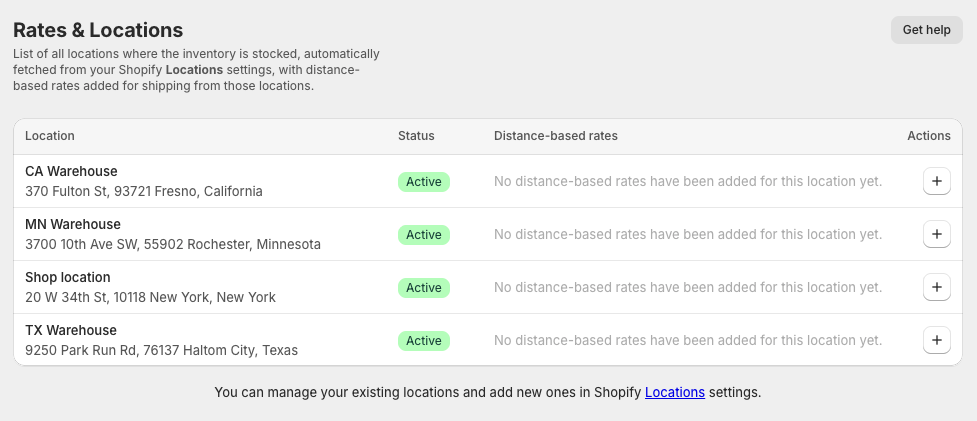
Go to Rates & Locations in the app’s navigation menu. The Rates & Locations table shows all locations synced from Shopify Settings → Locations, their current status (Active / Inactive), and any distance-based rates already configured. You cannot add or edit locations here. Do that in Shopify’s native location settings.
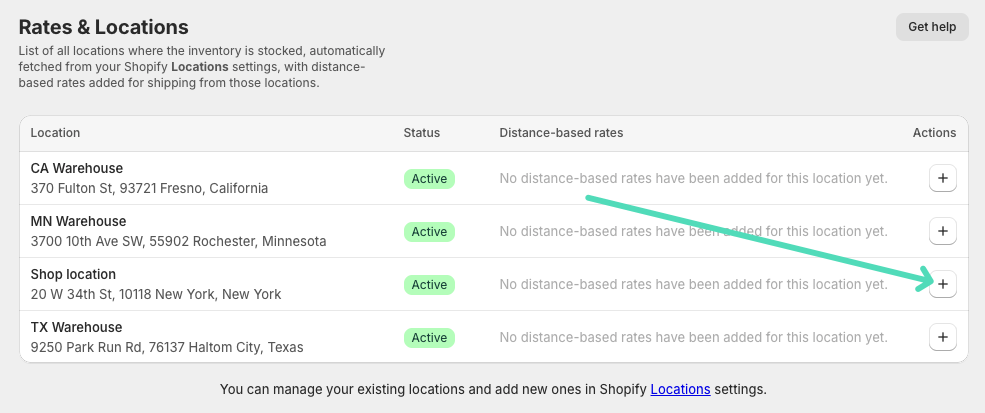
To add a new Distance-based rate for shipping from a specific Location, click the plus icon button + in the Action column next to that Location.
On the rate configuration screen, work through four sections in order: Status, Shipping method, Distance, and Cost calculation.
Tick “Enable distance-based rates for shipping from [location name]” to activate this rate. If unchecked, the rate won’t appear at checkout and will show as Inactive in the Rates & Locations table. It’s useful for temporarily suspending a location without losing your configuration.

Enter the Shipping method name that customers will see at checkout (e.g., “Local Delivery”, “Same-Day Delivery”). If you ship from multiple locations, use the same name for all of them. This will ensure that Shopify correctly sums up the distance-based costs when a cart contains items from multiple locations.
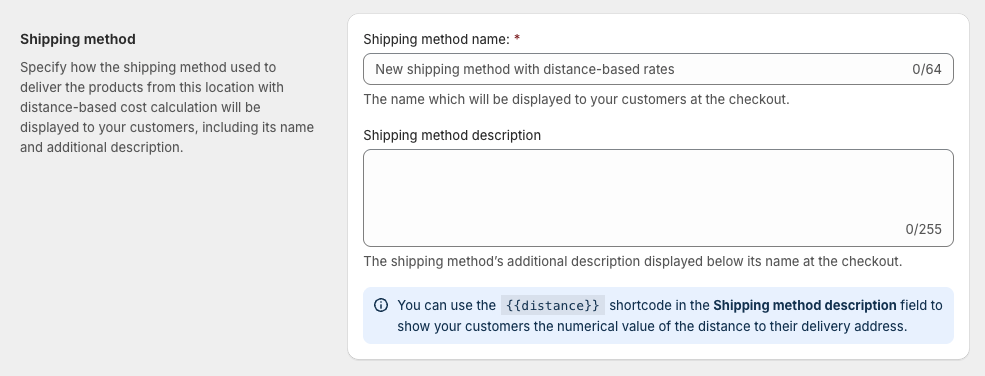
In the optional Shipping method description field, you can use the {{distance}} shortcode to display the calculated distance to the customer:
Local delivery: {{distance}} from our store
This shows at checkout as: “Local delivery: 4.3 mi from our store”
Choose your Distance units (kilometers or miles) and Distance calculation method (Driving route or Straight line).
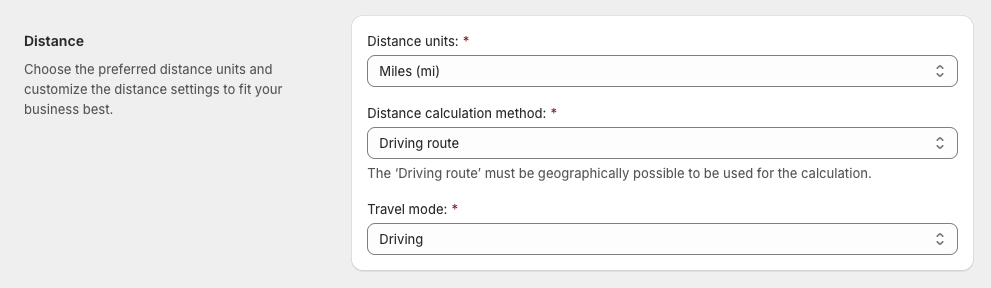
Two Distance Calculation Methods
The Octolize Distance Based Rates app offers two ways to calculate the distance between your location and the customer: Driving route and Straight line. The right choice depends on your geography and delivery type.
| Method | How it works | Best for |
|---|---|---|
| Driving route | Uses Google Maps to calculate actual road distance, accounting for roads, turns, and obstacles | Stores on the same landmass as customers; road-based delivery |
| Straight line | Calculates direct point-to-point distance (“as the crow flies”), ignoring roads and terrain | Cross-water delivery (e.g. island stores); cycling or walking delivery |
Important limitation of Driving route: if there is no drivable road connection between your location and the customer’s address, for example, your warehouse is on an island, the Google Maps API cannot calculate a driving route and the app will not display a shipping rate at checkout. In this case, switch to Straight line.
When Driving route is selected, you also choose a Travel mode:
In the Delivery cost calculation method field, you select the way how the distance-based delivery cost should be calculated when shipping from this location by choosing one of the available options:

Option A: Flat rate for distance range
Set fixed prices for defined distance:
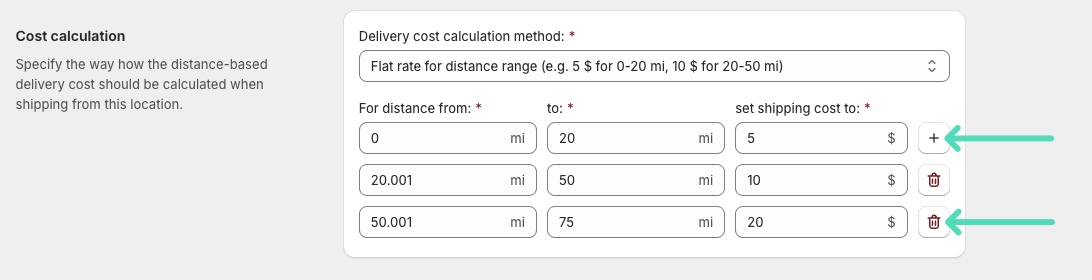
If the distance falls within a range, that range’s flat cost applies. If no range matches (customer is too far), the shipping method is hidden at checkout, effectively setting a maximum delivery radius.
Option B: Rate per distance unit ($/mi or $/km)
Set a price per mile or kilometre:
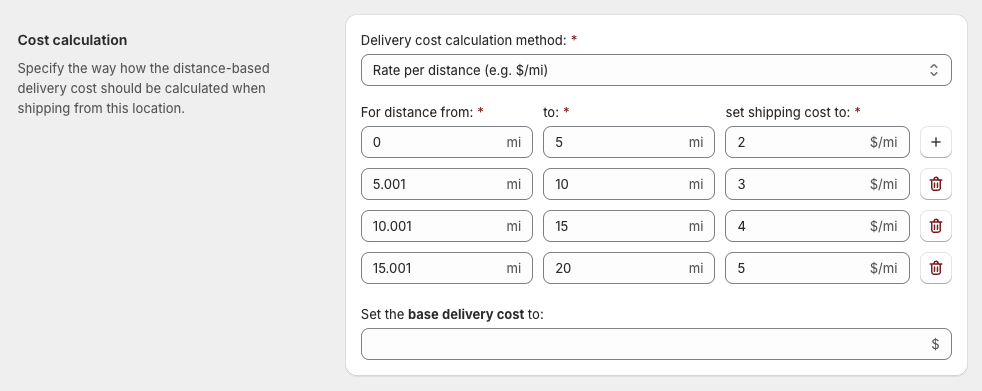
Add can also add an optional Base delivery cost (e.g. $5.00) that is always added on top of the distance calculation.
Click Save when done. The rate will appear in the Rates & Locations table with Active status.
Use flat rate per distance range with a maximum radius to limit delivery reach and keep costs predictable.
Location: Main Store
Method name: "Local Delivery"
Distance units: Miles | Driving route | Driving

Distance ranges:
  0–3 mi   → $2.99
  3,001–7 mi   → $4.99
  7,001–12 mi  → $7.99
  (No range above 12 mi — method hidden beyond 12 miles)
A customer 5.2 miles away sees: “Local Delivery – $4.99”
A customer 15 miles away sees: “Shipping not available”
Use rate per distance with a base delivery cost to cover loading and handling regardless of distance, plus a variable fuel component.
Location: Warehouse
Method name: "Home Delivery"
Distance units: Kilometres | Driving route | Driving

Base delivery cost: €25.00
Rate per km:
  0–30 km  → €1.50/km
  30,001–80 km → €2.00/km
  (No range above 80 km — method hidden)
Calculation for 45 km: €25 + (45 × €2.00) = €115.00
No. Shopify’s built-in shipping zones work at the country, or region. There is no native feature to calculate rates based on actual driving distance or straight-line distance to the customer’s address. A third-party app like Octolize Distance Based Rates is required.
Yes. The app uses Google Maps to calculate distances, which requires your own API key with Distance Matrix API and Geocoding API enabled. Google provides a monthly credit at no charge, which covers distance calculations for most Shopify stores.
Driving route uses Google Maps to calculate the actual road distance between your location and the customer. Straight line calculates the direct geographical distance ignoring roads and terrain. Use Driving route for most land-based deliveries; use Straight line when there’s no drivable route (e.g. cross-water deliveries, island stores).
Yes. Simply don’t add a distance range beyond your maximum. If no configured range matches the customer’s distance, the shipping method is hidden at checkout, effectively blocking orders from outside your delivery area.
Each location gets its own independent distance-rate configuration. Shopify calculates the distance cost from each active location and sums them at checkout, provided all locations use the same Shipping method name.
Yes. Use the {{distance}} shortcode in the Shipping method description field. It will display the calculated distance value dynamically at checkout. For example: “Local delivery · 6.2 mi from our store”.
Yes. Untick the “Enable distance-based rates for shipping from [location]” checkbox on the rate configuration screen. The rate turns Inactive and disappears from checkout, but all configuration is preserved.
Shopify’s native shipping is built for geographic zones, not geographic distances. For businesses running their own delivery, flat-rate zones mean you’re either subsidising distant deliveries or overcharging nearby ones. The Octolize Distance Based Rates app closes that gap with real-time Google Maps distance calculation, two charging models (flat range or per-mile rate), a base delivery cost option, and full support for multiple store locations. Once it’s set up, every customer at checkout sees a price that reflects the actual cost of getting their order to them. That’s fairer for them, and more profitable for you.

Content Writer at Octolize
Bartosz Gajewski is a content and marketing specialist with a solid background in SEO, WordPress content strategy, and technical documentation for digital products. With years of hands-on experience in both in-house and freelance roles, he supports tech companies – especially in the SaaS and e-commerce space – by creating content that informs, engages, and drives results.
His approach blends storytelling with data-driven SEO, and he’s been involved in projects ranging from rebranding and product marketing to growth experiments and copywriting for complex software tools. On the blog, he shares actionable insights from his work across marketing teams, product documentation, and online store optimization.




Learn how Octolize helped Kurzgesagt, the online shop behind one of YouTube’s most popular science channels, set up conditional courier rules using the Shopify Shipping Rates Rules & Zones app.

Learn how Octolize solutions helped WooCommerce store based in the United Kingdom set up shipping scenarios.
Learn how Octolize helped Shopify store based in the USA set up distance based rates with a usage of Octolize Distance Based Rates.
 Pickup Points