
- Home
- WooCommerce
- What plugin are you looking for?
- Shopify
- Find my product
- About us
- Blog
- Docs
- Contact us
- What can we help you with?

If you sell products where the number of items in an order genuinely changes what it costs to fulfil (more boxes, more packaging, more labour), a flat shipping rate is working against you. Charge too little and large orders eat your margin. Charge too much (as a staggering 80% of Shopify stores do) and small orders look overpriced at checkout.
Shopify doesn’t solve this natively. Its built-in shipping supports flat rates, weight-based rates, and order-value thresholds, but there’s no way to say “charge $5.99 for 1-5 items, $9.99 for 6-15 items, and $14.99 for 16 or more.” For that, you need the Octolize Shipping Rates Rules & Zones app and its WHEN: Item quantity condition.
This guide covers everything: how the condition works, the critical distinction between item quantity and cart line item count, a complete step-by-step configuration, all available pricing actions, how to combine conditions for advanced rules, and three real-world configurations you can adapt directly.
| Question | Answer |
|---|---|
| Does Shopify support item-count shipping natively? | No: flat rates, weight, and order value only |
| What solves it? | Octolize Shipping Rates Rules & Zones app with WHEN: Item quantity condition |
| Item quantity vs cart line item count? | Item quantity = total units; line item count = distinct product lines |
| Shopify plan required? | Carrier-Calculated Shipping needed: Shopify Plus, Advanced, or Grow (annual) |
No. Shopify’s built-in shipping settings have no condition for item quantity. The native shipping configuration supports three types of rate logic: a flat rate (fixed cost per order), price-based rates (free shipping above a cart value threshold), and weight-based rates (connected to carrier API pricing). None of these can be triggered by how many items are in the cart.
To add item-count logic, your store needs the Carrier-Calculated Shipping (CCS) feature enabled. CCS is available on Shopify Plus and Advanced (included by default), and on Shopify Grow with annual billing. It is not available on Shopify Basic.
For a full walkthrough of how CCS works and how to enable it, see our guide on how to set up shipping rates on Shopify.
This is the most important concept to understand before configuring your rules. The Octolize app offers two separate conditions that sound similar but measure different things:
| Cart contents | Item quantity | Cart line item count |
|---|---|---|
| 1× Blue T-shirt | 1 | 1 |
| 3× Blue T-shirt | 3 | 1 |
| 3× Blue T-shirt + 5× Red Mug | 8 | 2 |
| 1× Product A + 1× Product B + 1× Product C | 3 | 3 |
When to use item quantity: when your shipping cost scales with the total number of units: extra boxes, extra packaging materials, extra handling time per unit. This is the right condition for most quantity-based pricing scenarios.
When to use cart line item count: when your cost scales with the number of different products. For example, a gift-wrapping service that charges per distinct SKU, or a multi-supplier setup where each product line comes from a different location.
This article focuses on WHEN: Item quantity, since that’s what most merchants need when they think about “shipping based on number of items.” If you realise after reading this that cart line item count is actually what fits your store better, the configuration steps are identical, just choose the other condition from the WHEN dropdown.
The setup has five steps: install the app, open a shipping zone, add a rate, configure WHEN→THEN rules for item quantity, and test at checkout. Expect around 15–20 minutes for a basic tiered configuration.
Install the app from the Shopify App Store. After installation and plan selection, you’ll land on the Zones & Rates screen.
If instead you see a banner about Carrier-Calculated Shipping being required, your current Shopify plan doesn’t have CCS enabled.

This app is very user-friendly, was quick to learn, plus it does exactly what I need it to do. Customer support has been so helpful and responsive as well!! Highly recommend.
– Store owner from USA, via Shopify App Store review
On the Zones & Rates screen, you’ll see your existing custom zones. If you haven’t created any yet, click Configure your first shipping zone and set up the countries or regions this rate should apply to.
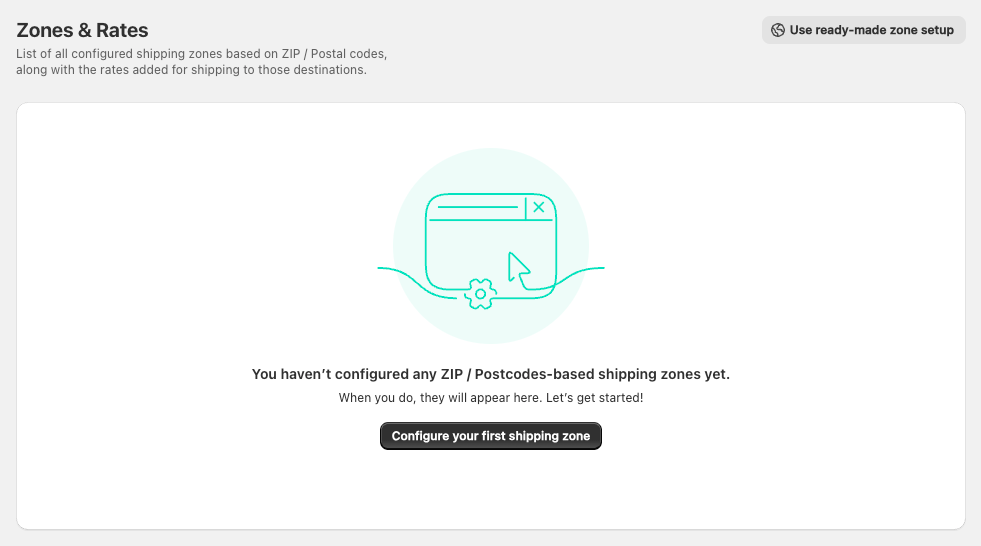
For a detailed walkthrough of zone configuration, including postcode-based zones and zone ordering, see our guide on how to set up shipping zones on Shopify.
Click the + button in the Actions column next to the zone where you want item-quantity-based rates. You’ll be redirected to the rate configuration screen.
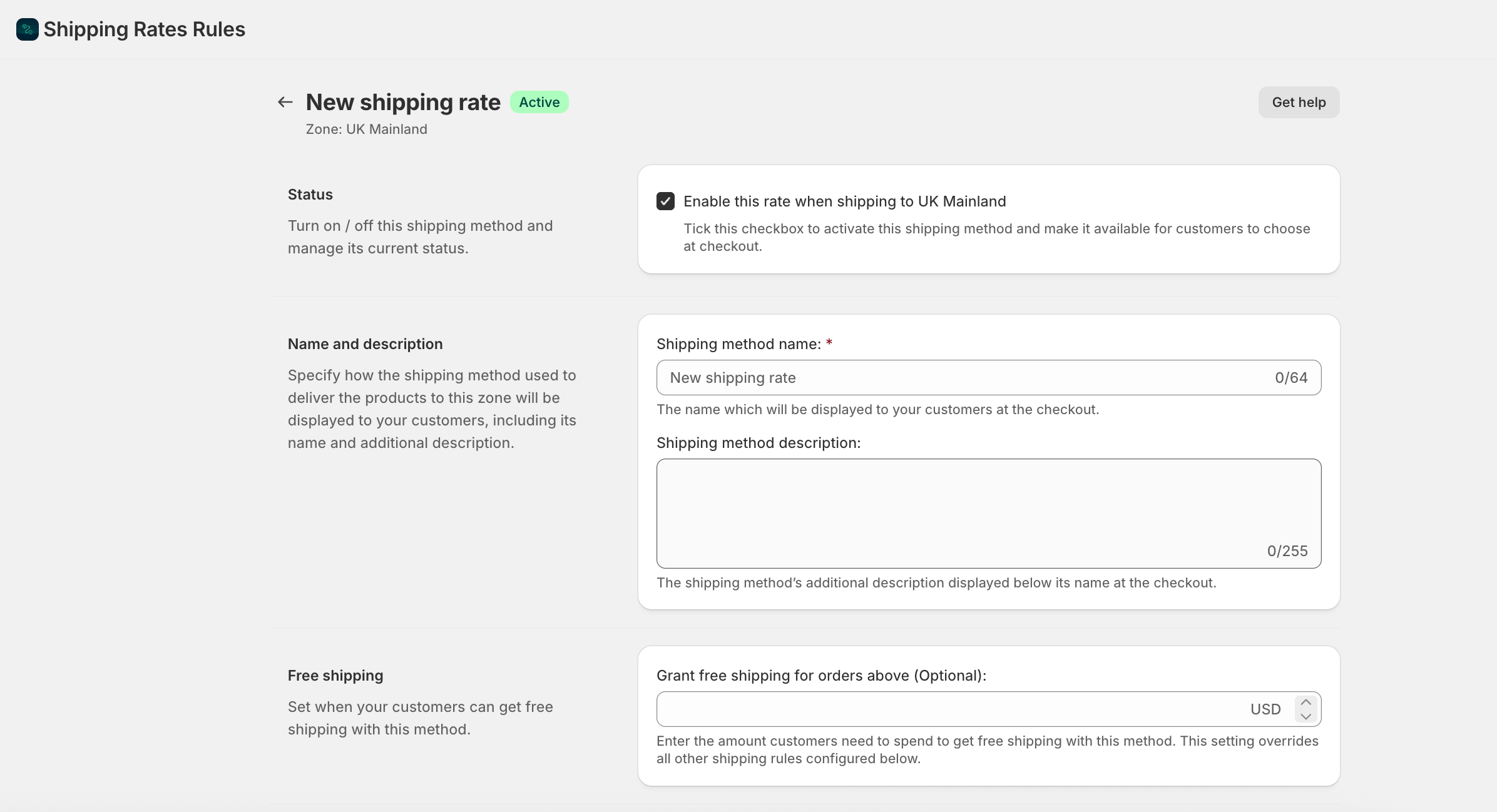
Fill in the basics first:
Scroll down to the Shipping cost calculation rules section. This is where the item-count logic lives.
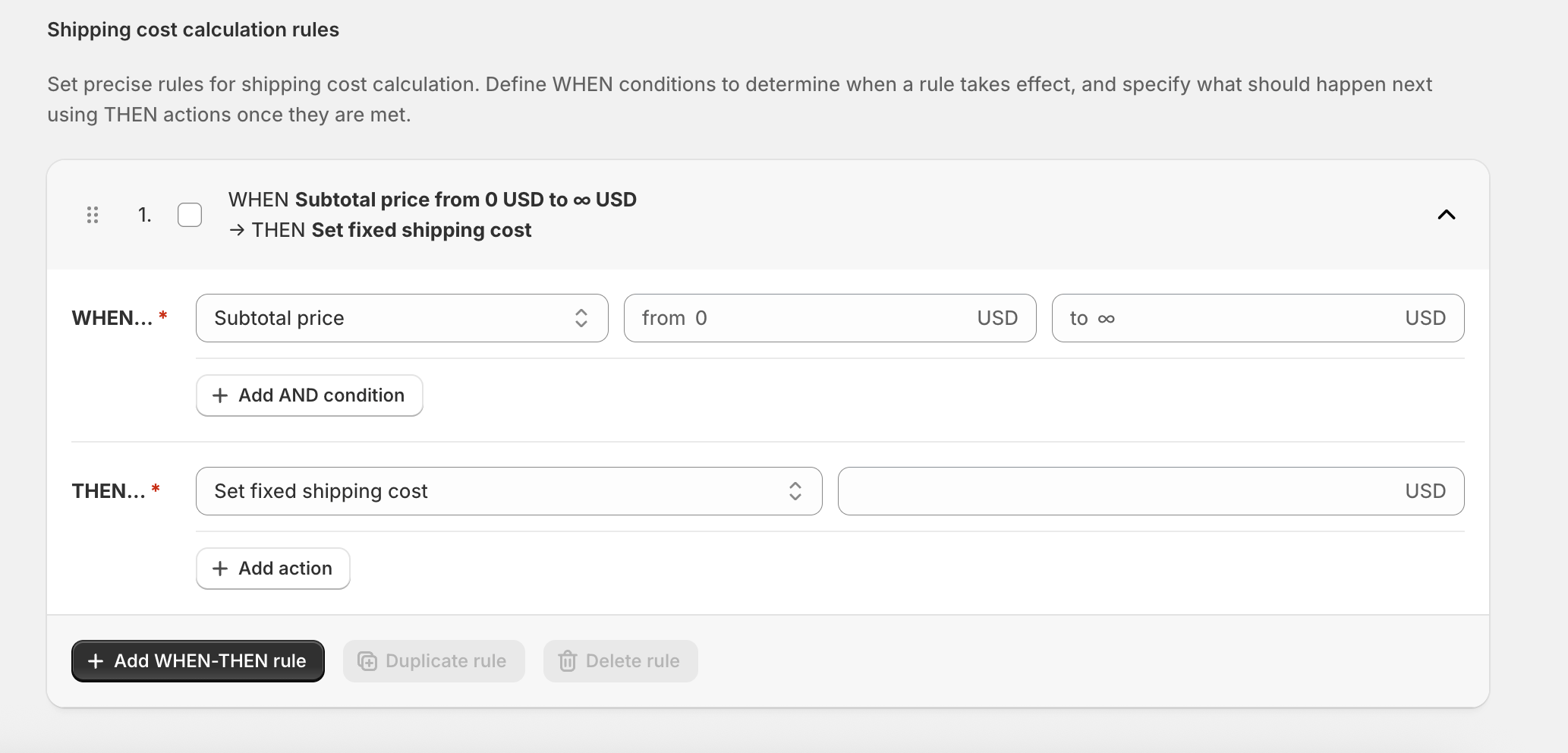
Click + Add WHEN-THEN rule. A rule row appears with two dropdowns.
In the WHEN dropdown, select Item quantity.
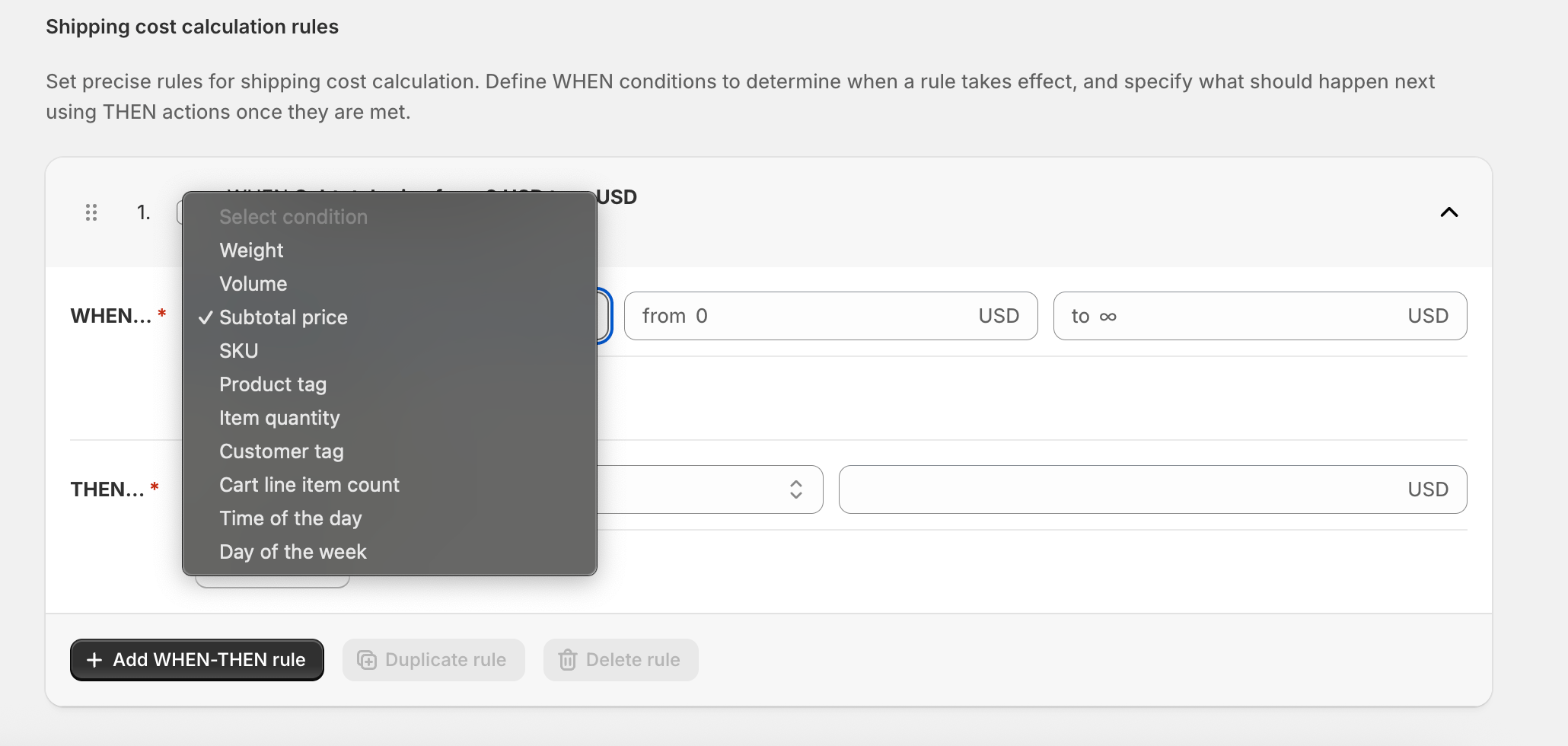
Two numeric fields appear: From and To. Enter your first range.
Critical: ranges must not overlap. The “From” value of a new range cannot equal the “To” value of the range above it. Use consecutive integers:
Correct:
0 – 5then6 – 15then16 – ∞Incorrect:
0 – 5then5 – 15(the value 5 appears in both ranges)
In the THEN dropdown, select your pricing action (see the next section for all options). For a basic tiered setup, choose Set fixed shipping cost and enter the cost for this range.
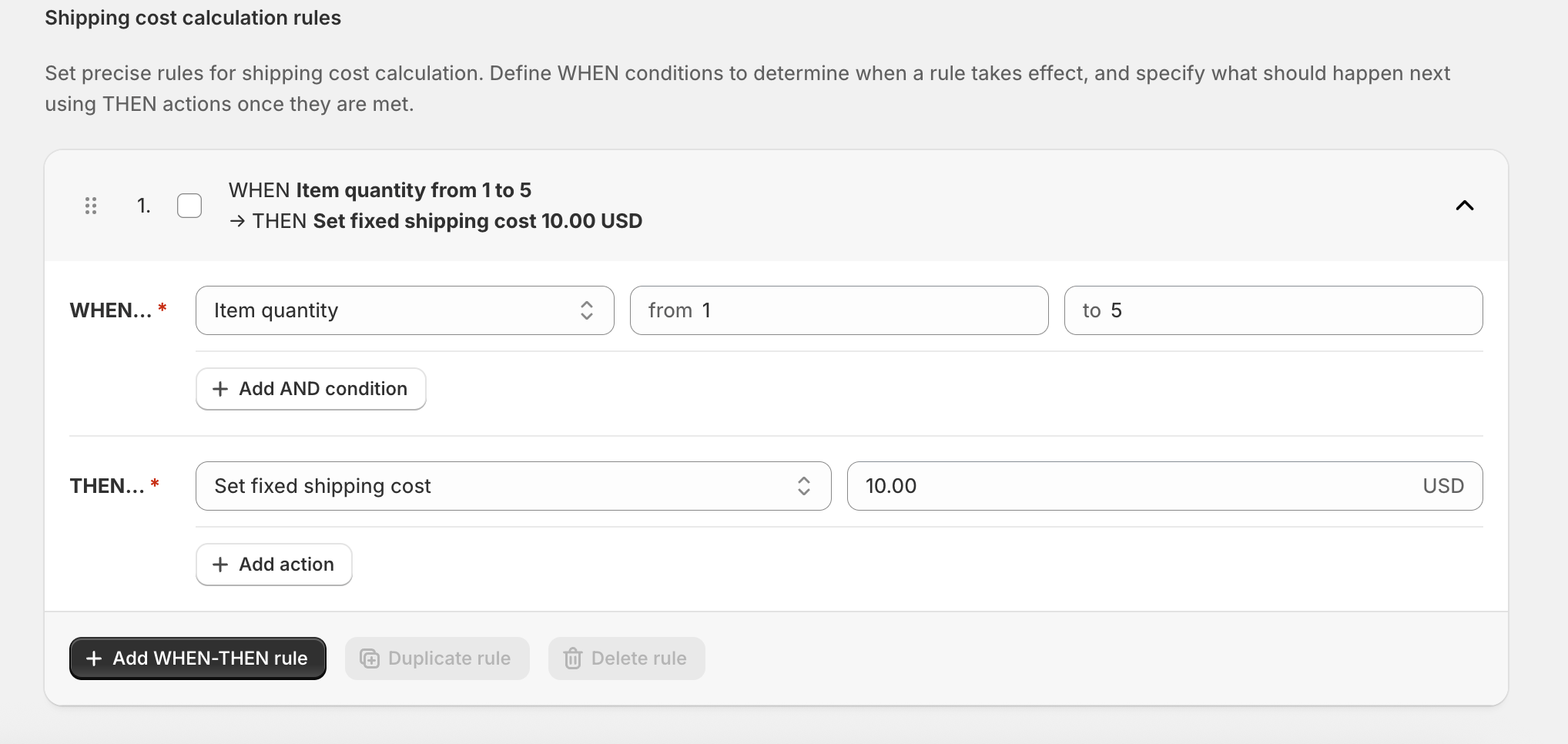
Click + Add WHEN-THEN rule again to add the next tier. Repeat until all your ranges are covered.
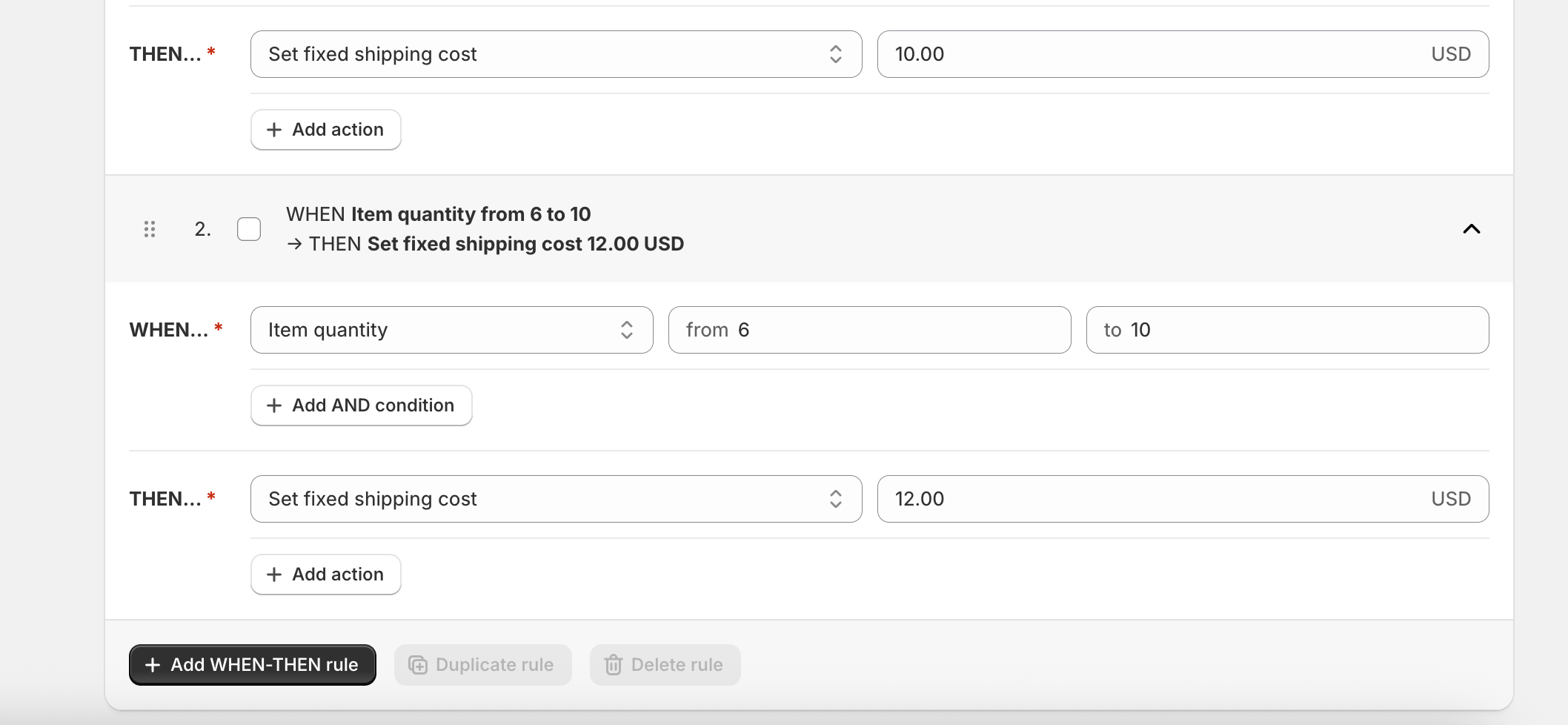
Rules are evaluated top to bottom. The first WHEN condition that matches the customer’s cart applies. Drag and drop the handle icon on the left of each rule to reorder if needed.
When all rules are set, click Save at the top of the screen.
Add products to your cart in different quantities and verify that the correct rate appears at checkout for each tier. Shopify’s checkout reflects the app’s rates in real time. You don’t need to publish or push any changes separately.
This THEN action is the most powerful option for stores where every additional unit genuinely adds cost: personalised packaging, hand-assembly, or per-item labelling. Instead of setting a flat rate for a range, you set a rate per unit:
WHEN Item quantity is 1 – ∞ THEN Set shipping cost per unit: $2.50 per item
A customer ordering 6 items pays $15.00. A customer ordering 12 pays $30.00. The cost scales directly with the order size.
You can combine this with a WHEN range to apply per-unit pricing only within certain quantities, and use a fixed rate or hidden method outside that range.
You can add AND conditions to any WHEN rule to create compound logic. For example, charging more only when a specific product type is in the cart, or giving wholesale customers a different tiered rate.
To add an AND condition, click the + Add AND condition button that appears below any WHEN field after you’ve added the item quantity condition. A second WHEN dropdown appears — select your additional condition and configure it.
All AND conditions must be true simultaneously for the rule to match.
Two practical compound examples:
1. Item quantity + Product tag (fragile surcharge)
WHEN Item quantity is 5 – ∞
AND  Product tag matches one of "fragile"
THEN Set fixed cost $18.99
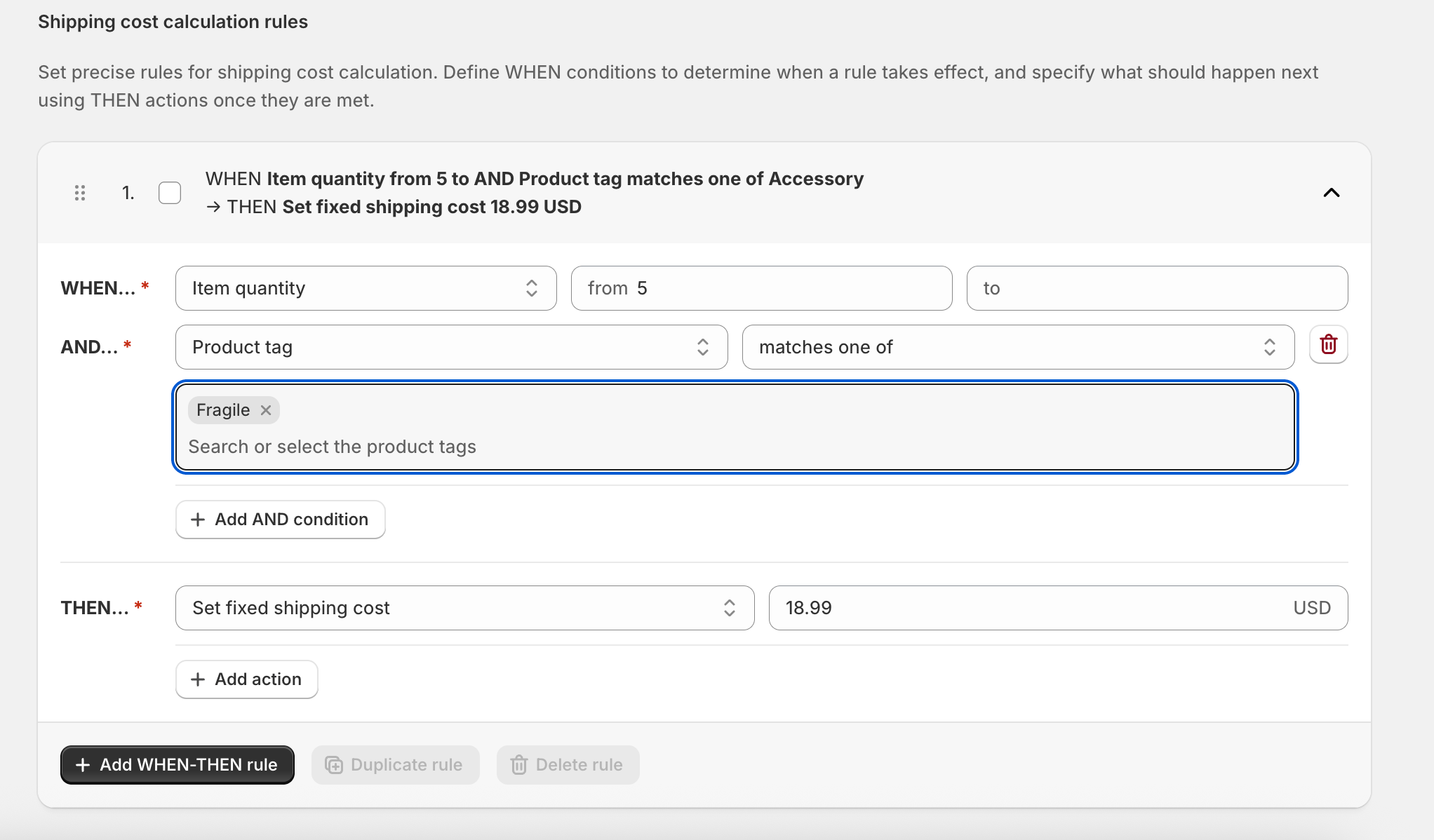
Standard orders stay at the default rate. Orders with fragile items above a certain quantity get a higher rate that reflects the extra protective packaging required.
2. Item quantity + Subtotal price (per-unit pricing with a free shipping cap)
WHEN Item quantity is 1 - ∞   AND Subtotal price is $0 – $49.99
THEN Set shipping cost per unit: $2.00 per item

WHEN Item quantity is 1 – ∞  AND Subtotal price is $50 – $999,999.99
THEN Set fixed cost $0.00
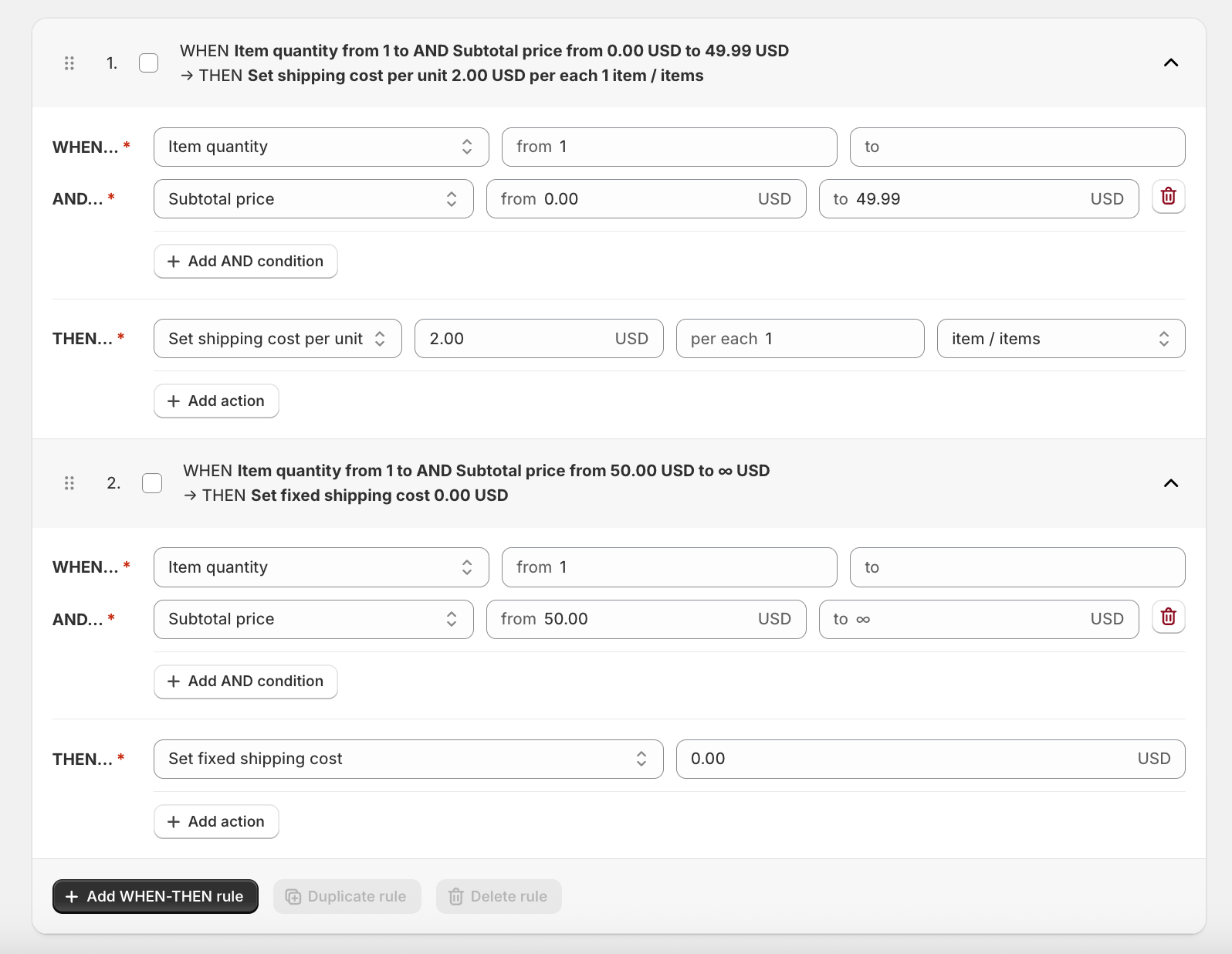
Small orders pay per unit. Large-value orders get free shipping regardless of quantity.
A store selling flowers, plants, or gift sets where each additional item means a larger box or additional packaging materials.
| WHEN item quantity is | THEN fixed cost |
|---|---|
| 1 – 3 | $6.99 |
| 4 – 10 | $10.99 |
| 11 – ∞ | $16.99 |
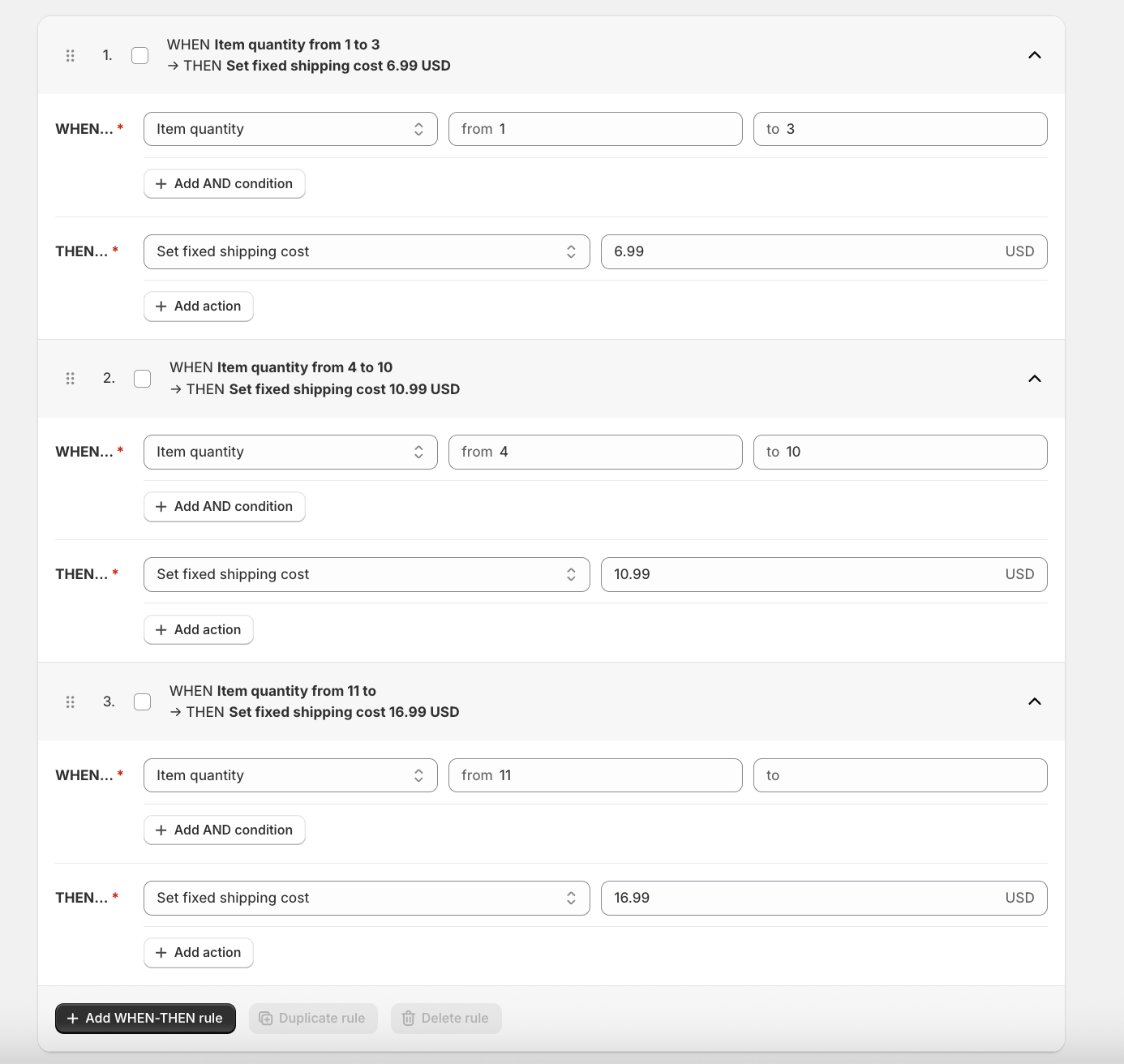
The top-to-bottom rule matching means a cart with 7 items hits the 4 – 10 range and pays $10.99. No overlap, no gaps.
Every item is individually packaged and labelled. The cost scales directly with quantity. There’s no “fixed packaging” element that makes a flat tier appropriate.
WHEN Item quantity is 1 - 20 THEN Set shipping cost per unit: $3.00 per item
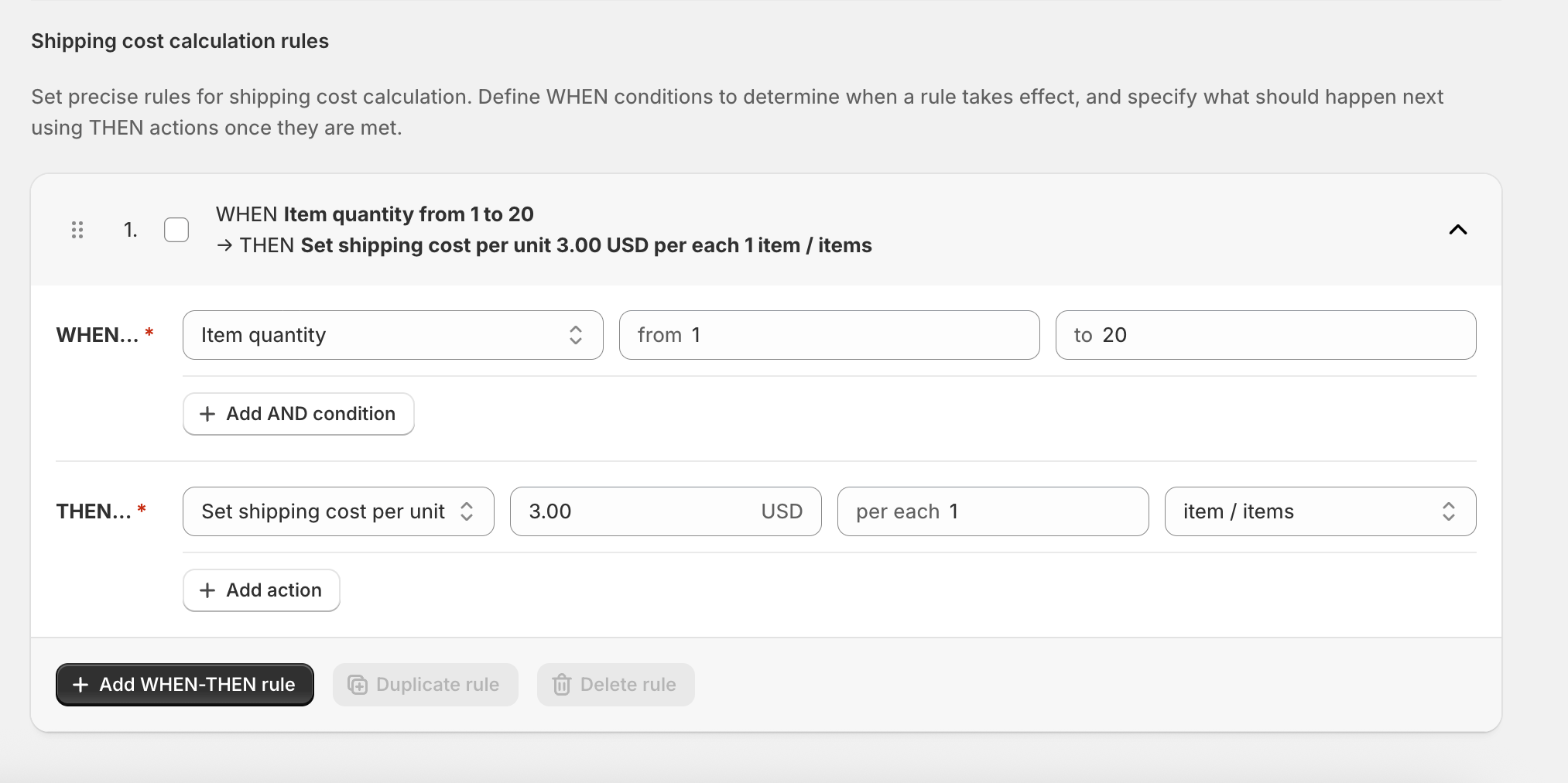
An order of 2 items: $6.00. An order of 5 items: $15.00. Orders above 20 units see no rate at checkout, so the store can handle those as custom quotes.
A store that uses a standard courier for orders up to 10 items, and a freight service for larger orders. The freight option lives in a separate rate configuration; the standard courier rate hides itself when the cart exceeds its capacity.
WHEN Item quantity is 1 - 10 THEN Set fixed cost $9.99
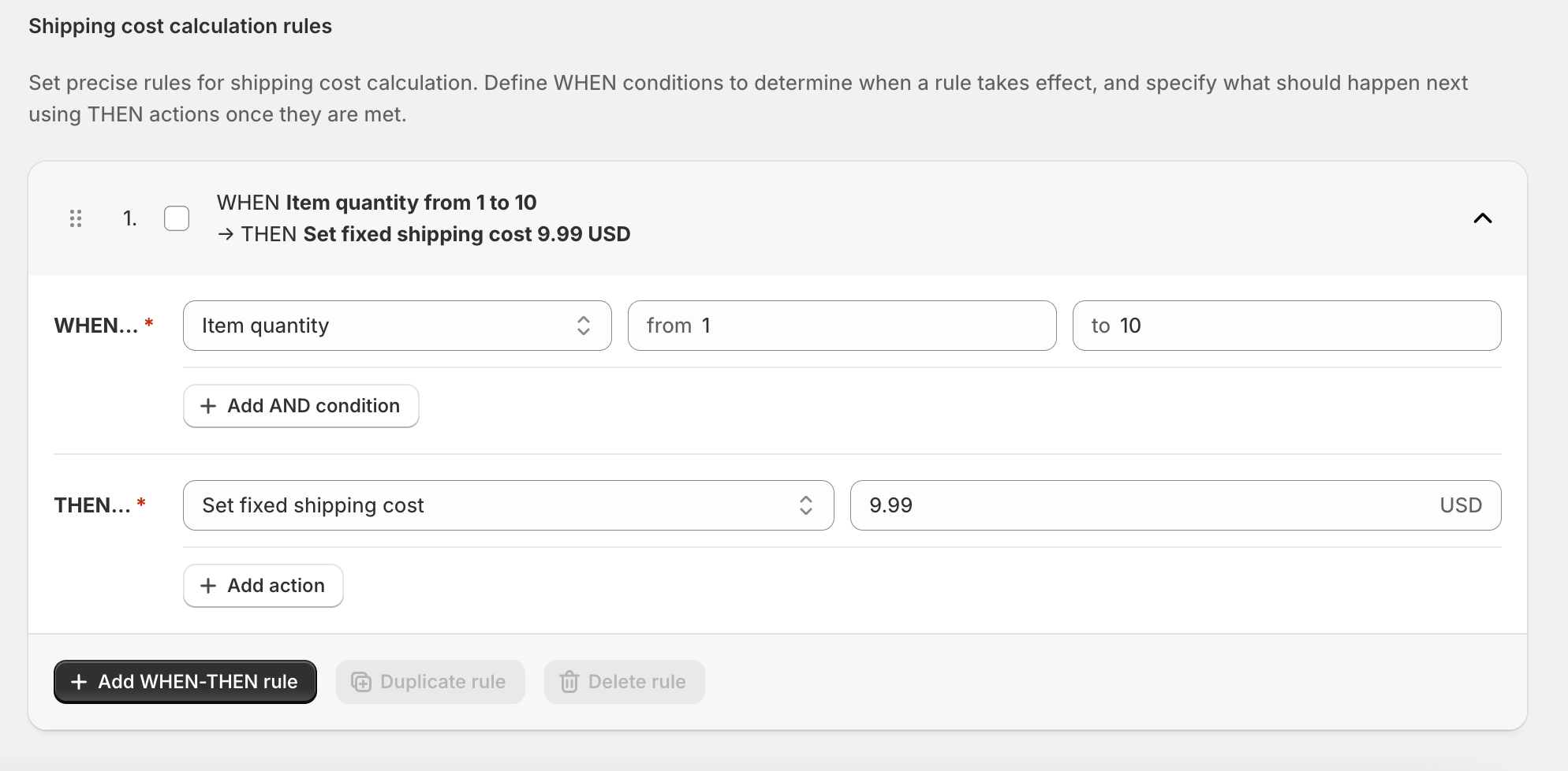
Customers with 11+ items see the freight rate instead (which has its own rules configured separately). The checkout automatically shows only the relevant method for each cart size.
Not natively. Shopify’s built-in shipping supports flat rates, weight-based rates, and order-value thresholds. To use item quantity as a condition, you need a third-party app with Carrier-Calculated Shipping. The Octolize Shipping Rates Rules & Zones app adds this via its WHEN: Item quantity condition.
Item quantity is the total number of individual units in the cart. So, if a customer orders 3 of Product A and 5 of Product B, the item quantity is 8. Cart line item count is the number of distinct product lines, so that same cart has 2 line items. Use item quantity when your costs scale with total units; use cart line item count when your costs scale with the number of different products.
Use the THEN: Set shipping cost per unit action in the Octolize app. Set the WHEN condition to Item quantity with your desired range, then choose “Set shipping cost per unit” and enter the rate per item (e.g. $2.50 per item). The checkout automatically multiplies this by the actual quantity in the customer’s cart.
You need Carrier-Calculated Shipping (CCS) enabled on your store. CCS is included on Shopify Plus and Shopify Advanced by default. On Shopify Grow, it’s included with annual billing or available as a paid add-on with monthly billing. It’s not available on Shopify Basic.
Yes — ranges must not overlap. The From value of each new range should be one integer above the To value of the range before it. Use 0 – 5, then 6 – 15, then 16 – ∞ — not 0 – 5, 5 – 15 (where 5 appears in both). Rules are also evaluated top-to-bottom; the first matching rule applies, so order matters.
Shopify’s native shipping can’t price by item count, but the Octolize Shipping Rates Rules & Zones app fills that gap cleanly with its WHEN: Item quantity condition. Combined with three flexible THEN actions (fixed cost, per-unit, percentage, or hide), and the ability to add AND conditions for compound logic, it covers everything from simple tiered pricing to complex rules that vary by product type, customer segment, or order value.
Shipping costs don’t hit every order the same way: a $6 flat rate barely registers on a $120 order, but on a $15 single-item order it can nearly double the total. That imbalance matters more than most merchants realize: one analysis of Google Analytics ecommerce data found that once shipping charges approach roughly 35% of the order subtotal, conversion rates drop sharply. This is exactly the scenario a flat, one-size-fits-all shipping rate creates for smaller orders, and it’s the core reason to scale your rates by item count instead.
The key things to remember: understand the distinction between item quantity and cart line item count before you configure, don’t let ranges overlap, and use the “Hide this shipping method” action to set a clean upper limit when your courier can’t handle large orders.

Content Writer at Octolize
Bartosz Gajewski is a content and marketing specialist with a solid background in SEO, WordPress content strategy, and technical documentation for digital products. With years of hands-on experience in both in-house and freelance roles, he supports tech companies – especially in the SaaS and e-commerce space – by creating content that informs, engages, and drives results.
His approach blends storytelling with data-driven SEO, and he’s been involved in projects ranging from rebranding and product marketing to growth experiments and copywriting for complex software tools. On the blog, he shares actionable insights from his work across marketing teams, product documentation, and online store optimization.




Learn how Octolize helped Kurzgesagt, the online shop behind one of YouTube’s most popular science channels, set up conditional courier rules using the Shopify Shipping Rates Rules & Zones app.

Learn how Octolize solutions helped WooCommerce store based in the United Kingdom set up shipping scenarios.
Learn how Octolize helped Shopify store based in the USA set up distance based rates with a usage of Octolize Distance Based Rates.
 Pickup Points