
- Home
- WooCommerce
- What plugin are you looking for?
- Shopify
- What Do I Need?
- About us
- Blog
- Docs
- Contact us
- What can we help you with?

Relying on default shipping zones can quickly eat into your profit margins when delivering to remote or highly specific areas. In this guide, I’ll show you exactly how to set up Shopify shipping based on postcodes to ensure you charge the right amount every time. Learn how to take full control of your logistics and automate your zip code-based rates.
| What you need to know | Detail |
|---|---|
| Shopify’s limitation | Native shipping zones stop at Region level – no postcode targeting |
| The solution | Octolize Shipping Rates Rules & Zones app adds postcode-level zones with WHEN→THEN pricing rules |
| Plan requirement | Carrier-Calculated Shipping (CCS) needed: included on Shopify Advanced, Plus, and Grow (annual / monthly billing with an additional fee of $20/month) |
| Three input formats | Full codes, numeric ranges (2600...2898), and wildcards (AB*) |
| Zone matching | Top-to-bottom: most specific zone listed first always wins |
Shopify organises shipping around three core concepts: shipping profiles (which products), shipping zones (where you ship), and shipping rates (how much it costs). These stack together to determine what a customer sees at checkout, but none of them natively support postcode-level targeting.
Here’s how they relate:
| Concept | What it controls | Where to find it |
|---|---|---|
| Shipping profile | Which products follow which rules | Settings → Shipping and delivery → Profiles |
| Shipping zone | Countries/regions you ship to | Inside each profile |
| Shipping rate | Methods and prices shown at checkout | Inside each zone |
To add a shipping zone: go to Settings → Shipping and delivery, choose your profile, scroll to Shipping zones, click Add zone, select countries, then use Add shipping option to define the rate.
This works well for country- or state-level pricing. The limitation relevant here: Shopify’s native zones can only be narrowed to countries and states/regions, not specific postcode lists or patterns.
For a full walkthrough of Shopify’s shipping fundamentals, see our guide on how to set up shipping zones on Shopify.
Postcode-based shipping lets you charge accurate rates for remote areas, run local delivery zones, and block orders from locations you can’t serve. None of which are possible with Shopify’s native zone system.
The five most common scenarios that require postcode-level control:
No. Shopify’s built-in shipping settings cannot target specific postcodes or ZIP codes. The most granular level Shopify supports natively is states and provinces within a country. To implement postcode-level shipping rules, you must use a third-party app.
This is a deliberate platform limitation, not a missing feature in early development. Shopify’s shipping zone architecture is designed for broad geographic coverage. Apps that use the Carrier-Calculated Shipping (CCS), like Octolize, extend that architecture to provide the postcode precision that merchants need. If you’re considering a complete platform overhaul, a trusted Shopify migration company like folio3 ecommerce can help transfer your existing shipping configurations seamlessly during the migration process.
According to Shopify’s own documentation, CCS-enabled apps are the supported mechanism for advanced, carrier-level shipping customisation.
Octolize Shipping Rates Rules & Zones is a Shopify app that adds postcode-level zone targeting and a conditional pricing engine (WHEN→THEN rules) on top of Shopify’s native shipping. It carries the Built for Shopify badge and is rated 4.8★ on the Shopify App Store.
| Feature | What it means in practice |
|---|---|
| Postcode zones | Define shipping zones by exact codes, numeric ranges, or wildcards |
| WHEN→THEN rules | Set prices conditionally based on weight, subtotal, item count, product tag, SKU, customer tag, time of day, or day of week |
| Multiple rate types | Fixed cost, cost per unit, cost per weight unit, or % of subtotal |
| Free shipping threshold | Automatically waive cost when cart exceeds a set value |
| Zone ordering | First-match logic: most specific zone listed first wins |
| Zone duplication | Clone an existing zone with all its rates in one click |
| Exclusion zones | Define zones with no rates to block orders from specific postcodes |
The full setup takes around 20–30 minutes: install the app, create postcode zones, set the matching order, add pricing rules per zone. Here’s the complete walkthrough.
Visit the Shopify App Store listing, click Install, and follow the standard installation flow. The app automatically adds its rates to your existing Shopify shipping zones under Carrier and app rates.
After selecting your plan, you’ll land on the Zones & Rates screen. If you see a CCS banner instead, your current plan doesn’t have CCS enabled.
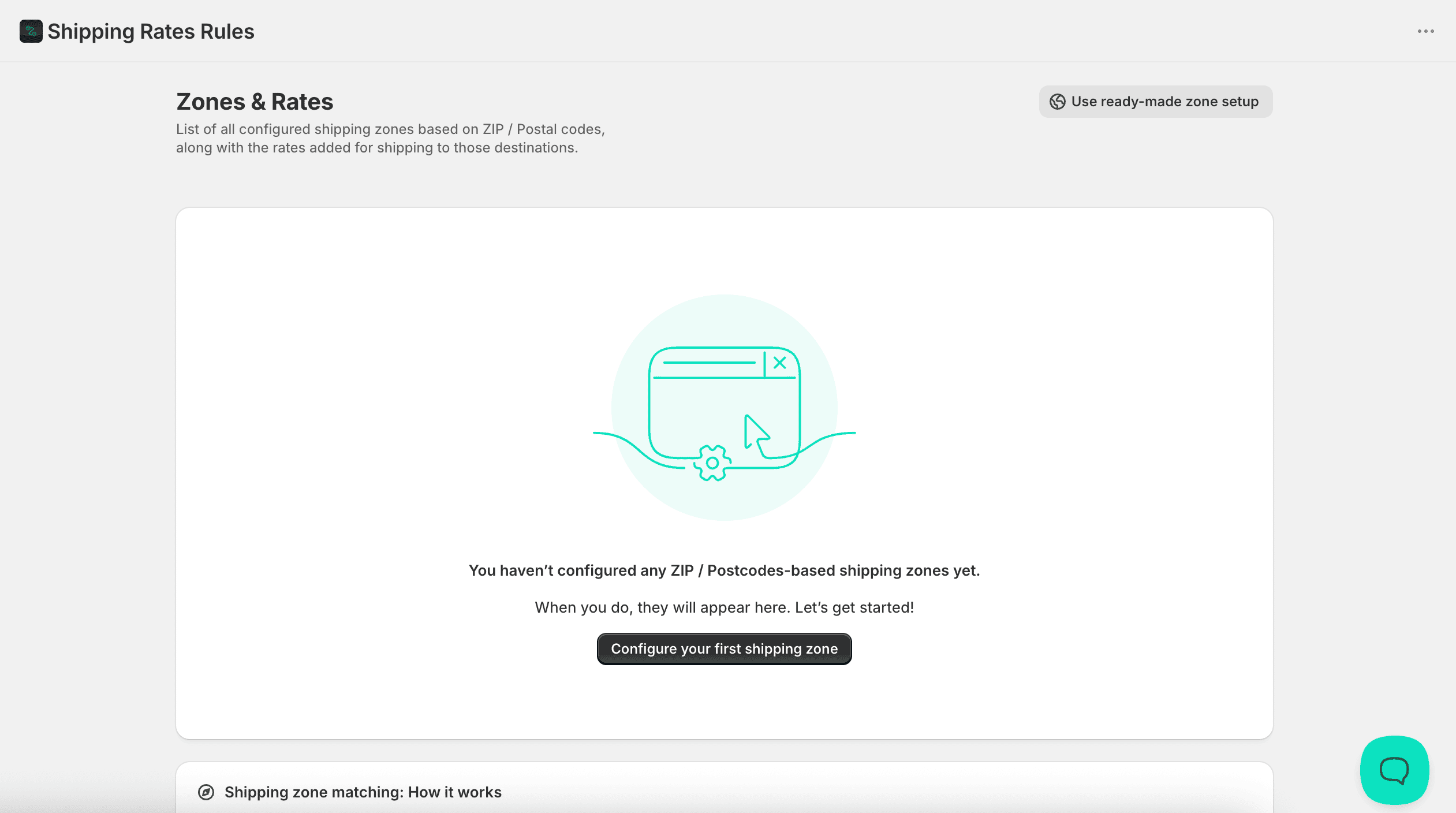
Click “Configure your first shipping zone” (or “Add shipping zone”) and fill in three fields: zone name, countries/regions, and the specific postcodes that define this zone.
Here’s what each field does:
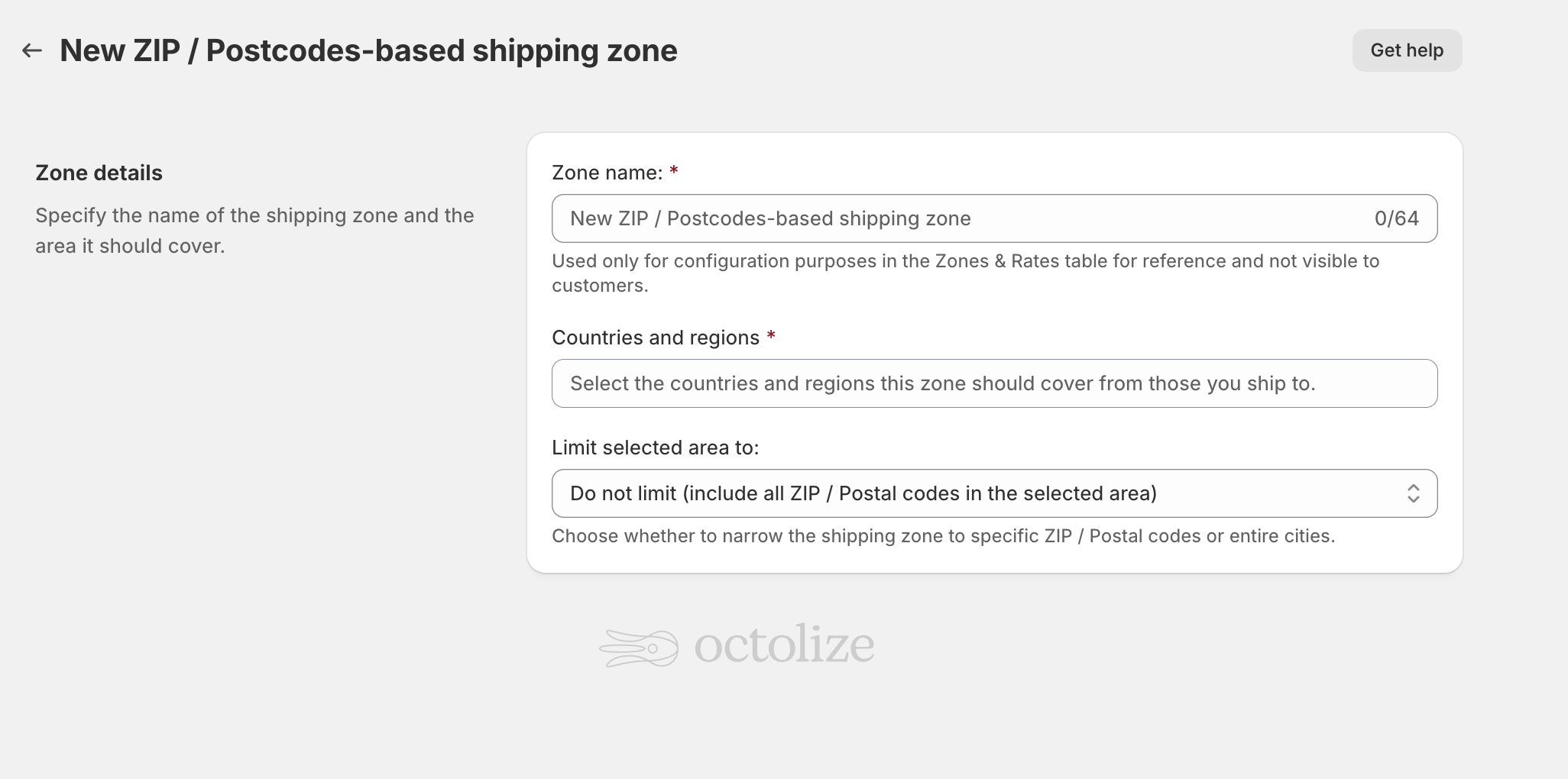
You have three input formats, and you can mix them freely within the same zone:
1. Full exact codes: one per line or comma-separated:
2600
2610
2614
2616, 2617, 2618
2. Ranges: use an ellipsis (...) between start and end:
2619...2898
Covers every code between 2619 and 2898.
3. Wildcards: use an asterisk (*) to match all codes sharing a prefix:
AB*
KW*
IV*
PH*
AB* covers AB10 1AB, AB33 8AD, AB99 3ZZ, and every other code beginning with AB. For UK alphanumeric postcodes: SW1* captures SW1A 1AA, SW1H 0ET, and so on.
Click Save when done. The zone will appear in your Zones & Rates table.
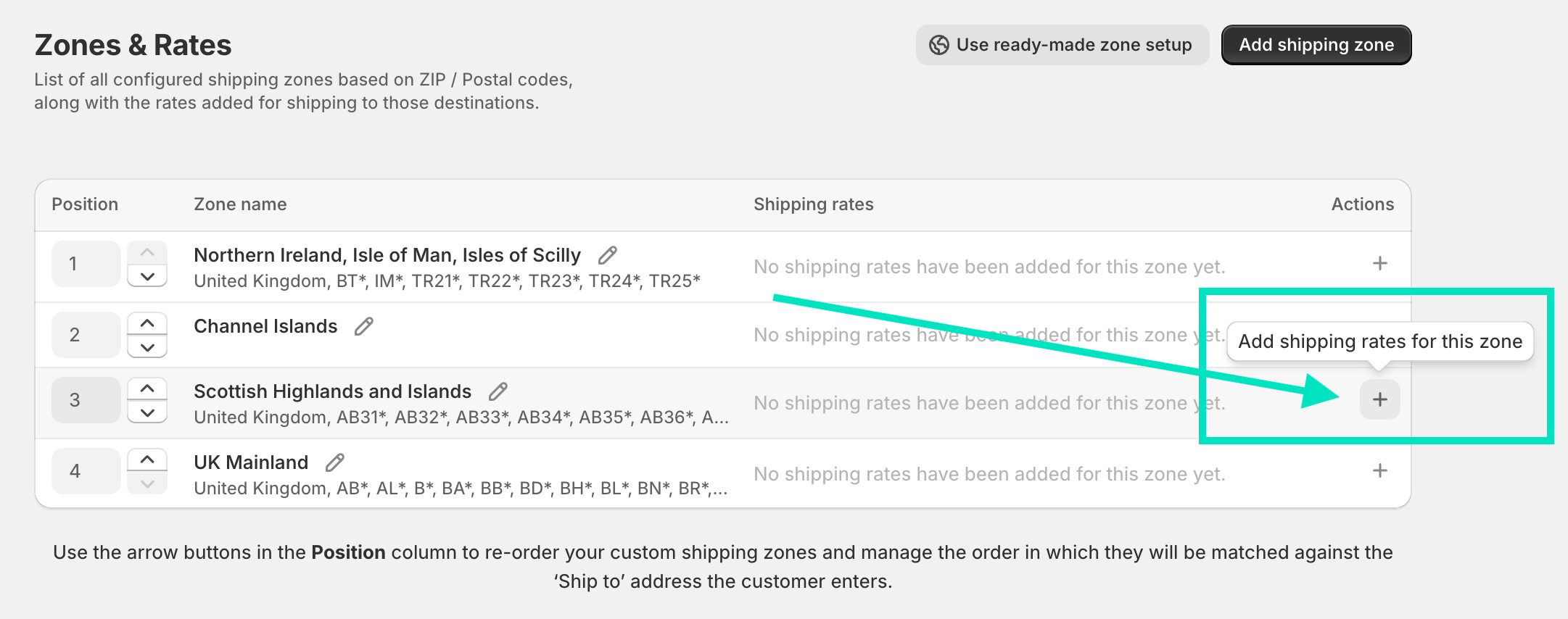
Zones are matched top-to-bottom. The first zone that matches the customer’s postcode “wins”. More specific zones must always sit above broader ones.
Example: if you have a “Scottish Highlands” zone (AB*, KW*, IV*) and a “United Kingdom” zone (all UK), the Highlands zone must be first. Otherwise a customer in Aberdeen (AB postcode) matches the general UK zone and gets the wrong rate.
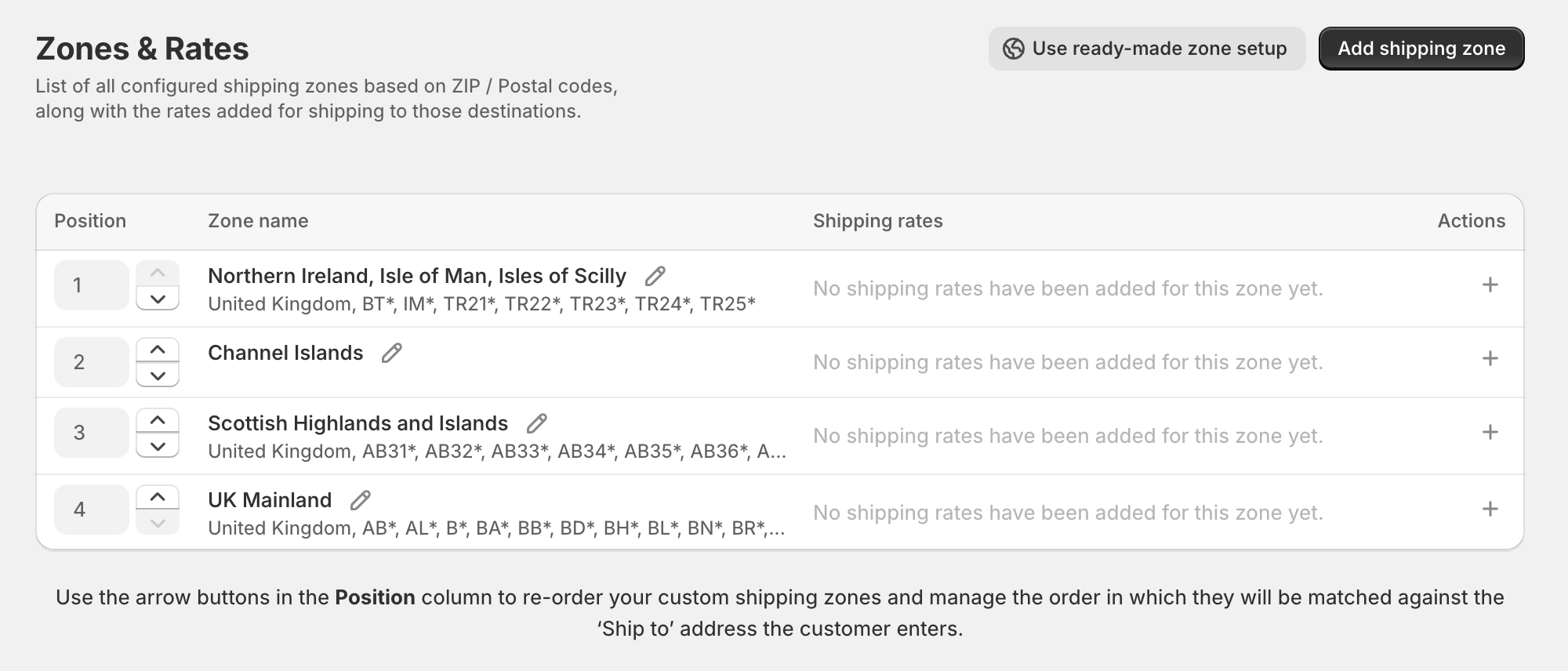
Use the Position column arrow buttons to reorder zones until the most specific are at the top.
Click the “+” button in the Actions column next to a zone to open the rate configuration screen, then fill in the name, pricing rules, and optional free shipping threshold.
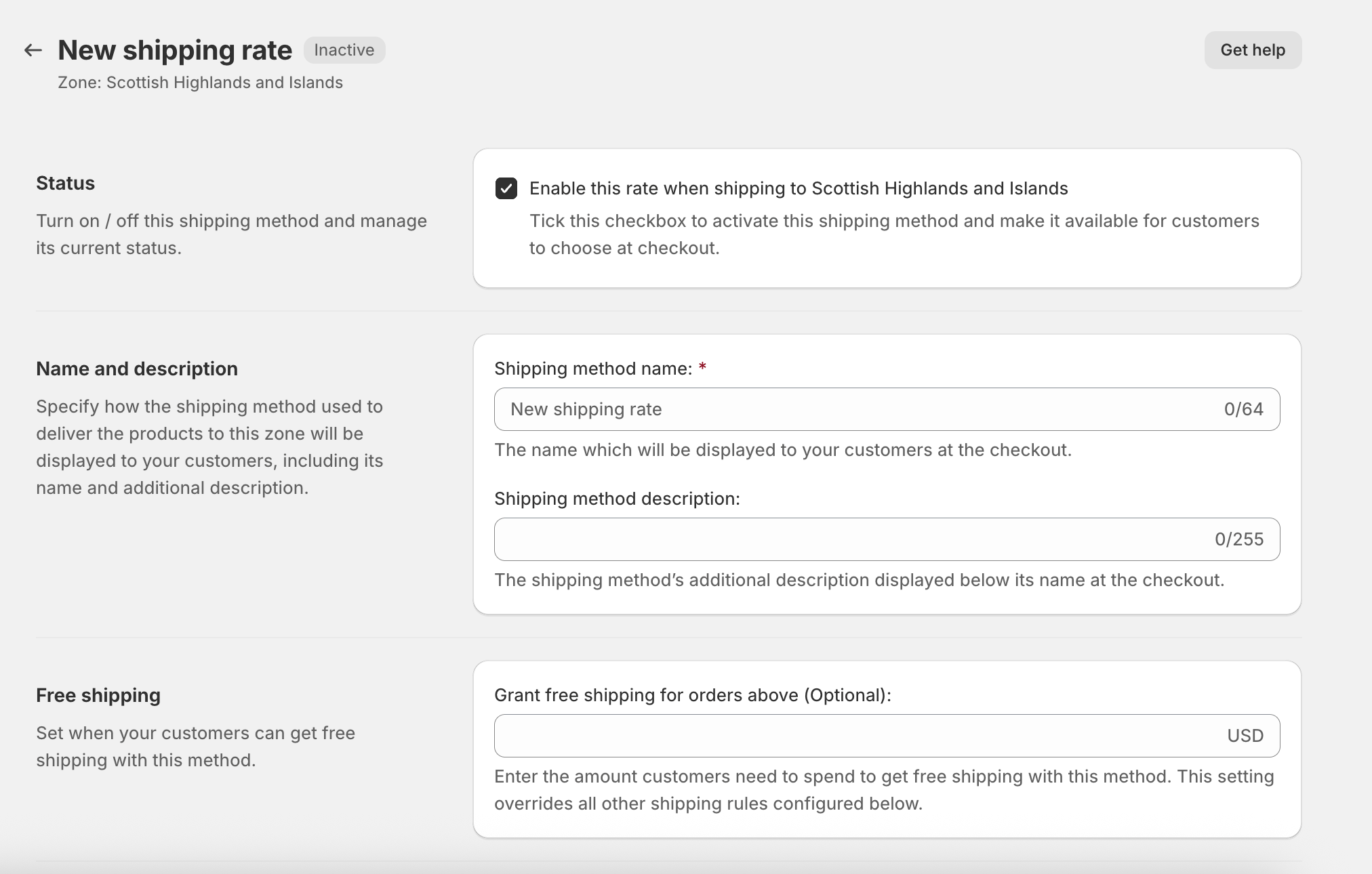
The rate configuration screen includes:
Each rule pairs a condition with an action. Available WHEN conditions: order weight, subtotal price, item quantity, product SKU, product tag, customer tag, time of day, day of week.
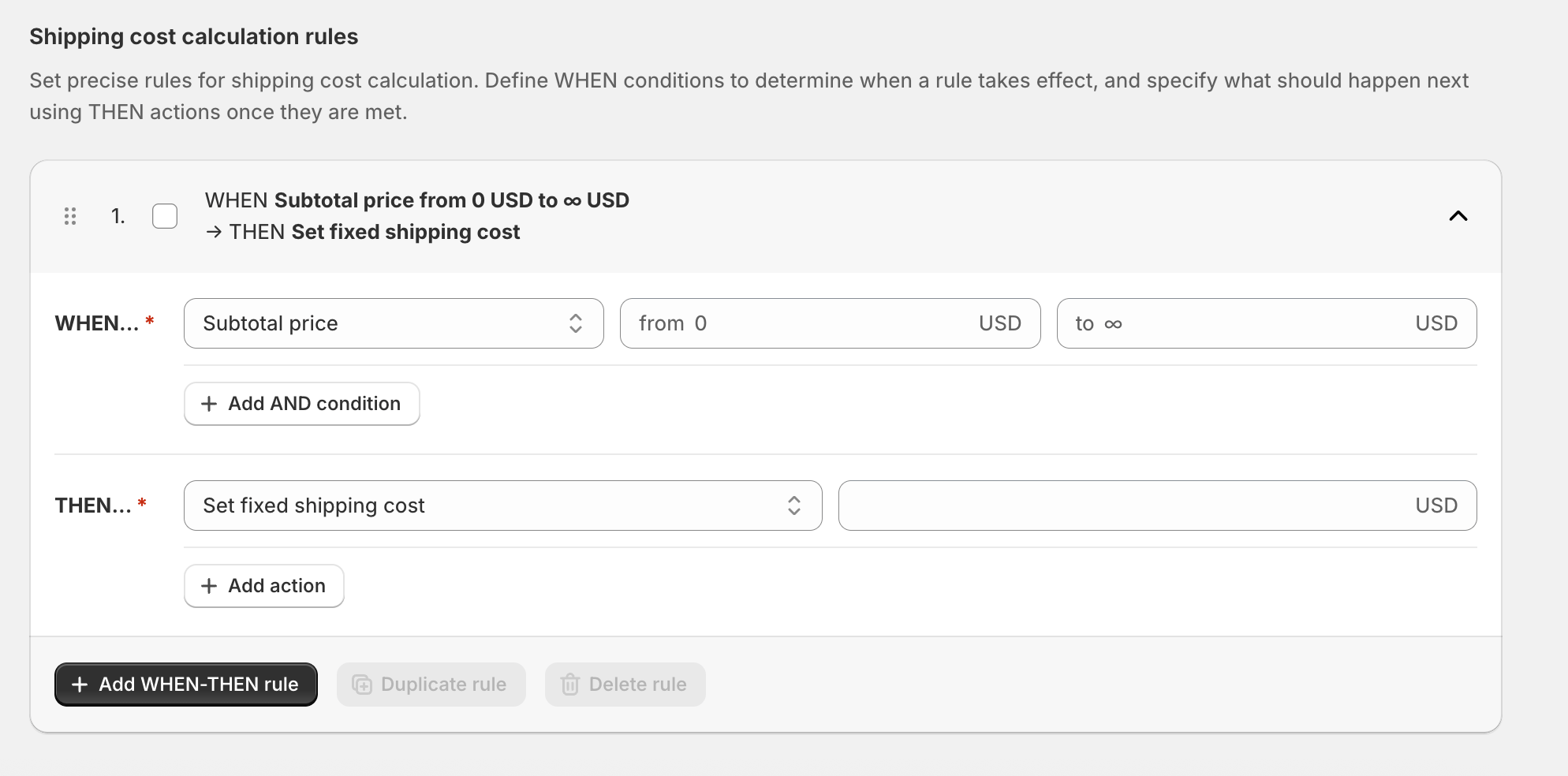
Available THEN actions: fixed cost, cost per unit, cost per weight unit, % of subtotal, or hide this method.
| WHEN | THEN | Use case |
|---|---|---|
| Subtotal £0–£49.99 | Fixed cost £6.99 | Standard paid shipping |
| Subtotal £50–£999,999 | Fixed cost £0.00 | Free shipping above threshold |
| Weight 0–19.999 kg | Fixed cost £12.99 | Light parcel surcharge zone |
| Weight 20 kg–∞ | Hide this method | Exclude heavy items from method |
| Always | 8% of subtotal | Percentage-based pricing |
Rules evaluate top-to-bottom. Click + Add WHEN-THEN rule to add as many as needed.
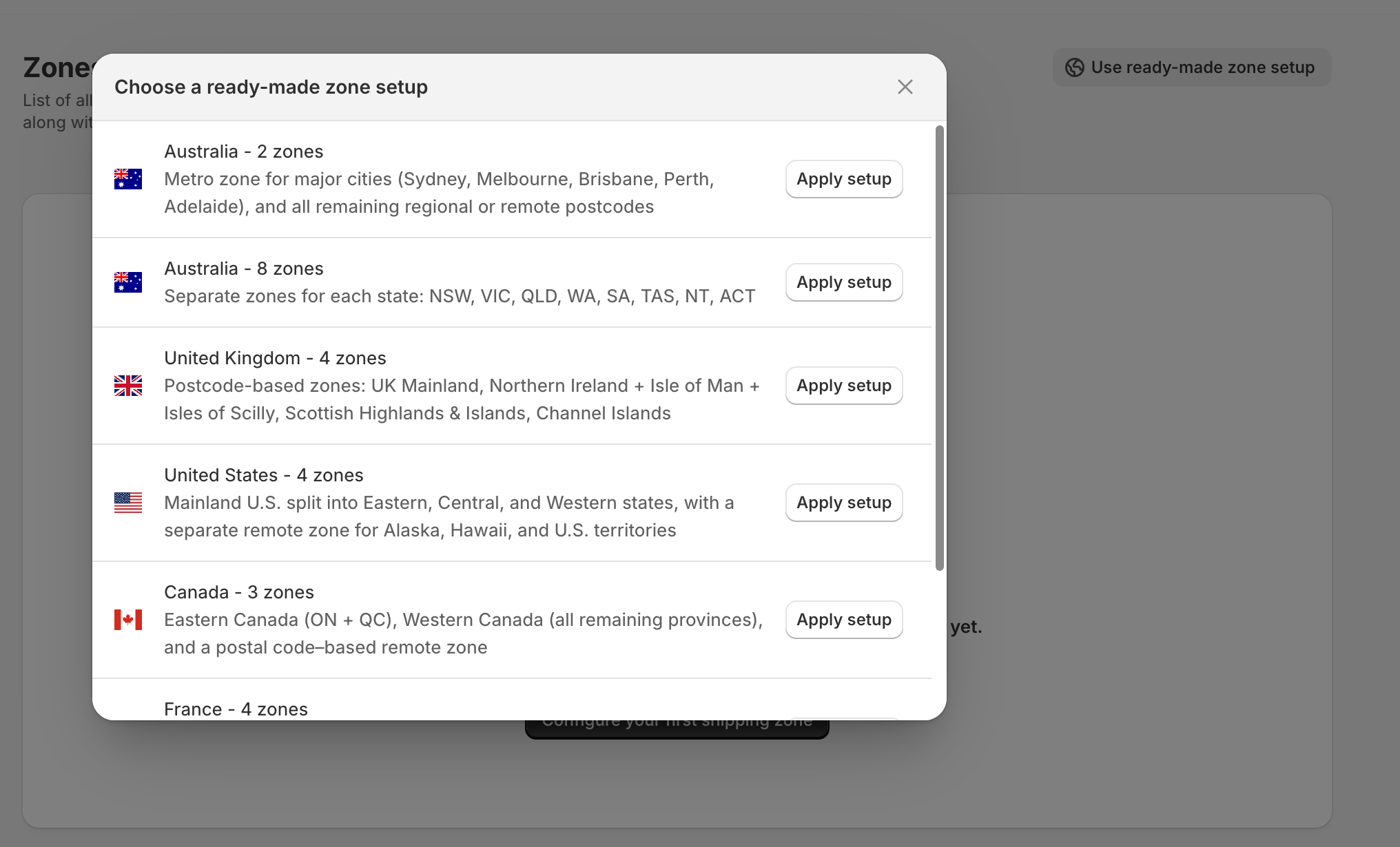
The standard UK setup creates a Highlands zone using wildcard postcodes and a higher rate, placed above a standard UK mainland zone.
Zone 1 (TOP): "Scottish Highlands & Islands"
Postcodes: AB3*, AB4*, AB5*, DD8*, FK1*, HS*, IV*, KA2*, KW*, PA2*, PA6*, PH*, ZE*
Rate: £18.99

Zone 2: "UK Mainland"
Countries: United Kingdom (no postcode restriction)
Rate: £5.99
Royal Mail and most UK couriers publish their Highland surcharge postcode lists. You can copy those directly into the zone definition.
Create a metro zone using the relevant ZIP code prefixes, then a continental US catch-all below it.
Zone 1 (TOP): "New York Metro"
ZIP codes: 100*, 101*, 102*, 104*
Rate: $4.99 (same-day courier)

Zone 2: "Continental US"
Countries: United States (no postcode restriction)
Rate: $9.99 (standard carrier)
The same pattern works for any US metro area — Chicago (606*), Los Angeles (900*–902*), Chicago, etc.
Define a zone covering your delivery radius by postcode, add a low-cost rate, and place a blocking zone for the same country below it with no rates.
Zone 1 (TOP): "Local delivery"
Postcodes: [your delivery-radius postcodes]
Rate: £2.00 (own driver, same-day)
Zone 2: "Outside delivery area"
Countries: [same country, no postcode restriction]
No rates → "Shipping not available" shown
“This is an excellent app for shipping as well as local delivery businesses that base your rates by zip codes. Customer support is top notch. We highly recommend giving it a try.”
— Store owner, US (via Shopify App Store review)
No. Shopify’s native shipping settings narrow zones to countries and states/regions only — not specific postcode lists or patterns. A third-party app using the Carrier-Calculated Shipping (CCS) is required.
No. Carrier-Calculated Shipping, which the Octolize app requires to display rates at checkout, is not available on Shopify Basic. You need to upgrade to at least Shopify Grow.
Yes. All three input formats can be combined freely within a single zone definition.
If you don’t configure any other shipping methods, they’ll see Shopify’s “Shipping not available” message. To serve all customers, include a broad catch-all zone at the bottom of the list with no postcode restriction. The Octolize Shipping Rates Rules & Zones App has a dedicated tab showing situations in which the app did not display rates (no zone, or no rates for the cart).
Yes. Once a zone has at least one rate, a “More actions” button appears in the Zones & Rates table. Click it and choose Duplicate shipping zone. Duplicated zones include all original rates, but rates are inactive until manually enabled.
Yes. The Octolize Shipping Rates Rules & Zones app adds its own rates independently of other apps. Multiple CCS-enabled apps can coexist in the same store, but rates from other apps are not supported (cannot be managed) in custom zones created by the Octolize Shipping Rates Rules & Zones app.
A shipping profile determines which products follow a set of rules (e.g., standard products vs. oversized items). A shipping zone sits inside a profile and defines where you ship. Postcode targeting is configured at the zone level.
Shopify’s built-in shipping is built for simplicity. For anything more precise: remote surcharges, local delivery zones, geographic exclusions, or city-level pricing, you need postcode-level control that Shopify doesn’t provide natively. The Octolize Shipping Rates Rules & Zones app fills that gap with three postal code input formats (exact, range, wildcard), a flexible WHEN→THEN pricing engine, and first-match zone ordering that gives you complete control over which rate each customer sees.

Content Writer at Octolize
Bartosz Gajewski is a content and marketing specialist with a solid background in SEO, WordPress content strategy, and technical documentation for digital products. With years of hands-on experience in both in-house and freelance roles, he supports tech companies – especially in the SaaS and e-commerce space – by creating content that informs, engages, and drives results.
His approach blends storytelling with data-driven SEO, and he’s been involved in projects ranging from rebranding and product marketing to growth experiments and copywriting for complex software tools. On the blog, he shares actionable insights from his work across marketing teams, product documentation, and online store optimization.




Learn how Octolize helped Kurzgesagt, the online shop behind one of YouTube’s most popular science channels, set up conditional courier rules using the Shopify Shipping Rates Rules & Zones app.

Learn how Octolize solutions helped WooCommerce store based in the United Kingdom set up shipping scenarios.
Learn how Octolize helped Shopify store based in the USA set up distance based rates with a usage of Octolize Distance Based Rates.
 Pickup Points