
- Home
- WooCommerce
- What plugin are you looking for?
- Shopify
- Find my product
- About us
- Blog
- Docs
- Contact us
- What can we help you with?

When several pickup points are only a few streets apart, the final choice should not depend on recognizing an address alone. The upcoming Pickup Points PRO 1.11.0 update makes the selector easier to scan and gives store owners more control over how the map fits their checkout.
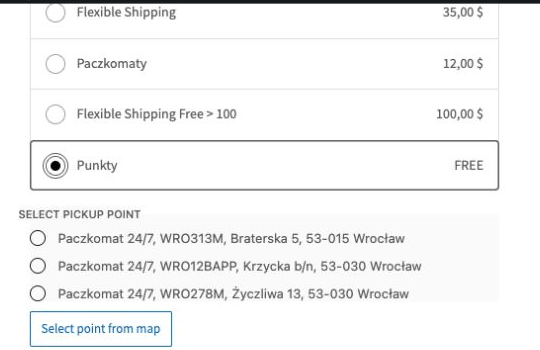
The nearest-points list now includes the location name and the pickup point ID alongside the address. This helps shoppers distinguish between similar locations and choose the exact locker, shop, or service point they intended.
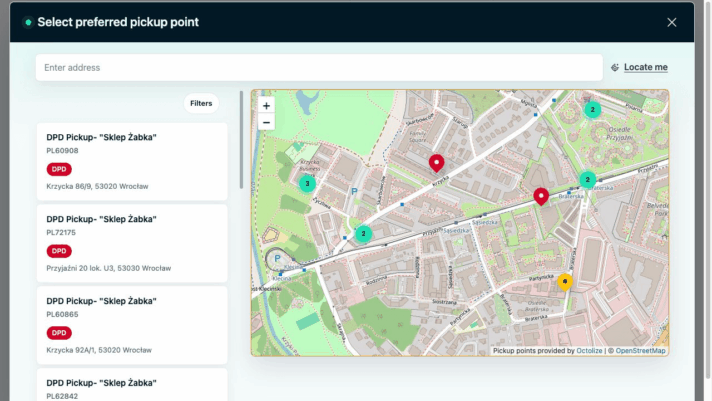
The full-size map presents the same information in a more structured way: pickup point name, unique ID, carrier, and full address stay together on every result card. Carrier-colored labels and pins make it easier to tell providers apart at a glance, even when points from several carriers share the same area.
Address suggestions help shoppers move to the right area as they type. A dedicated Locate me button can use the browser location where available, while filters and map navigation make it easy to explore more pickup points. When a shipping method includes several carriers, their points load per carrier and the list follows the current map area.
A new Map theme setting lets you choose from six options: None, Octolize, Yellow, Red, Blue, or Dark. The Octolize theme is selected by default, while the other themes give you a quick way to match the selector to your store’s visual style.
Your chosen theme is used in the mini-map and the full-size selector in both classic and block-based WooCommerce checkout.
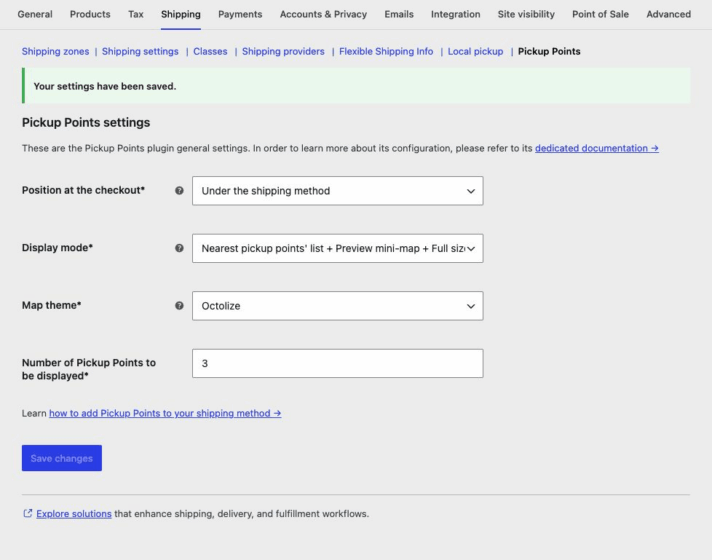
After Pickup Points PRO 1.11.0 becomes available for your store, update the plugin and go to WooCommerce → Settings → Shipping → Pickup Points. Choose the map theme you want to use and save the changes.
If you are configuring pickup points for the first time, see the guides to Pickup Points PRO settings and adding pickup points to a shipping method.
Explore Pickup Points PRO for WooCommerce and give customers a clearer way to choose where their order should be delivered.

Lucyna Polok is an SEO and content specialist passionate about crafting effective strategies and creating engaging content. She has worked across a variety of industries, both in-house and as a freelancer. A strong believer in the power of storytelling, she believes that good content not only delivers business results, but also resonates with customers through an emotional connection with a brand.
At Octolize, she is responsible for aligning the content strategy with business goals and increasing visibility, trust, and authority of the brand via data-based SEO efforts. On the blog, she focuses mostly on topics for those only beginning their adventure with e-commerce, explaining scenarios and terms in an approachable way.



Learn how Octolize helped Kurzgesagt, the online shop behind one of YouTube’s most popular science channels, set up conditional courier rules using the Shopify Shipping Rates Rules & Zones app.
Learn how Octolize solutions helped WooCommerce store based in the United Kingdom set up shipping scenarios.
Learn how Octolize helped Shopify store based in the USA set up distance based rates with a usage of Octolize Distance Based Rates.
 Pickup Points