
- Home
- WooCommerce
- What plugin are you looking for?
- Shopify
- What Do I Need?
- About us
- Blog
- Docs
- Contact us
- What can we help you with?

A customer reaches your checkout, enters their address, and sees no shipping options. It’s obvious that in most such cases, they’ll simply leave your online store and look for a similar product from a competitor. It happens silently, and it’s almost always a configuration issue: a missing zone, a rate that was never assigned, or a rule with a gap that no cart can match. This guide covers the five causes, with the exact fix for each.
| Cause | Where to look | Fix |
|---|---|---|
| Customer address doesn’t match any zone | Shopify Admin → Settings → Shipping and delivery | Add the country/region to a zone |
| Zone exists but has no rates assigned | Shipping and delivery → [zone] → Shipping rates | Add at least one rate to the zone |
| Cart doesn’t meet rate conditions | App rate configuration → WHEN rules | Audit rule ranges for gaps |
| CCS not enabled or carrier API error | Settings → Shipping → Carrier-calculated rates | Enable CCS; check API credentials |
| Product has no weight or dimensions | Products → → Shipping tab | Add weight to every physical product |
Shopify shows no shipping options at checkout when the app or rate configuration returns zero valid rates for the customer’s cart and address. The customer sees a message like “No shipping options available” or “Enter your shipping address” with no methods to choose from. The order can’t be completed.
This happens silently. Shopify doesn’t notify you when a checkout fails due to missing rates. Unless the customer tells you, or you actively look for it, these failures accumulate undetected. The causes are almost always configuration-related. There are five common ones, and each has a specific fix. Work through them in order.
Shopify matches the customer’s delivery address to a shipping zone. If no zone covers that address, no rates appear. Regardless of what rates you’ve configured.
This is the most common cause. Shipping zones define where you ship, not how much it costs. If a customer in Australia checks out and you have zones only for the United States and United Kingdom, Shopify has nothing to match against and returns zero rates.
How to check: Go to Settings → Shipping and delivery in your Shopify Admin. Review every shipping profile that contains the products in the cart. Look at which countries and regions each zone covers.
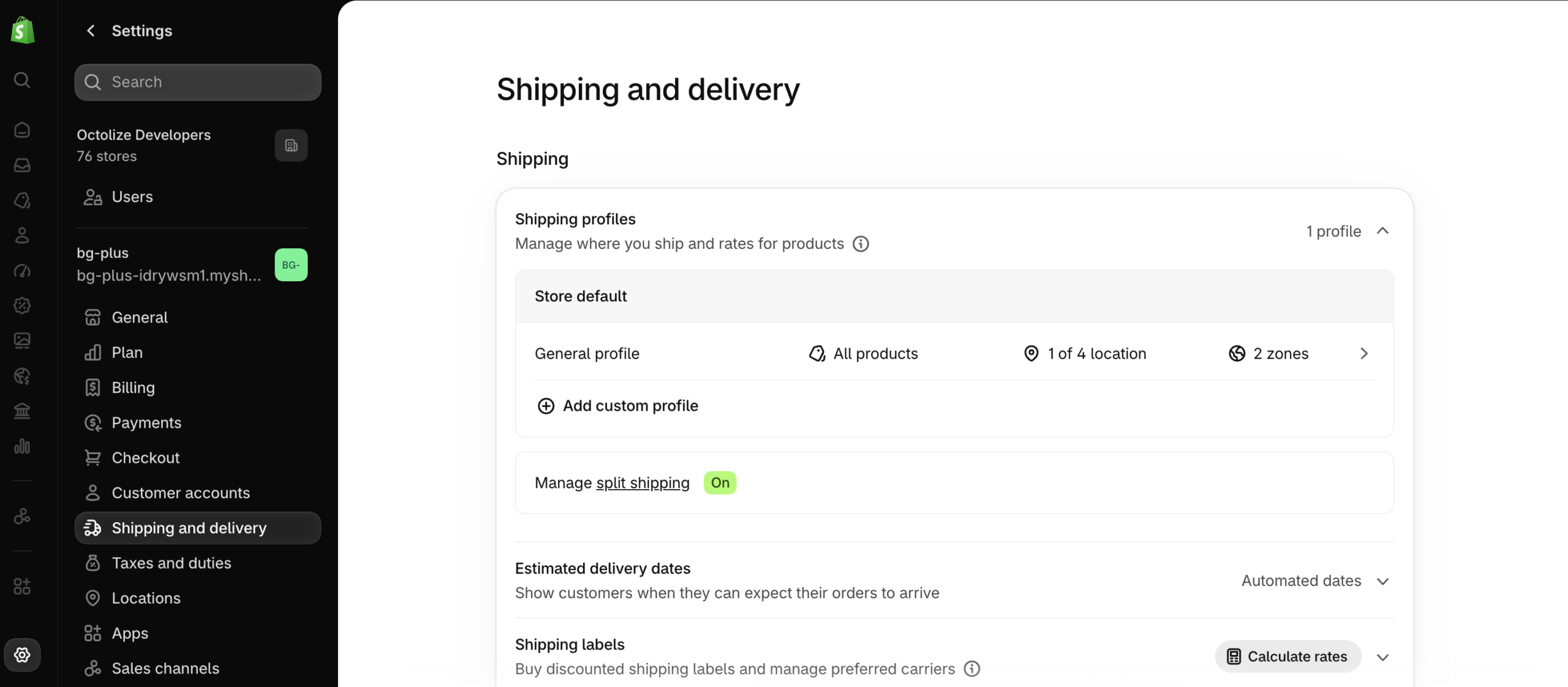
How to fix:
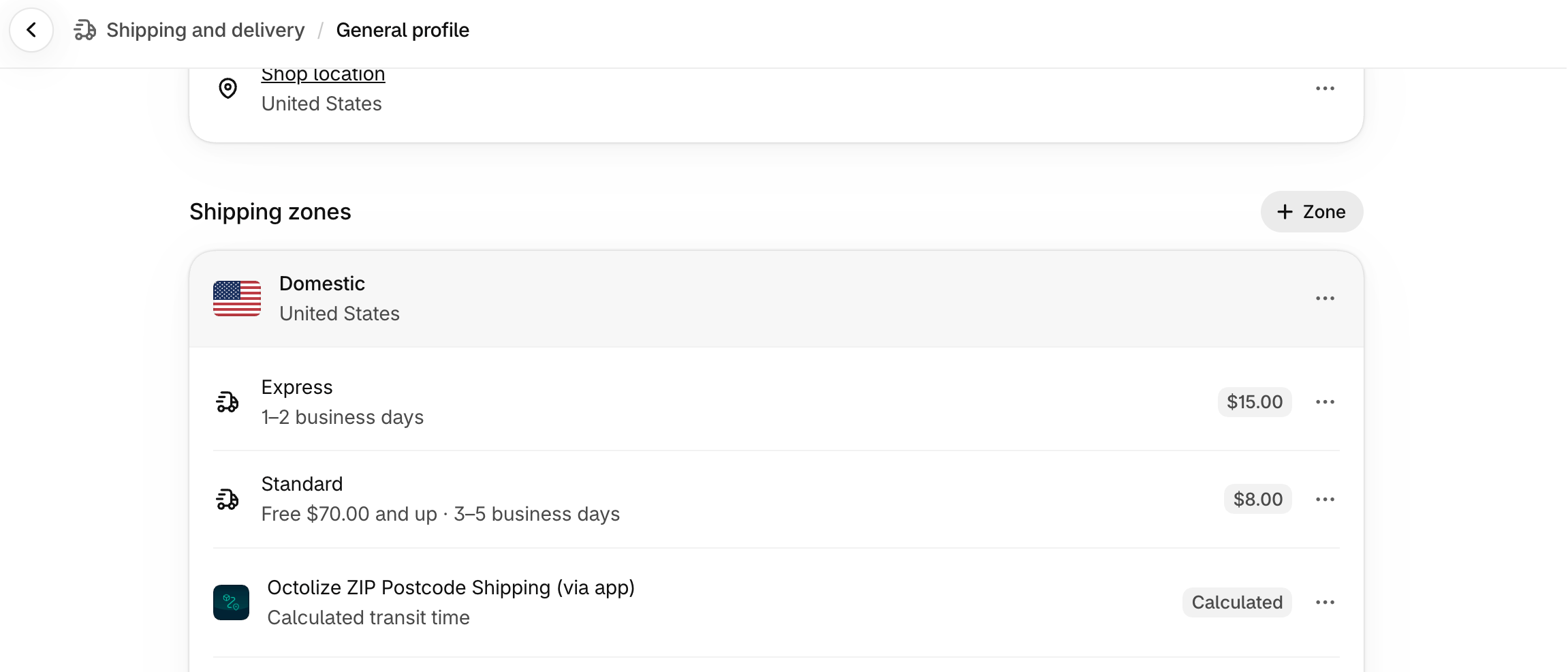
If you use a third-party shipping app (like Octolize Shipping Rates Rules & Zones), the app creates its own zones on top of Shopify’s. Make sure the relevant country is covered there too.
A less obvious version of this: the customer’s address is technically in a country you’ve added to a zone, but they’ve entered a postcode that a postcode-based sub-zone explicitly excludes. If you’ve set up postcode filtering and left a gap, those postcodes will return no rates. Learn more about Shopify Shipping Based on postcodes.
A shipping zone with no rates inside it returns no shipping options. Having a zone for Australia doesn’t help if you haven’t added any rates to it.
How to check: Go to Settings → Shipping and delivery, open the profile, and click on each zone. Look at the “Shipping rates” column. If it says “No rates”, that’s your problem.
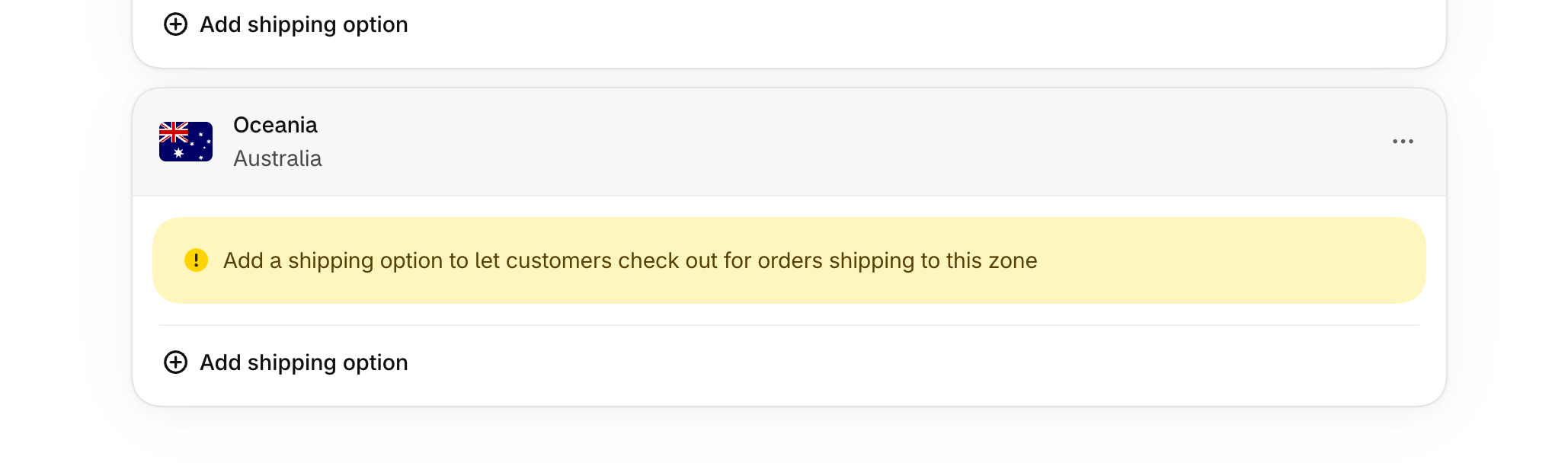
How to fix:
The same applies to third-party app rates. If you’ve configured a zone in your Octolize app but haven’t added any WHEN→THEN rules yet, the rate is inactive and won’t appear at checkout.
Common gap scenarios:
| Scenario | Example | Result |
|---|---|---|
| Weight range gap | Rules cover 0-5 kg and 10-20 kg; a 7 kg cart doesn’t match either | No rate shown |
| Subtotal range gap | Rules cover $0-$49.99 and $100+; a $75 order matches neither | No rate shown |
| Overlapping ranges | Rules set as 0-5 and 5-10 (5 appears in both) | Unexpected behaviour |
| “Hide this method” triggers first | Hide rule fires before any pricing rule | Method disappears entirely |
How to check: In your rate configuration, review every WHEN rule. Check for gaps between ranges. The upper bound of one range should flow directly into the lower bound of the next.
How to fix:
If your store uses Carrier-Calculated Shipping and the CCS connection fails, times out, or returns an error, Shopify shows no rates from that carrier or app. This can look like a complete blackout if CCS is your only rate type.
CCS is the Shopify API that allows third-party apps (and carrier integrations like FedEx or UPS) to display dynamically priced rates at checkout. Several things can cause it to fail:
Weight-based shipping rates require every product in the cart to have a weight set. If any product has no weight, the cart’s total weight is effectively zero, which may cause weight-based rules to match the wrong tier or match nothing at all.
This is particularly common when:
How to check: In your Shopify Admin, go to Products, open a product, scroll to the Shipping section. Check the Weight field — it should have a value greater than zero for any physical product.
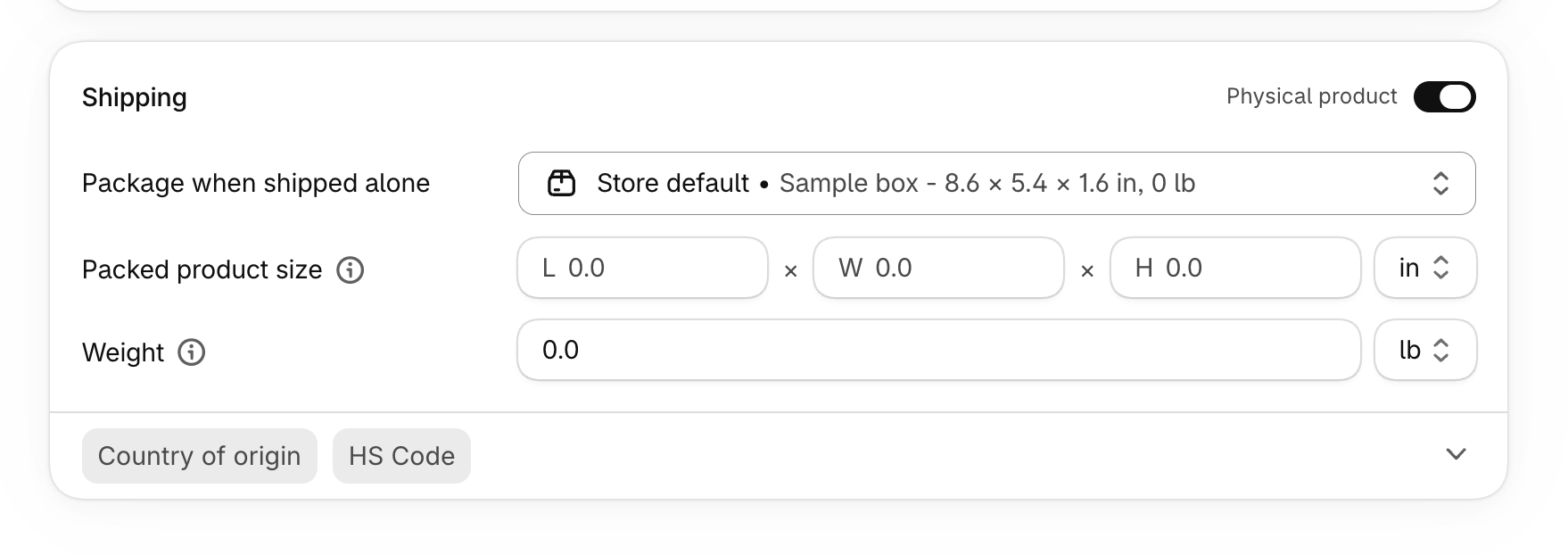
To find products with no weight set, go to Products → Export and download a CSV. Filter the “Variant Weight” column for blank or zero values.
Shopify’s native admin has no built-in log of failed rate calculations. There is no screen in Shopify Admin that shows you which checkout sessions returned no shipping options, what the customer’s address was, or why the rate failed.
Without visibility into these failures, the only signals you get are:
The Octolize Shipping Rates Rules & Zones app addresses this directly with a Checkouts with no rates log. It’s a dedicated screen inside the app that records every checkout session where the app returned no shipping rate, including the reason, the customer’s address details, the zone that was evaluated, how many times the issue occurred, and when it last happened.

Hands down the most advanced shipping app I’ve found on Shopify. It allows you to set up shipping rates using complex conditional logic, yet the setup remains incredibly clear and easy to understand. On top of that, the support team is amazing, in my case, they actually went ahead and added a new feature within just 24 hours to ensure my shipping rates were accurate. Highly recommended!
— Store owner from New Zealand, via Shopify App Store review
For a complete walkthrough of how to use this log to diagnose and fix missing rate issues, see our detailed guide: Introducing Checkouts with No Rates: See Exactly Why Shipping Failed at Checkout
This message appears when no configured shipping rate matches the customer’s address and cart contents. The most common causes are: the customer’s country isn’t included in any shipping zone, the zone exists but has no rates assigned, the cart doesn’t meet any rate’s conditions (e.g. a weight gap between rules), or a CCS connection has failed. Work through each cause in order. The fix for each one is in the relevant section above.
Yes. Shopify includes a custom shipping notice feature that displays a text message in the shipping method slot when no rate applies. You can use this to direct customers to email you for a quote, explain why shipping isn’t available for their address, or link to a contact form. It prevents the blank-page experience that leads to abandoned carts.
Not natively. Shopify Admin has no built-in report or log of checkouts where no shipping rates were returned. The Octolize Shipping Rates Rules & Zones app adds this visibility via its Checkouts with no rates screen, which records every zero-rate checkout with the reason, address, zone, occurrence count, and timestamp. See our dedicated guide for details on how to use it.
Missing shipping rates are almost always fixable. The five causes above cover the full range. And in most cases, the fix is a single change in your Shopify Admin or app configuration. Just remember to work through them in order. Start with the zone (is the country covered?), then the rates inside that zone (is there at least one?), then the rules on each rate (is there a gap no cart can fall into?). If you’re using carrier-calculated rates, check the CCS status and API connection. If the problem is product data, add weight to anything missing it.

Content Writer at Octolize
Bartosz Gajewski is a content and marketing specialist with a solid background in SEO, WordPress content strategy, and technical documentation for digital products. With years of hands-on experience in both in-house and freelance roles, he supports tech companies – especially in the SaaS and e-commerce space – by creating content that informs, engages, and drives results.
His approach blends storytelling with data-driven SEO, and he’s been involved in projects ranging from rebranding and product marketing to growth experiments and copywriting for complex software tools. On the blog, he shares actionable insights from his work across marketing teams, product documentation, and online store optimization.




Learn how Octolize helped Kurzgesagt, the online shop behind one of YouTube’s most popular science channels, set up conditional courier rules using the Shopify Shipping Rates Rules & Zones app.

Learn how Octolize solutions helped WooCommerce store based in the United Kingdom set up shipping scenarios.
Learn how Octolize helped Shopify store based in the USA set up distance based rates with a usage of Octolize Distance Based Rates.
 Pickup Points