

Subscribe to our newsletter

Shipping is one of the last stages of the purchase process. That’s why you need to ensure it is top-notch – and that the entire journey is smooth for your customers, from start to finish.
However, doing so manually will devour too much of your time. To achieve maximum efficiency, you have to automate shipping cost calculations in WooCommerce: just set them up once, and watch them work without your constant input.
In this article, we will explain how to do it step by step. You will also learn:
Running an online business requires you to wear many hats at once. There is a list of things that need to be done, and so your focus can be split in a million different directions. It is all too easy to make a mistake in such a scenario.
Therefore, inaccurate shipping costs can lead to:
Automating shipping cost calculation ensures accuracy, reduces manual effort, improves trust, and aligns checkout costs with actual carrier charges.
There are a few definitions you need to be familiar with when setting up your shipping cost automation.
Shipping zones – geographic regions defined by you (eg. domestic, international, or more precise: Boston, Massachusetts, USA, Canada, rest of the world).
Shipping classes – categories you assign to products to differentiate cost rules (heavy, bulky, perishables, fragile, etc.)
Shipping methods – shipping options available within a zone:
There are several ways to automate the shipping cost calculations in WooCommerce, and which one you choose depends entirely on the nature of your business.
Here is our suggestion based on basic business types:
| Store scenario | Ideal approach |
| Simple catalog (< 50 SKUs) | Built-in Flat rate + free shipping |
| Shipping varies by weight/dimensions | Table Rate plugin |
| Need real live carrier costs + tracking | Carrier API integrations |
| High volume, multi-channel | Shipping software (e.g., multi-carrier management) |
When deciding what kind of automation is right for you, take into consideration the kind of products you sell and the destinations you send them to.
To make it easier for you, we have prepared a flowchart you can follow:
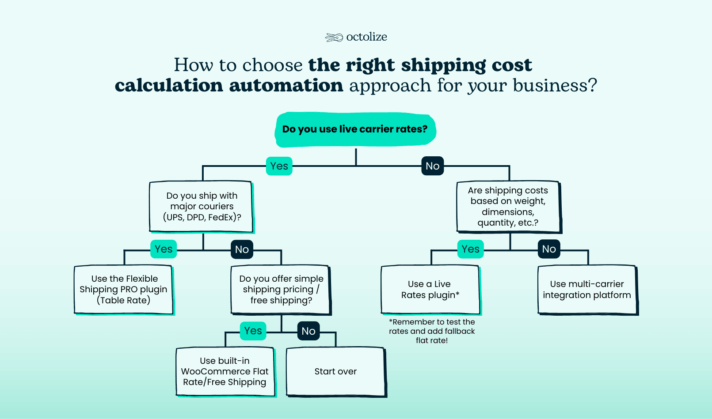
This is what WooCommerce shipping cost calculation automation looks like in theory. In fact, reality is usually much more complicated than that. Most online stores need to blend various approaches to ensure full functionality.
For example, you can combine carrier Live Rates with Table Rate rules to add surcharges/discounts or hide services based on size/weight constraints.
If you offer simple pricing, there is no need to get any plugins or integrations. Standard WooCommerce methods allow you to configure basic settings, such as:
Those functions can solve the needs of small stores with an uncomplicated product range.
This free Table Rate plugin allows you to add extra conditions on top of the standard WooCommerce ones. You can configure your shipping rates based on price and weight, gaining more flexibility.

The best Table Rate Shipping for WooCommerce. Period. Create shipping rules based on weight, order totals, or item count.
Go to WordPress.org or Download for freeFlexible Shipping PRO further extends the possibilities of Flexible Shipping with more conditions, such as:
You can also build upon the Flexible Shipping PRO plugin with special add-ons, such as:
The best Table Rate Shipping for WooCommerce. Period. Create shipping rules based on weight, order totals, or item count.
View Details or Add to cartLive Rates plugins connect your store with live carrier rates from the providers you collaborate with through API. This way, your customers will see accurate shipping rates displayed at checkout without needing to be manually set up.
Pro tip: Remember to add a fallback flat rate for every carrier rate. It will prevent the pricing structure from breaking in case of an unlikely error with the API connection.
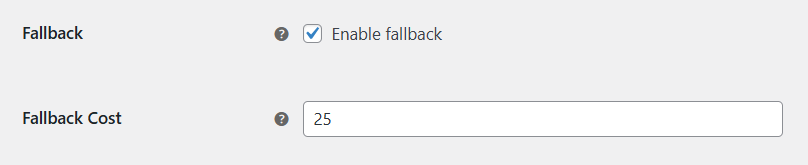
You can choose from major international carriers:
Multi-carrier shipping software (MCS) is the best solution for large stores, manufacturers, retailers, and wholesalers with complex shipping setups and working with multiple carriers, both international and local.
If your online business belongs in this category, a solid MCS can save you hours of operational work and help manage logistics costs effectively.
There are multiple options available, including EasyShip, Shipstation, and Shippo.
First and foremost, make sure your WooCommerce store is compatible with the latest updates. Failure to keep it up-to-date could impact the work of extensions and plugins, not to mention the functionality of the whole store for your customers.
Secondly, we recommend always testing any changes you are about to make in a staging environment. Go live with your configuration only when you’re 100% sure it won’t break anything in your store.
Lastly, a backup is always useful, even while testing in a staging environment. It will act as an additional layer of security, allowing you to restore your previous settings with a few clicks.
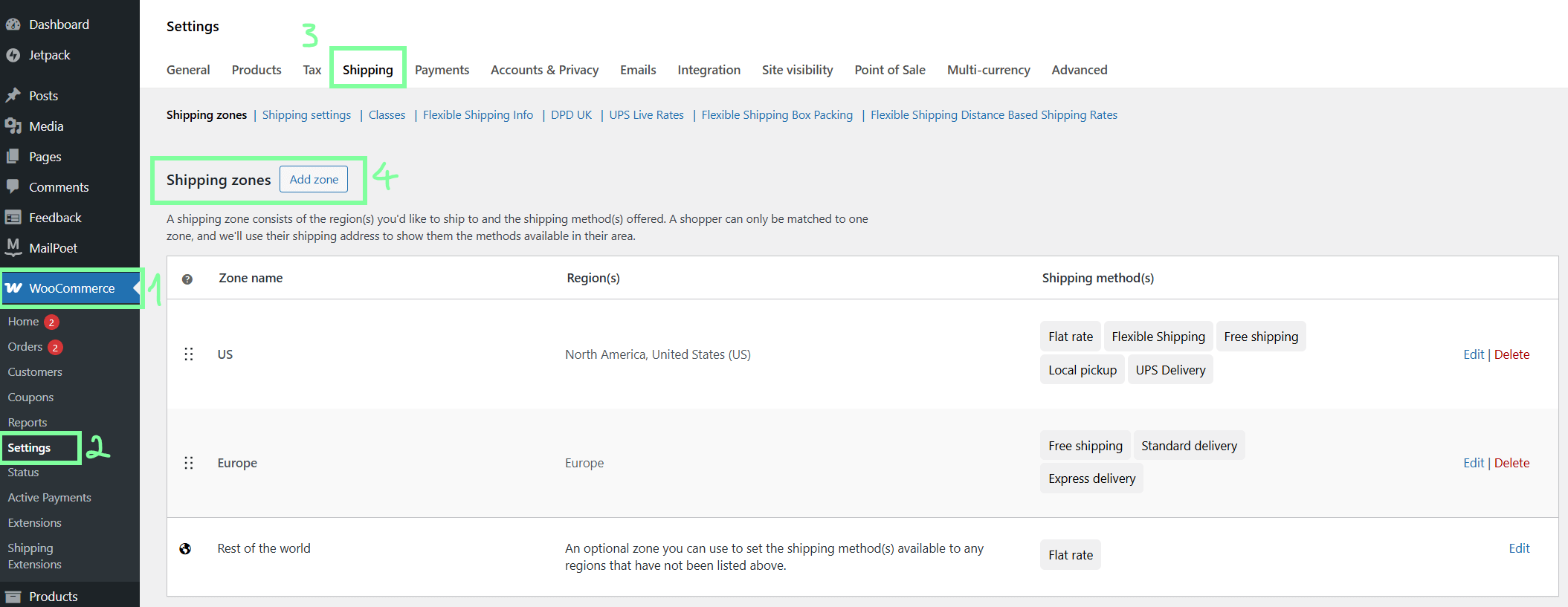
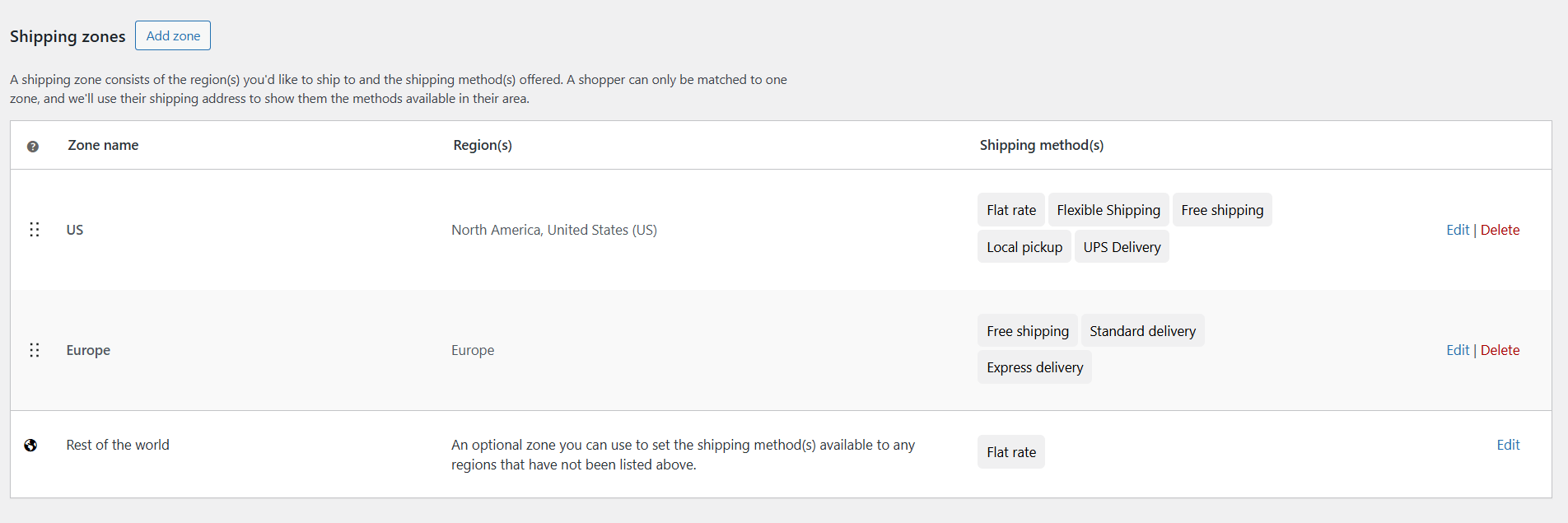
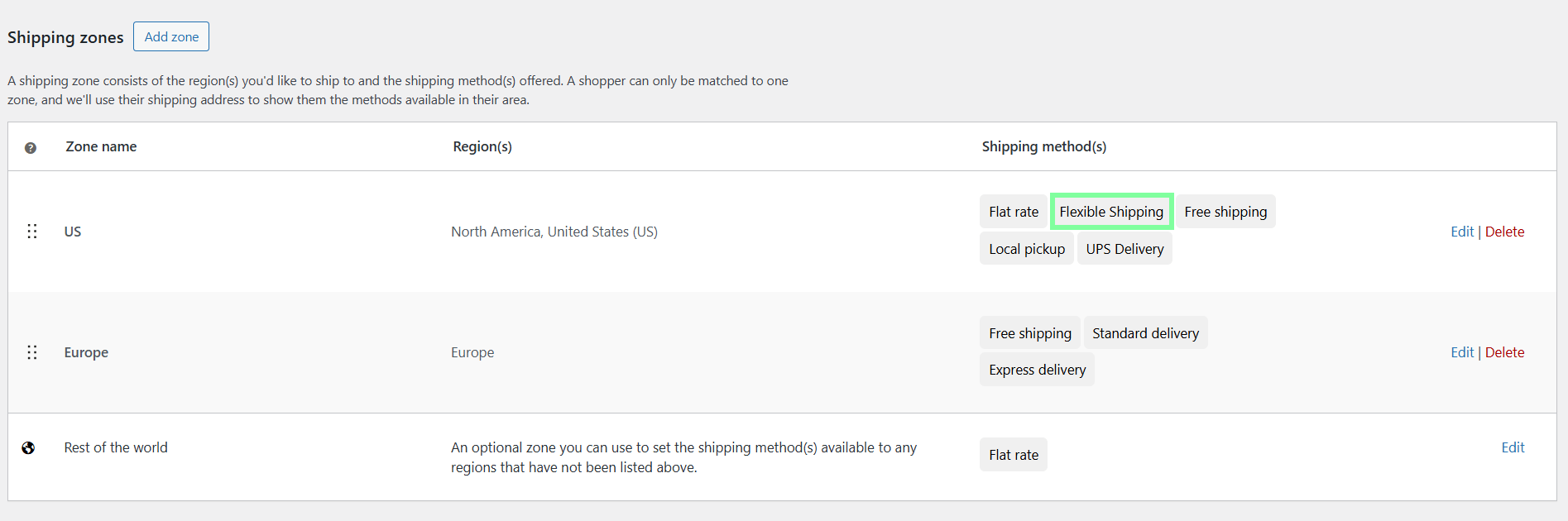
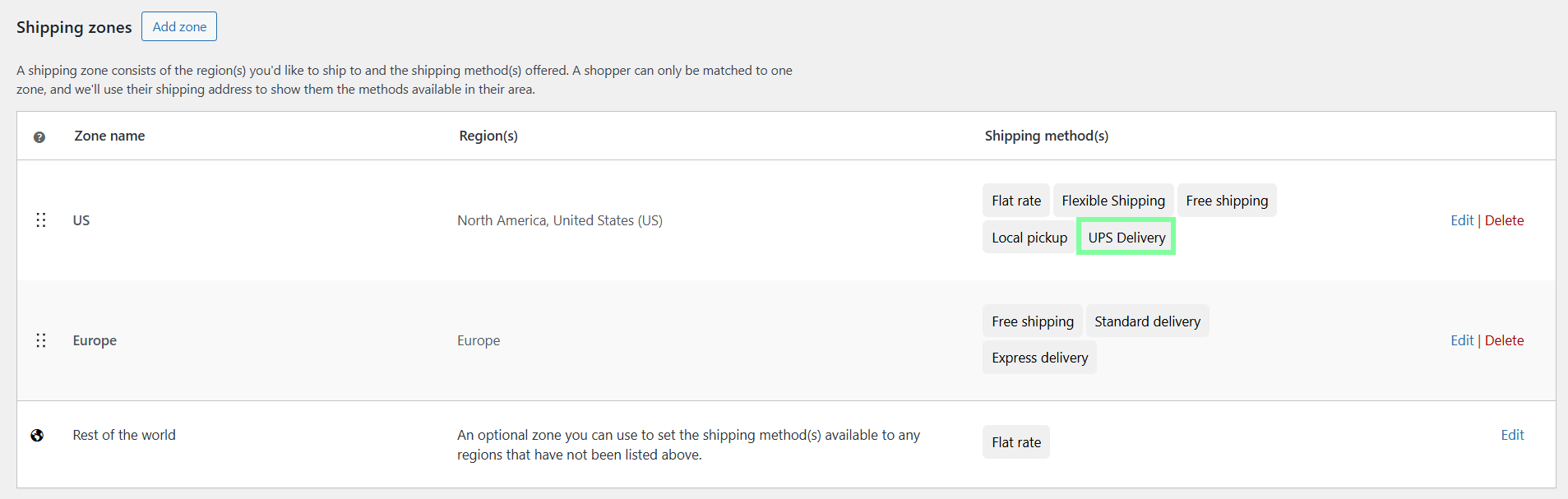
Examples you can replicate:
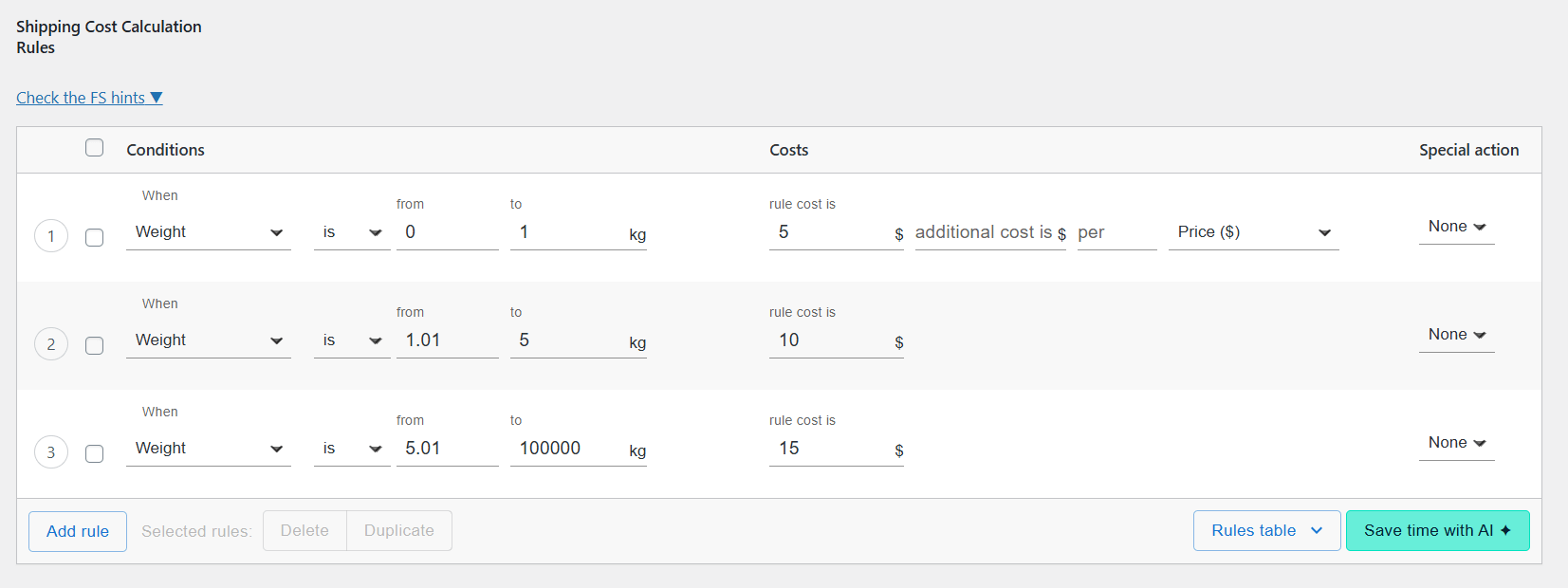
1. Weight-based tiers (table rates)
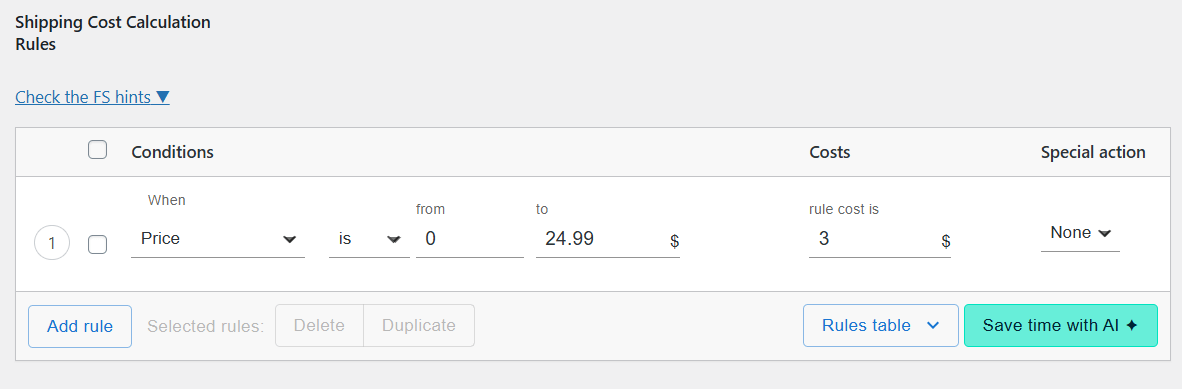
2. Cart total thresholds
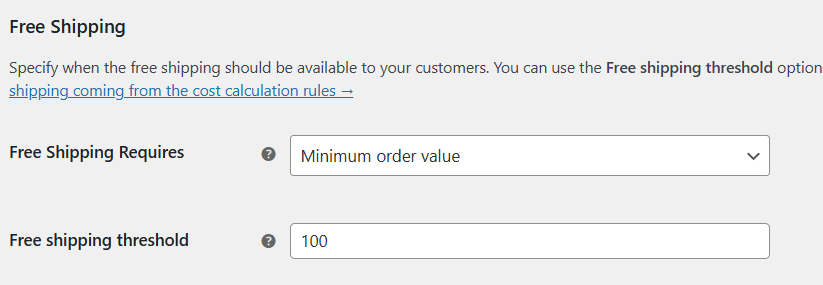
3. Shipping class surcharge (Fragile/Heavy) – PRO
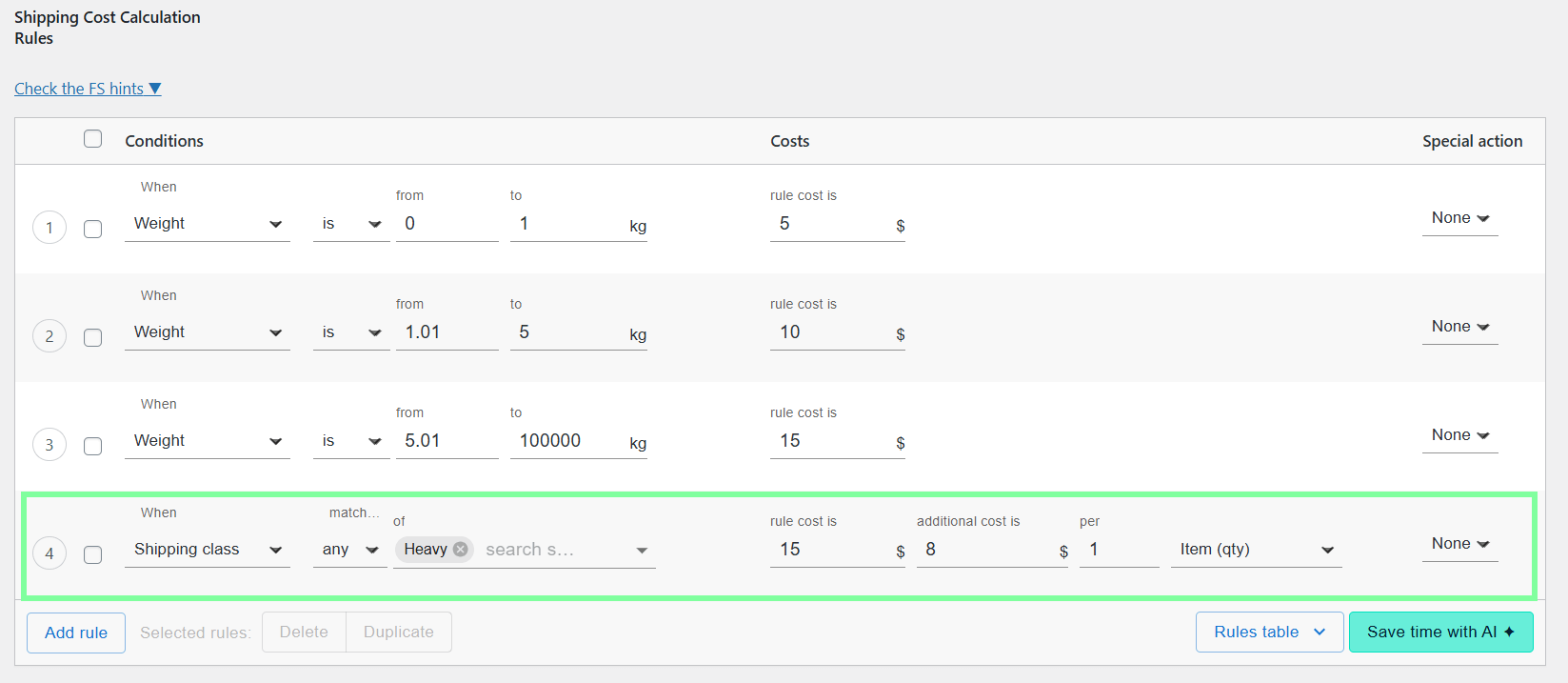
4. Dimensions and oversize control (PRO)
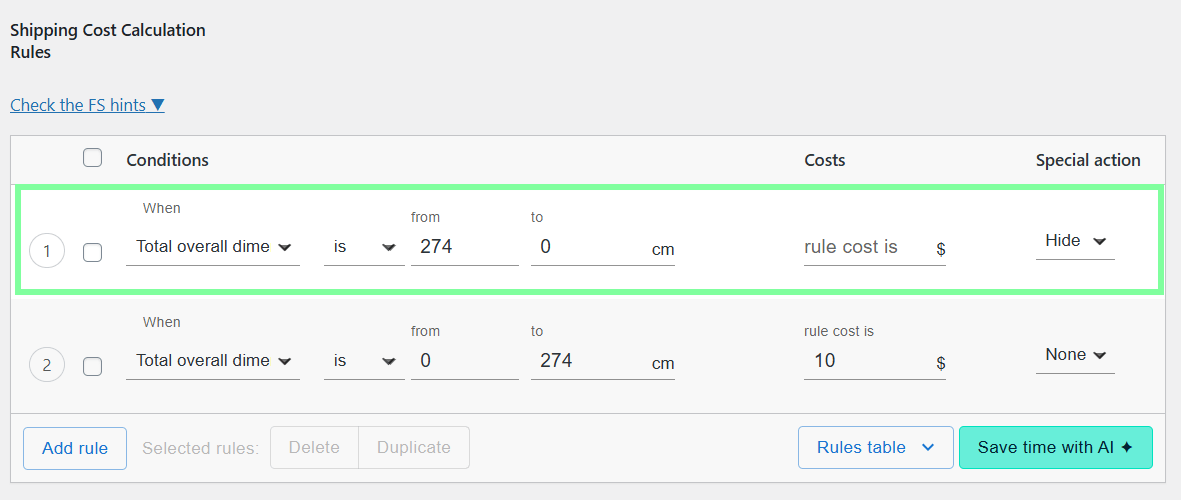
5. Distance-based pricing (local delivery) – add-on recommended
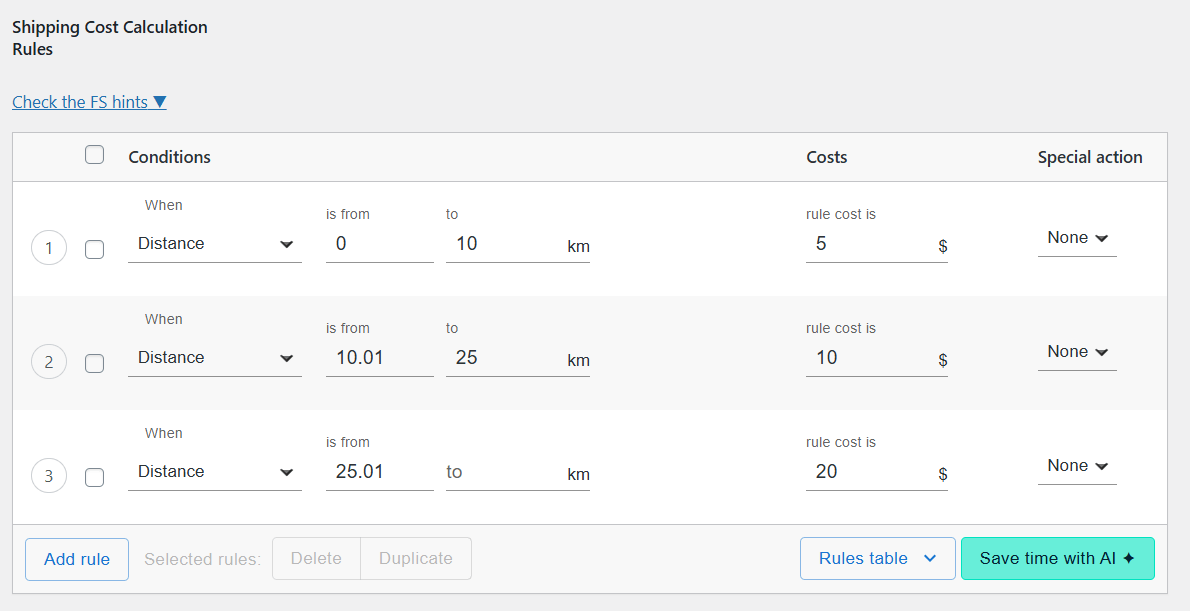
It is much easier and faster to do it using the Distance Based Rules plugin rather than manually configuring the shipping zones.

Configure shipping costs accurately based on the delivery distance and time.
View Details or Add to cart6. Mix-and-match control (Stop/Hide actions in PRO)
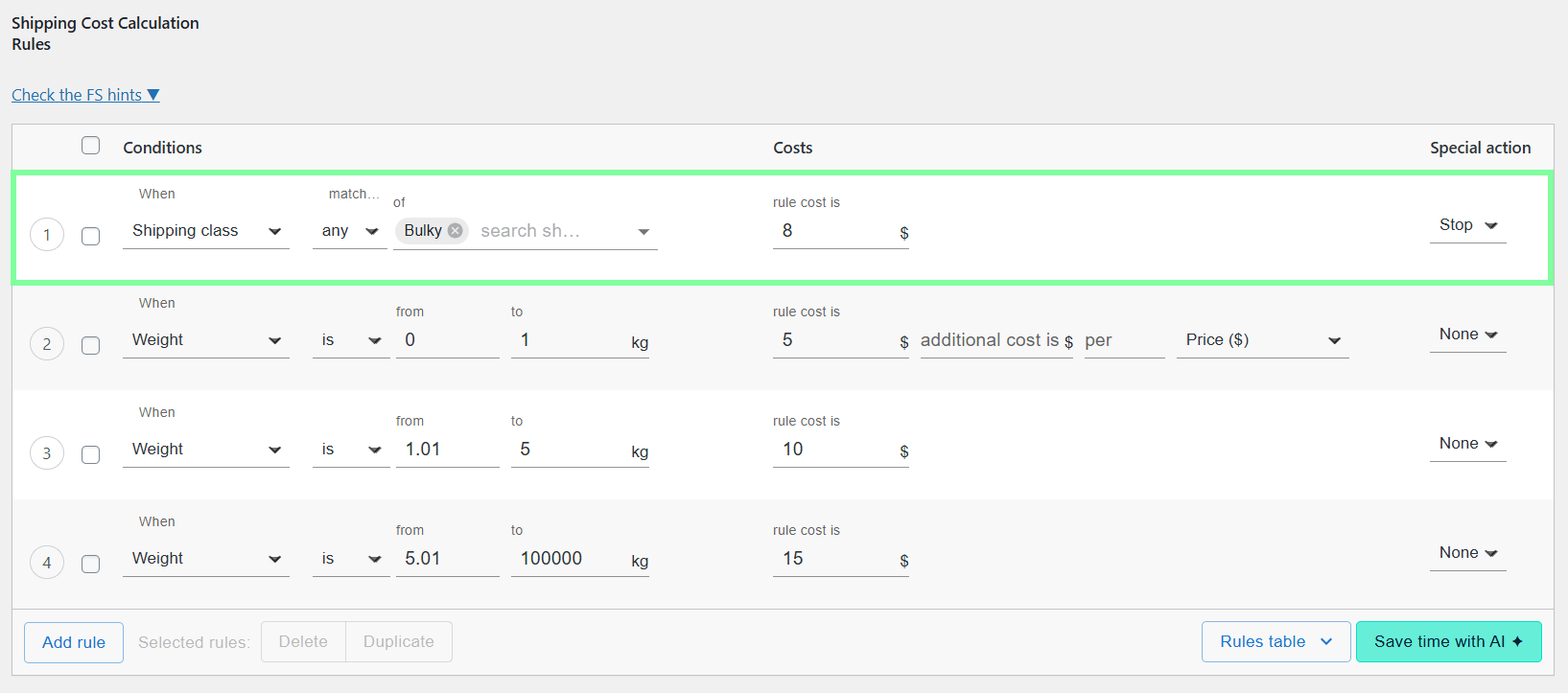
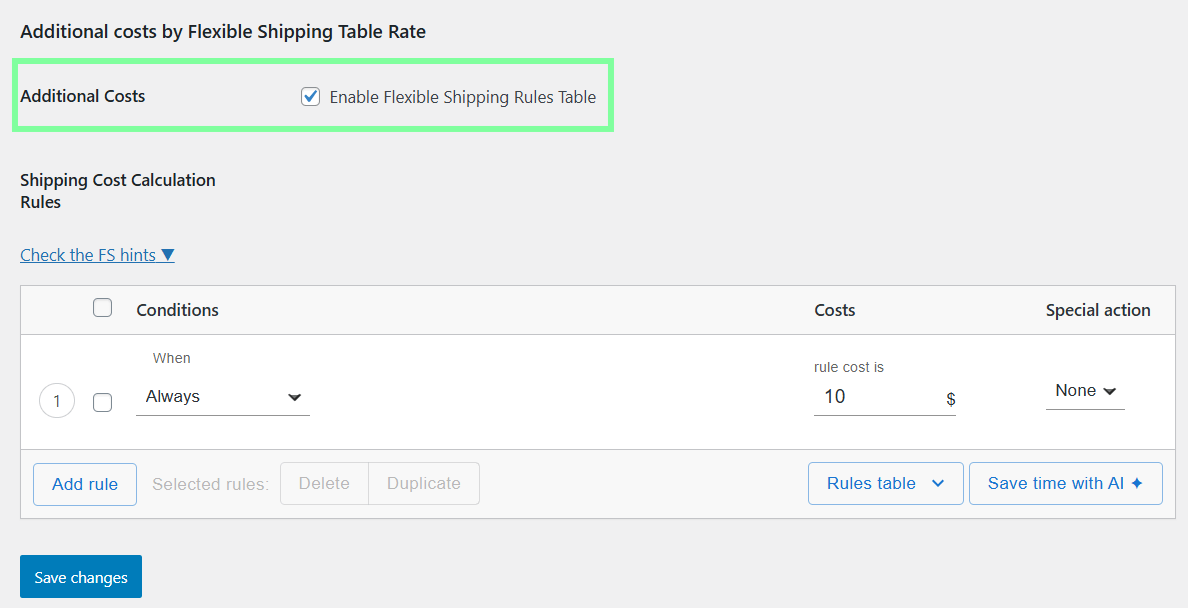
Ambiguity and hidden shipping costs kill conversions. 58% of online shoppers quote high delivery costs as their main frustration. Be honest with your customers from start to finish to build their trust in your brand and encourage them to complete a purchase.
One way you can keep your customers informed throughout the buying process is to display shipping costs right on the product page. You can do it with the Shipping Cost on Product Page PRO plugin.

Display the shipping cost right on the product page based on the shipping address and products in cart.
View Details or Add to cartShipping cost calculation automation doesn’t end at setup. You need to keep an eye on the configuration, making sure it’s working properly, and adjust it accordingly to your store’s ever-changing needs. You should:
A lot depends on the plugin or software you choose for your shipping cost calculation automation. If you use one that doesn’t fulfil all your requirements or isn’t reliable, you can still expose your store to potential malfunctions and create extra manual work for yourself or your employees.
When selecting a solution, pay attention to reviews, use cases, and ratings. Join industry groups on Facebook or Reddit to see what people are saying about the tool you’re considering.
If you decide to go with a WooCommerce plugin, pay attention to its maintenance. Review log files and verify if it’s compatible with the latest version of WordPress. Stay away from nulled versions of plugins – even though their prices may be tempting, they can never guarantee full security and the level of support you will receive directly from the provider.
At Octolize, it is our top priority to keep all our plugins up to date and solve any issues our users communicate. If you decide our products don’t meet your expectations, we offer a 30-day money-back guarantee.
Shipping cost calculation automation in WooCommerce improves customer satisfaction, reduces abandoned carts, and helps you save money and time. Once you learn key concepts that serve as building blocks for WooCommerce shipping configuration, you will be able to set up the right automation for your business.
Select the appropriate approach considering your store’s needs and choose solutions that will allow you to reach your shipping goals. Most likely, you will need a hybrid approach to ensure full coverage of your requirements. Once your automation is in place, make sure to review it regularly and fine-tune it to keep it working smoothly.
If you have any questions regarding Octolize products or the configuration itself, don’t hesitate to contact our support team – they will be happy to help you solve your issues.
Automating shipping cost calculations means configuring WooCommerce to automatically calculate shipping fees at checkout based on predefined rules, such as destination, weight, dimensions, cart value, or real-time carrier rates. Setting it up once doesn’t require manual input afterwards, but it is good to check regularly if the rates are displayed correctly.
Start by clearly defining your shipping zones and understanding your pricing logic. Then choose the simplest solution that meets your needs (flat rate, Table Rate, or live carrier integration) and expand from there.
Yes. WooCommerce includes basic shipping features, including flat rate, free shipping, and local pickup. It also provides a shipping calculator on the cart page, but advanced automation (such as Table Rate or live carrier rates) usually requires additional plugins, eg, Flexible Shipping.
Yes. WooCommerce allows you to offer free shipping based on conditions such as minimum cart value, coupons, or specific shipping zones. These rules can be fully automated.
Yes. You can create separate shipping zones for international regions and apply live carrier rates, Table Rate rules, or flat rates. Customs fees and duties; however, usually need to be handled separately.
Yes. Rules can add fees, offer free shipping at thresholds, or hide services when conditions are met. Always test scenarios to ensure the desired options appear.
Basic flat and Table Rate calculations are very fast. Live carrier rates may add slight latency due to a direct API connection, but it can be mitigated with caching and fallback methods.
Use a staging environment and place test orders with different weights, destinations, and cart values. Always test edge cases like large orders, international shipping, and free shipping thresholds.
We recommend reviewing shipping rules monthly or whenever carrier pricing changes, new products are added, or packaging sizes change.
Absolutely. Even small stores benefit from automation by reducing errors and saving time. Many stores start with flat rates and upgrade to more advanced automation as they grow.

Lucyna Polok is an SEO and content specialist passionate about crafting effective strategies and creating engaging content. She has worked across a variety of industries, both in-house and as a freelancer. A strong believer in the power of storytelling, she believes that good content not only delivers business results, but also resonates with customers through an emotional connection with a brand.
At Octolize, she is responsible for aligning the content strategy with business goals and increasing visibility, trust, and authority of the brand via data-based SEO efforts. On the blog, she focuses mostly on topics for those only beginning their adventure with e-commerce, explaining scenarios and terms in an approachable way.





The Neurodivergence Project uses the ocean and the natural world to empower neurodivergent people to build confidence, lasting friendships and help them achieve their goals.

Dominican Liturgical Center is based in Cracow and focused on promoting the learning of traditional music and singing. They also run a smaller publishing house and a webshop that is focused on selling mainly books and CDs.

Established in 2017. SGL is focused on selling gas bottles and non-gas products. Formerly, the company offered payment by card on delivery. For now, the SGL started online payments and they launched a webstore.
 Pickup Points