
- Home
- WooCommerce
- What plugin are you looking for?
- Shopify
- What Do I Need?
- About us
- Blog
- Docs
- Contact us
- What can we help you with?

Until now, if a customer couldn’t complete checkout because no shipping rate appeared, you had no way to know it happened. Shopify Checkouts with No Rates log changes that. Every failure is recorded, explained, and queryable – so you can fix it before the next customer hits the same wall.
| What it is | Checkouts with No Rates log is a log inside Octolize Shipping Rates Rules & Zones that records every checkout where no shipping rate was returned |
| What it shows | Reason, country, region, postal code, city, zone matched, occurrence count, last occurred |
| Reason categories | No rates returned · No zone matched · No zone for country |
| Sidekick compatible | Yes, query the log data via Shopify Sidekick using natural language |
| Who it’s for | Any Shopify merchant using the Octolize Shipping Rates Rules & Zones app |
Shopify has no native way to tell you when a checkout session ended with no shipping options. The customer arrived at checkout, saw “No shipping options available,” and left without any trace. No notification, no log entry, and absolutely no way to know it happened, let alone why. For most merchants, the only way to discover this problem was reactive: a customer emails support, or conversion analytics show a dip that you can’t explain. By then, the same issue may have caused dozens of failed checkouts.
The Checkouts with no rates feature in the Octolize Shipping Rates Rules & Zones app closes that gap. It sits between your rate configuration and your customers’ checkout sessions, recording every instance where the app was asked for a rate and returned nothing. Each entry includes the reason it happened and the address details involved, giving you the context to diagnose and fix the issue.
The log records every checkout session where the Octolize app returned no shipping rate, with eight data points per entry: Reason, Country, Region, Postal code, City, Zone, Count, and Last occurred.
Here’s what each column tells you:
| Column | What it contains | How to use it |
|---|---|---|
| Reason | Why no rate was returned | The fastest way to categorise the problem |
| Country | Customer’s delivery country | Check whether this country is in a zone |
| Region | State, county, or province | Useful for region-restricted zones |
| Postal code | Customer’s postcode or ZIP | Critical for postcode-zone debugging |
| City | Customer’s city | Additional geographic context |
| Zone | Which zone (if any) was matched | Shows whether the problem is pre-zone or post-zone |
| Count | How many times this issue occurred | Prioritise fixes by frequency |
| Last occurred | Timestamp of the most recent occurrence | Identify when the problem started |
The Reason column uses standardised labels that map directly to the cause of the failure:
These three categories cover the full range of no-rate scenarios that the app can detect. The distinction between them matters because each points to a different place in your configuration to fix.
The most effective way to use the Checkouts with no rates log is to treat it as a weekly audit rather than a reactive support tool. Check it regularly, sort by Count to prioritise the most frequent issues, and work through them one zone at a time.
Step 1: See. Open the log in the Octolize app. You’ll find it in the app’s navigation. Sort by Count (descending) to see the most frequent failures first — these are your highest-priority fixes.
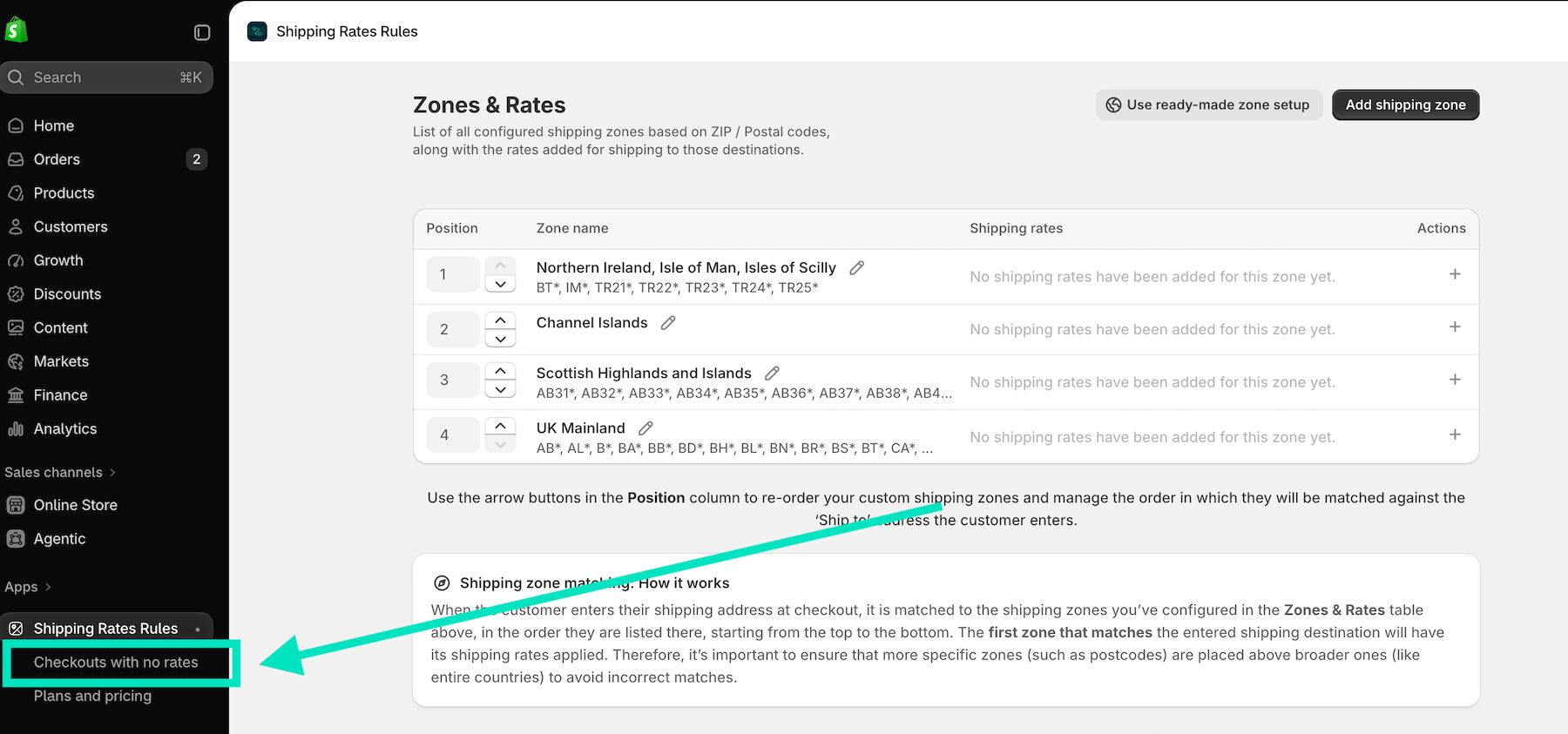
Step 2: Diagnose. For each entry, read the Reason column first. Then look at Country and Postal code together.
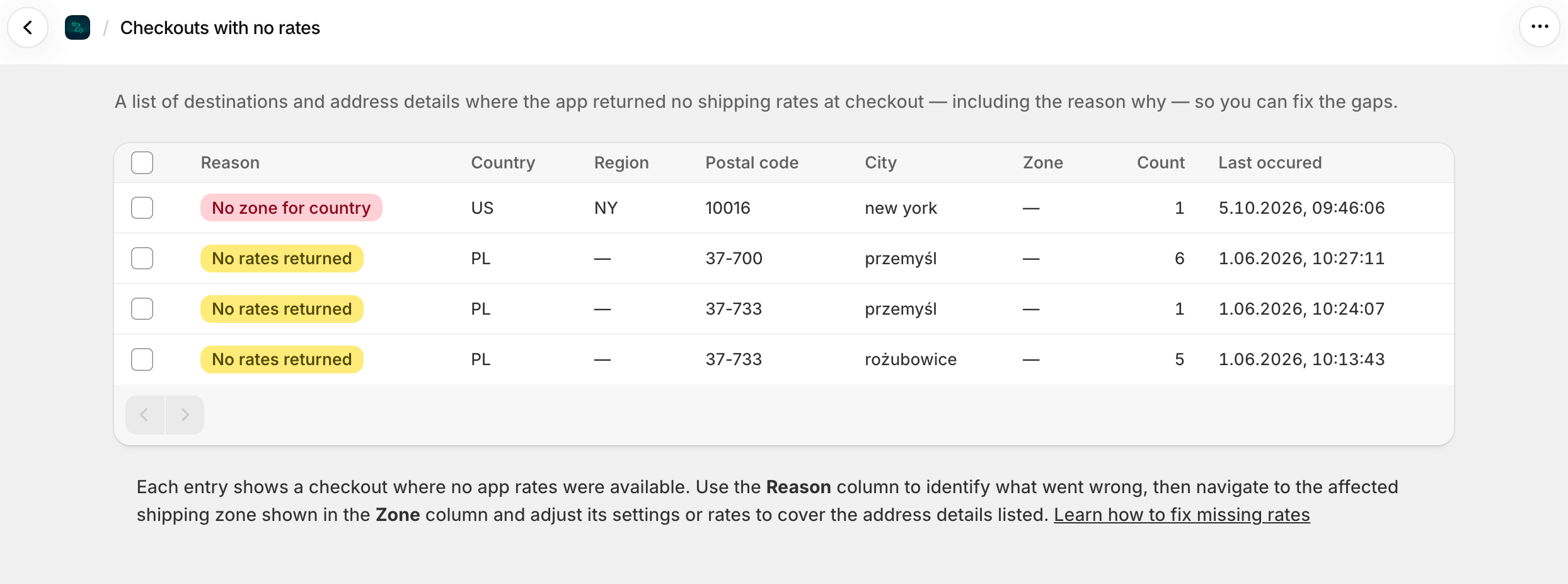
Step 3: Fix. Make the necessary changes: add a zone, extend a postcode range, close a rule gap, or add a rate. Save.
Step 4: Confirm. Check the log again after 24-48 hours. If the same Country/Postal code combination no longer appears, the fix worked. If it does, the issue is more specific. Then, look at the Postal code more carefully or test a live checkout from that address.

Hands down the most advanced shipping app I’ve found on Shopify. It allows you to set up shipping rates using complex conditional logic, yet the setup remains incredibly clear and easy to understand. On top of that, the support team is amazing, in my case, they actually went ahead and added a new feature within just 24 hours to ensure my shipping rates were accurate. Highly recommended!
— Store owner from New Zealand, via Shopify App Store review
The log supports filtering by Reason and Zone, making it straightforward to focus on one category of problem at a time. For example: filter by “No zone for country” to get a complete list of uncovered destinations, then address them all at once by adding the relevant zones.
Sorting by Last occurred is useful when investigating a recent change — if you updated your shipping configuration yesterday and new failures appeared today, sorting by Last occurred surfaces them immediately.
From the Zone column, you can click directly through to the relevant zone’s rate configuration inside the app. This eliminates the need to navigate back through the app manually.
The data in the Checkouts with no rates log is also queryable via Shopify Sidekick (Shopify’s built-in AI assistant) using plain English questions. This means you can interrogate the log without opening it.
Sidekick is available in your Shopify Admin via the chat icon in the top navigation. Once you’re there, you can ask questions like:
Getting an overview:
Prioritising by frequency:
Drilling into specific causes:
Searching by address:
Navigating the log:
This Sidekick compatibility reflects the app’s alignment with Shopify’s AI ecosystem. For merchants who prefer asking to clicking, or who want a quick summary of the log’s contents without sorting through rows, Sidekick provides a natural-language interface to the same data.
A checkout that shows no shipping rate is probably the hardest kind of lost sale to win back. When a customer sees a shipping price they consider too high, at least they get to make a call on it. When nothing shows up at all, there is nothing for them to call. The page simply stops being useful, and they go somewhere else. Most of these failures are small configuration oversights that are easy to make and easy to fix, but only if you know they’re there.
The scale here is bigger than most store owners expect. Forrester estimates that US ecommerce loses about $18 billion a year to shipping-related cart abandonment. That figure covers only the shipping slice of abandonment, not every reason people walk away. The awkward thing about a no-rate failure is that price never enters the conversation. The shopper does not reach the point of weighing cost against anything. They see no option available, assume the store cannot ship to them, and close the tab.
Checkouts with No Rates log is a working audit tool for a problem Shopify’s own admin has never surfaced, one that has been costing merchants orders since the day they first set shipping up. And the potential upside is sizeable: Baymard calculates that roughly $260 billion in lost orders across the US and EU could be recovered with better checkout design, a number Shopify quotes in its own cart abandonment guide. A share of that money is sitting in your own log, in the rows nobody (probably) has looked at yet.
It’s a log inside the Octolize Shipping Rates Rules & Zones Shopify app that records every checkout session where the app returned no shipping rate. Each entry shows the reason for the failure, the customer’s address details, which zone was matched (if any), how many times the issue occurred, and when it last happened.
No. Shopify Admin has no built-in report or log of checkouts where no shipping options were returned. The Checkouts with no rates screen is specific to the Octolize app.
“No rates returned” means a zone matched but none of its rates applied to the cart, typically a rule range gap. Message: “No zone matched” means the customer’s address didn’t match any zone, often a postcode exclusion. “No zone for country” means the customer’s country has no zone configured at all.
The log data is easily accessible via Shopify Sidekick (Shopify’s built-in AI assistant in your Admin) using plain English prompts. You can ask for summaries by reason, lists by country, or specific postcode lookups without opening the log directly.
At minimum, once a week or immediately after any change to your shipping zone or rate configuration. Sorting by Count on each visit shows you the highest-frequency issues first. Any entry with a Count above 5 is worth fixing the same day you see it.
When a checkout returns no shipping rates, Shopify doesn’t say a word. The customer walks away, and you’re left with nothing. Not even a record that it happened.
The Checkouts with No Rates screen changes that. Every failure is logged with the reason, the customer’s address, and a count of how many times it occurred. The three reason categories point to a specific part of your configuration. Find the entry, read the reason, go to the zone and fix it. Most issues take a few minutes to resolve. The ones you don’t get to keep blocking orders from the same addresses.

Content Writer at Octolize
Bartosz Gajewski is a content and marketing specialist with a solid background in SEO, WordPress content strategy, and technical documentation for digital products. With years of hands-on experience in both in-house and freelance roles, he supports tech companies – especially in the SaaS and e-commerce space – by creating content that informs, engages, and drives results.
His approach blends storytelling with data-driven SEO, and he’s been involved in projects ranging from rebranding and product marketing to growth experiments and copywriting for complex software tools. On the blog, he shares actionable insights from his work across marketing teams, product documentation, and online store optimization.




Learn how Octolize helped Kurzgesagt, the online shop behind one of YouTube’s most popular science channels, set up conditional courier rules using the Shopify Shipping Rates Rules & Zones app.

Learn how Octolize solutions helped WooCommerce store based in the United Kingdom set up shipping scenarios.
Learn how Octolize helped Shopify store based in the USA set up distance based rates with a usage of Octolize Distance Based Rates.
 Pickup Points